10
Printing on the CD-R/DVD-R
1
11
1
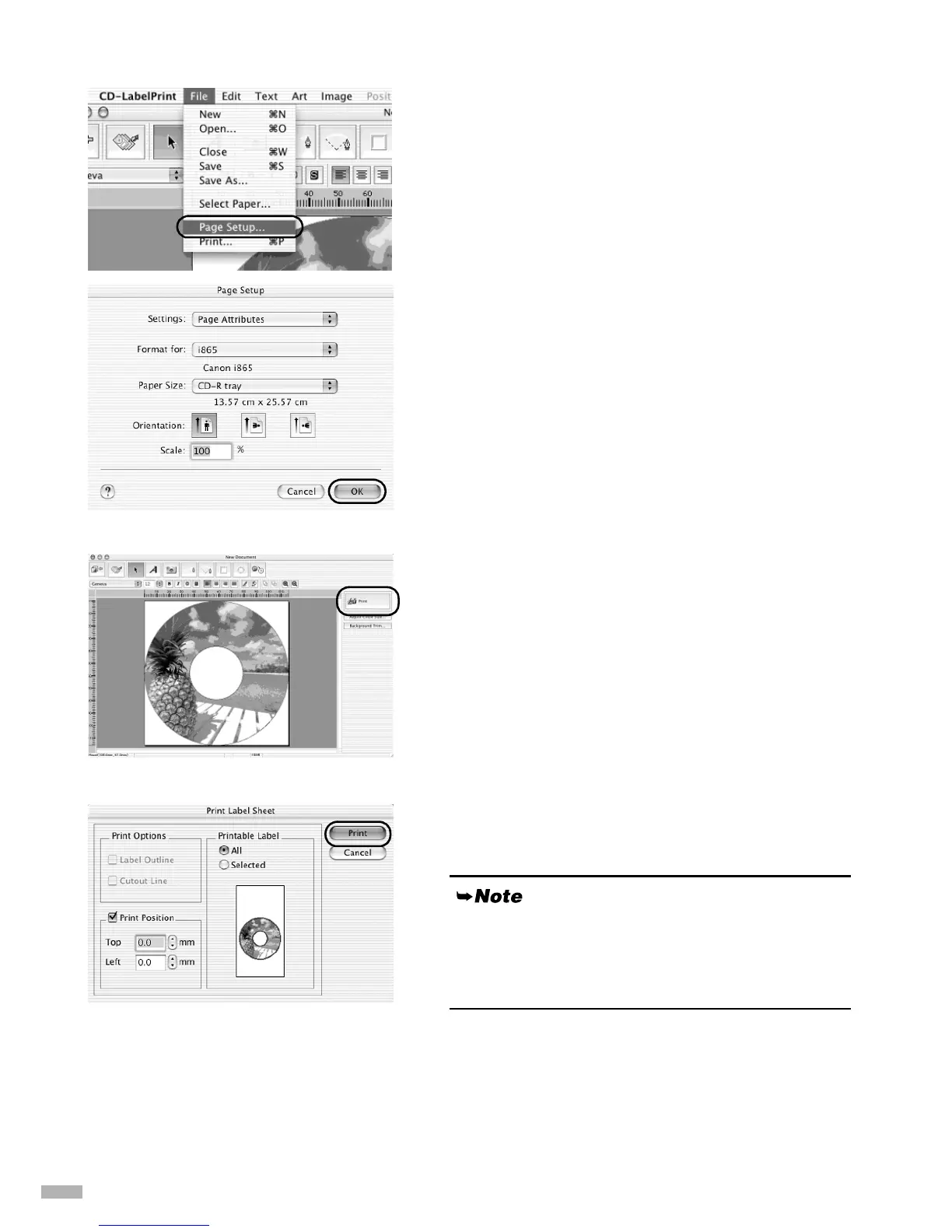
Select Page Setup… in the File menu.
The Page Setup dialog box opens.
2
22
2
Specify the required settings.
Format for : Select the printer
connected to your printer.
Paper Size : Select CD-R tray.
Orientation : Select the portrait icon.
Scale : Enter 100%.
3
33
3
Click OK.
4
44
4
Click Print.
The
Print Label Sheet
edit box opens.
5
55
5
Confirm the changes you made, then
click Print.
6
66
6
When the confirmation message
appears, click OK.
The
Print
dialog box opens.
The following dialog box shows the print image of
the CD-R tray (rectangle) and the CD-R (circles).
The leading edge of the CD-R tray is at the bottom
of the image.


 To Next Page