EasyManua.ls Logo

Canon CP-220 - User Manual

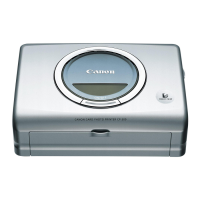
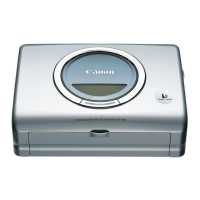
Canon CP-220
64 pages
Print Icon
To Next Page IconTo Next Page
Loading...
1
Compact Photo Printer CP-330/CP-220
Printer Driver
User Guide
Macintosh

Other manuals for Canon CP-220

Questions and Answers

  • A
    Ann DuffyAug 12, 2025
    Why does my Canon Printer not print?
    • N
      nmitchellAug 12, 2025
      Your Canon Printer might not be printing due to several reasons: * The printer is not correctly connected to the camera. Ensure the cable is properly connected. * The camera's batteries are depleted. Replace them with fully charged batteries or plug the camera into a power outlet. * The printer's battery pack is depleted (CP-330 only). Use a fully charged battery pack or the printer's compact power adapter. * The ink cassette is not loaded correctly. Make sure it is properly loaded. * There is too much slack in the ink cassette's ink sheet. Take up the slack. * The paper cassette is not pushed all the way in. Load the paper cassette correctly. * The printer has overheated. Wait for it to cool down.
  • T
    Tammy Duncan MDAug 16, 2025
    What to do if my Canon CP-220 has no power?
    • T
      Timothy CombsAug 16, 2025
      If your Canon Printer has no power, it might be because the compact power adapter or power cord is not correctly connected. Ensure that both the adapter and cord are properly connected and that the power cord is plugged into a standard power outlet.
  • T
    Tyler BassAug 20, 2025
    Why are there frequent paper jams in my Canon CP-220 Printer?
    • F
      Frank BrownAug 20, 2025
      Frequent paper jams in your Canon Printer may occur because: * The paper cassette is overloaded. Do not load more than 18 sheets of paper or more than 12 sheets of wide size paper into the cassette. * The print output receptacle is too full. Do not allow more than 9 sheets to accumulate in the receptacle. * The paper is creased or curled. Avoid using paper that is creased or curled.
  • J
    Jessica KimAug 23, 2025
    What to do if Canon CP-220’s indicator is blinking red?
    • D
      Dustin RodriguezAug 23, 2025
      If the indicator on your Canon Printer is blinking red, it indicates a malfunction. Turn the printer off, and then turn it on again to see if this resolves the issue.
  • C
    Carlos SchneiderAug 27, 2025
    What to do if print quality is not good on my Canon CP-220?
    • A
      alvarezkeithAug 27, 2025
      If the print quality from your Canon Printer is not good, consider the following: * Ensure you are using the designated paper type. * Check that the paper is loaded with the correct side up. * Make sure the ink sheet and paper are clean. * If condensation has formed inside the printer, wait for it to evaporate.
  • M
    Mr. Walter GonzalezAug 31, 2025
    Why are printed images distorted on my Canon CP-220?
    • C
      Crystal PowellAug 31, 2025
      Distorted images from your Canon Printer may be caused by: * Proximity to a TV, video game machine, or other electromagnetic source. Move the printer at least one meter (3.3 ft.) away from such sources. * Proximity to a stereo speaker, large motor, or other strong magnetic source. Move the printer away from these magnetic sources.
  • C
    Courtney FranklinSep 4, 2025
    How to fix faint stripes appearing in prints from Canon Printer?
    • H
      Howard SmithSep 4, 2025
      To fix faint stripes appearing in prints from your Canon Printer, remove the ink cassette. Insert the cleaner stick in the direction of the arrow, with the arrow facing up. Push it in completely and slide it in and out of the printer 2 or 3 times.
  • A
    allison91Sep 7, 2025
    What to do if Canon CP-220 Printer’s indicator lights red without error message?
    • L
      Lisa LawrenceSep 7, 2025
      If your Canon Printer's indicator light is red but there's no error message on the camera's LCD monitor, there may be a malfunction. Remove the paper from the paper-handling slot, take up any slack in the ink sheet, then turn the printer off and on again.

Summary

Safety Precautions

Read This First

About the Manuals

Explains the content and purpose of the user guide and CD-ROM.

Printing Flow Diagram

Installing the Printer Driver

Installing

Step-by-step instructions for installing the printer driver software.

With Mac OS X

Instructions for installing the printer driver on Mac OS X.

Uninstalling

With Mac OS X

Instructions for uninstalling the printer driver on Mac OS X.

Turning On the Printer

Connecting the Printer to Your Computer

Printing

Printing on Mac OS 9.0 - 9.2

Guides for selecting a printer and starting ImageBrowser on Mac OS 9.0-9.2.

Selecting a Layout Type

Steps to select a layout type for printing on standard or label sheets.

Setting the Printer Driver for Printing

Details on adjusting printer driver settings for printing quality and options.

Printing Duplicate Images on an 8-Label Sheet

Steps to print multiple copies of the same image on an 8-label sheet.

Printing Different Images on an 8-Label Sheet

Instructions for printing a combination of different images on an 8-label sheet.

Merging Images to Print a Panorama

Guide to creating panoramic images by merging multiple images using PhotoStitch.

Printing Part of an Image (Trimming)

How to select and print a portion of an image using the clipping function.

Printing with Image Quality Correction

Utilizing ImageBrowser's Exif 2.2 support for optimizing print quality and clarity.

Printing on Mac OS X

Guides for printing tasks on Mac OS X, covering layout, driver settings, and image correction.

Appendices

About the Print Area and Pixels

Defines the maximum printable area and pixel dimensions for various paper sizes.

Number of Pixels

Details the total and effective number of pixels for different paper types.

Troubleshooting

Error Messages

Canon CP-220 Specifications

General IconGeneral
TypeCompact Photo Printer
Print TechnologyDye-sublimation
Maximum Resolution300 x 300 dpi
ConnectivityUSB 2.0, PictBridge
Power SourceAC Adapter
Paper Sizes4 x 6 inches
Dimensions (W x D x H)7.1 x 5.2 x 2.5 inches
Weight2.2 lbs
Direct PrintingYes

Related product manuals