15
3 Make Fax Settings
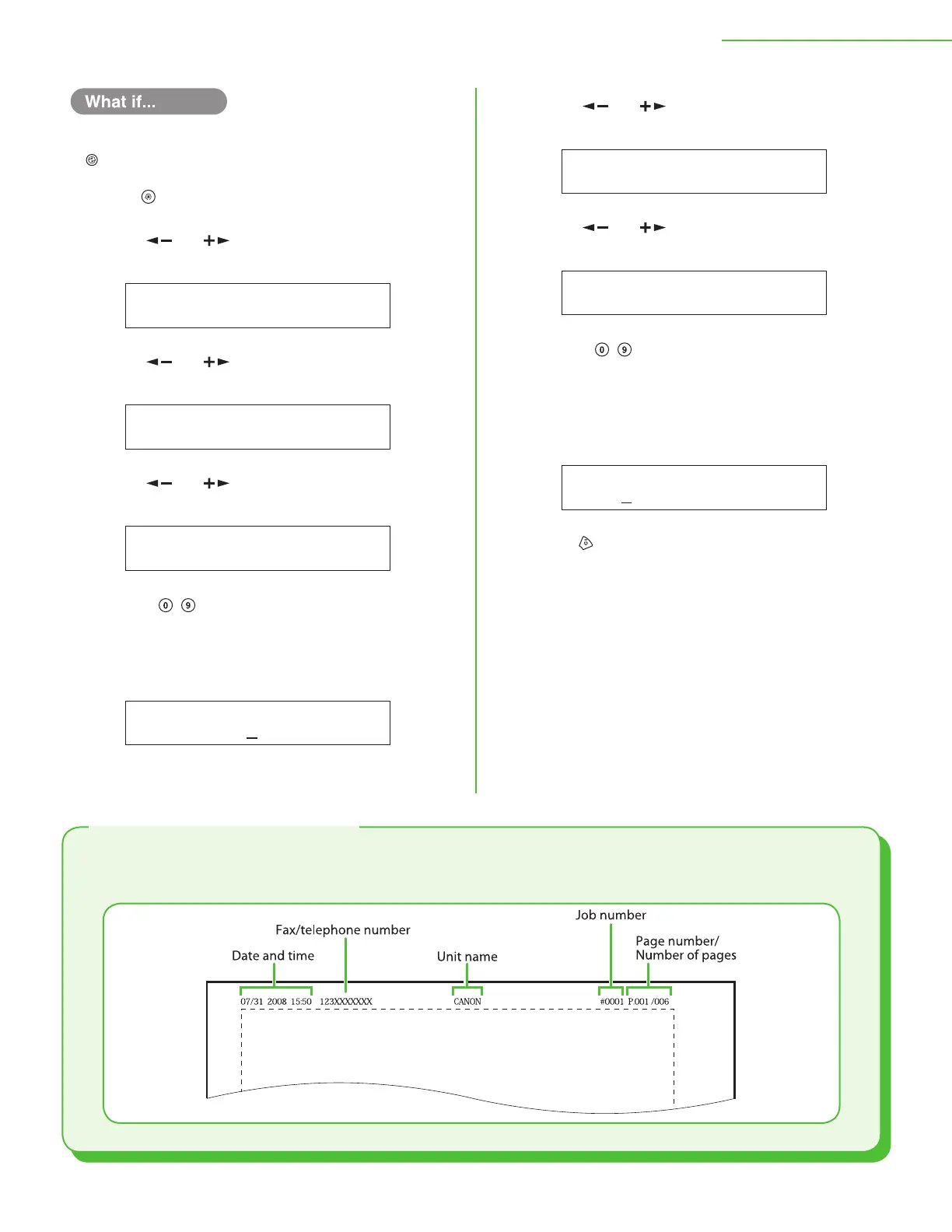
The LCD display turned OFF:
The machine may enter the Sleep mode while you are performing setup. Press
[Energy Saver] to turn the display back ON and continue the setup.
1 Press [Menu].
2 Press [ ] or [ ] to select <5 FAX SETTINGS>,
then press [OK].
5 F A X S E T T I N G S
M E N U
3 Press [ ] or [ ] to select <2 USER
SETTINGS>, then press [OK].
2 U S E R S E T T I N G S
F A X S E T T I N G S
4 Press [ ] or [ ] to select <1 UNIT
TELEPHONE #>, then press [OK].
1 U N I T T E L E P H O N E #
U S E R S E T T I N G S
5 Use the – [numeric keys] to enter your fax
number (up to 20 digits including spaces), then
press [OK]. (For information on how to enter
char
acters, see p. 14.)
U N I T T E L E P H O N E #
1 2 3 X X X X X X X
Ex.
●
6 Press [ ] or [ ] to select <2 USER
SETTINGS>, then press [OK].
2 U S E R S E T T I N G S
F A X S E T T I N G S
7 Press [ ] or [ ] to select <2 UNIT NAME>,
then press [OK].
2 U N I T N A M E
U S E R S E T T I N G S
8 Use the – [numeric keys] to enter the unit
name (up to 32 characters) (your name,
company name, etc.), then press [OK]. (For
information on how to enter characters, see
p
. 14.)
C A N O N
U N I T N A M E
Ex.
9 Press [Stop/Reset] to return to the Standby
mode.
The sender information you register in the machine appears in the header of each page received by your
recipient.
About Sender Information









 To Next Page