Card Reader-C1
3-36
3
Optional Equipment
Checking and Printing Counter Information
You can display and print a list of how much paper was used by each department.
1
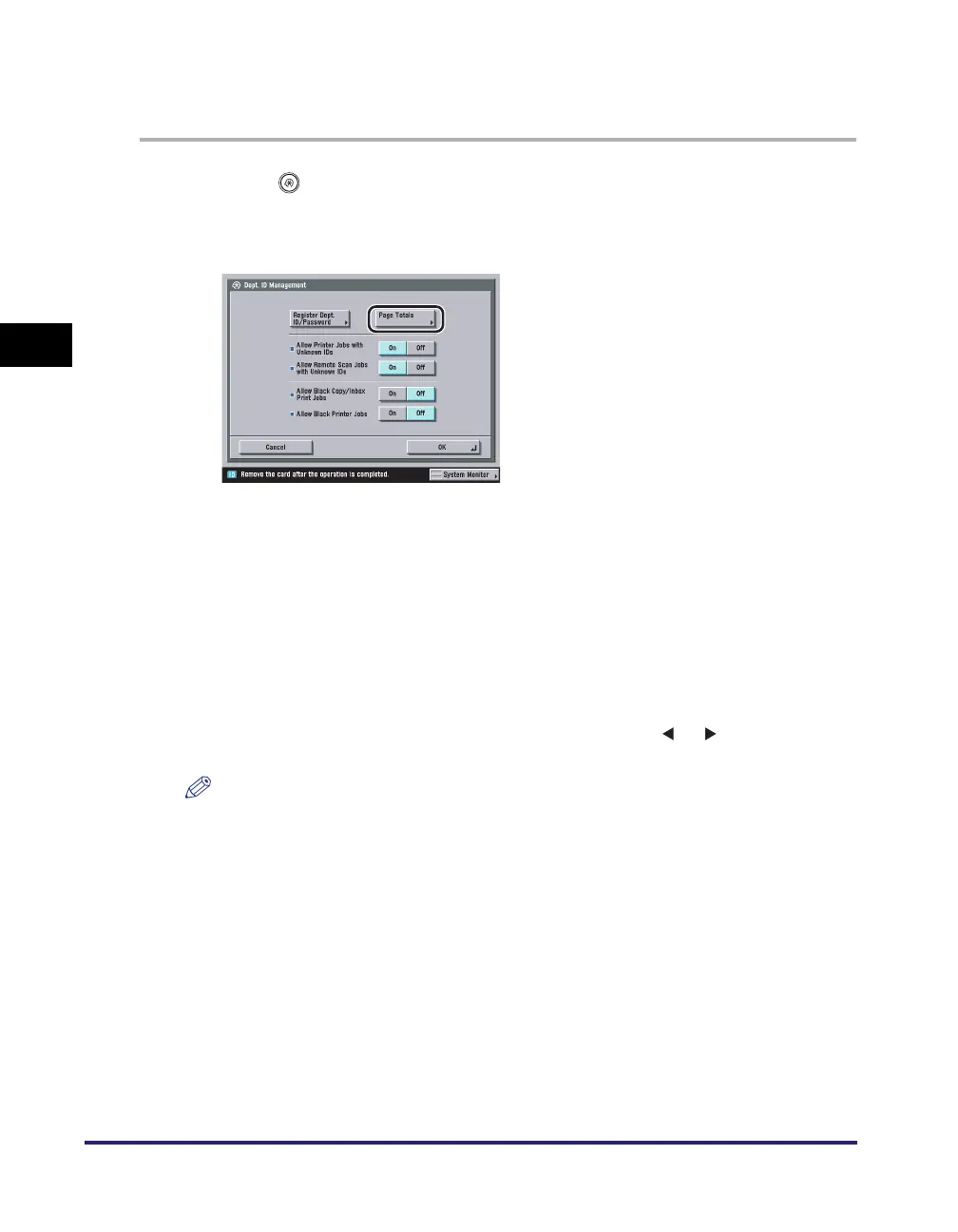
Press ➞ [System Settings] ➞ [Dept. ID Management].
2
Press [Page Totals].
3
Check or print the page total count.
The print page totals that belong to print jobs without a Department ID (left blank) are the
number of prints from computers that do not correspond with a registered Department ID.
These prints are referred to as prints with unknown IDs.
The scan page totals that belong to scan jobs without a Department ID (left blank) are the
number of pages that have been scanned from computers that do not correspond with a
registered Department ID. The scanned pages from computers are referred to as network
scans with unknown IDs.
● If you only want to check the counter information:
❑ Press [▼] or [▲] to display the desired Department ID ➞ press [ ] or [ ] to display and view
the desired page totals.
NOTE
Press and hold down [
▼
] or [
▲
] to quickly and continuously scroll through the available
Department ID pages. Continuous scrolling is useful when a large number of Department IDs are
registered.




 To Next Page