2
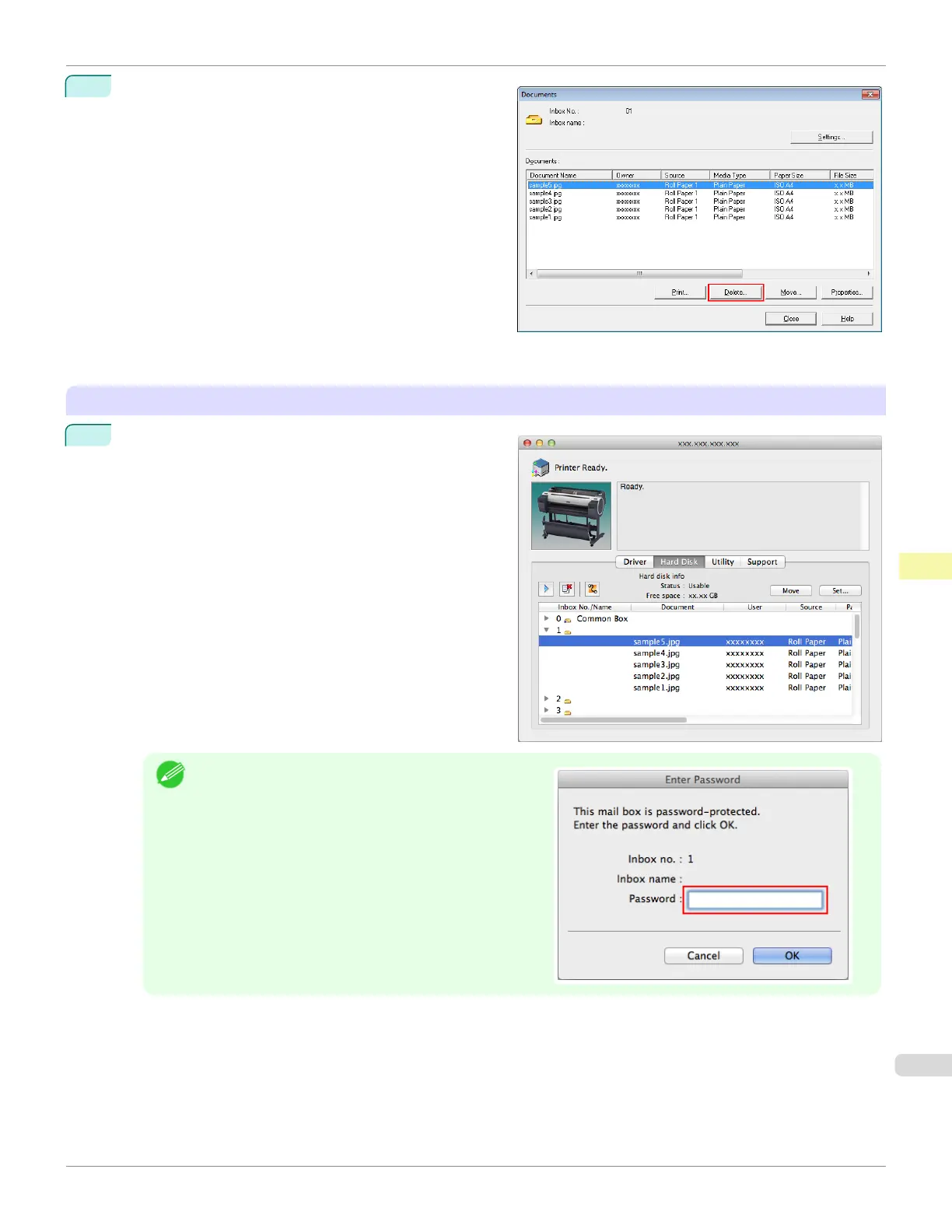
In the Documents dialog box, select the print job and
click Delete.
For details, refer to the imagePROGRAF Status Monitor help file.
Using imagePROGRAF Printmonitor
1
In the Hard Disk pane, click ▶ next to Inbox No./
Name.
Note
•
Enter a password if one has been set.
The password is a four-digit number.
iPF785
Deleting Saved Jobs
User's Guide
Print Job Management Basic Print Job Operations
545













 To Next Page