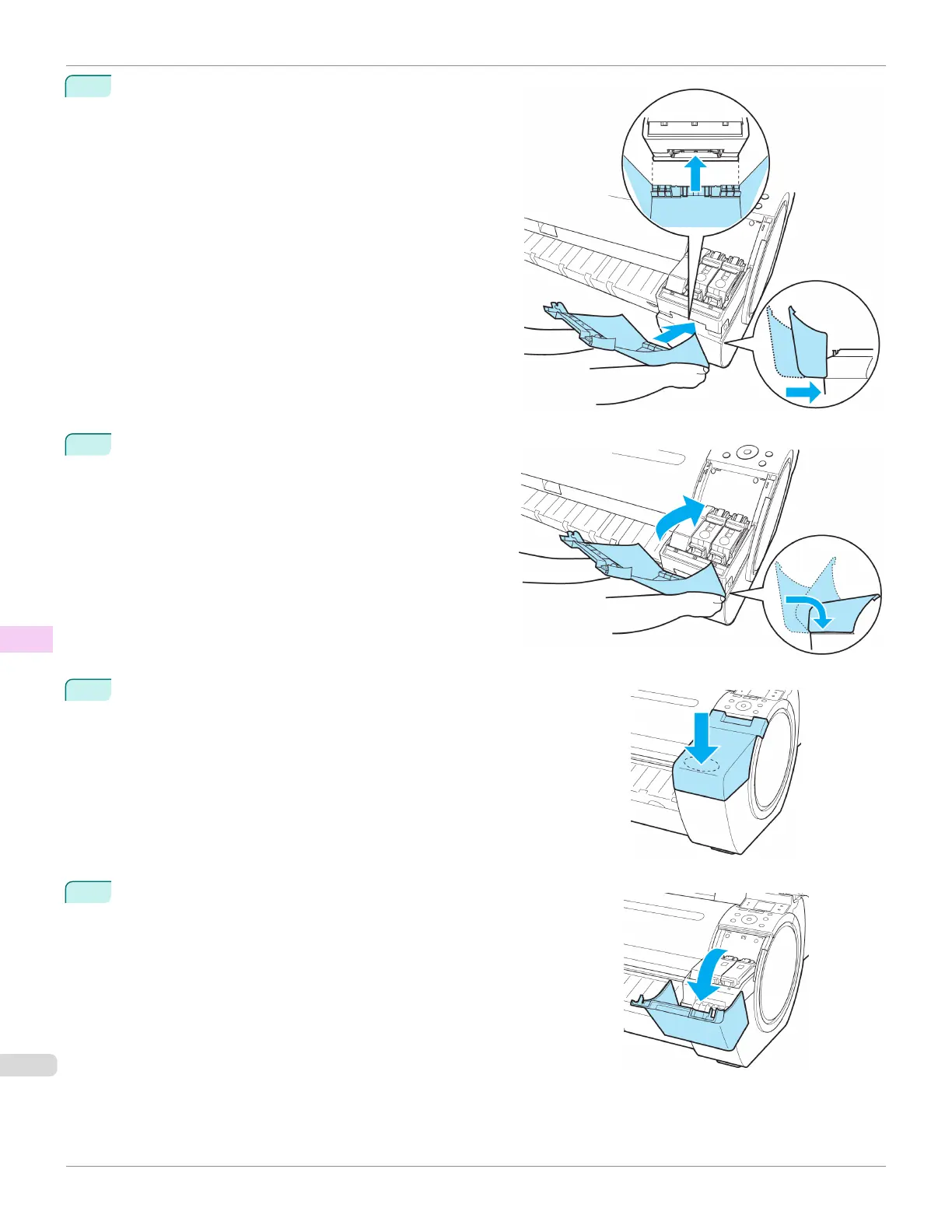
2
Move the Ink Tank Cover horizontally to align the posi-
tion with the printer.
3
Rotate the Ink Tank Cover and place it on the printer.
4
Push down on the near side of the Ink Tank Cover from the top until it
clicks.
5
Open the Ink Tank Cover and check that it is attached to the printer.
Attach the Ink Tank Cover to the printer
iPF785
User's Guide
Maintenance and Consumables Ink Tanks
596













 To Next Page