EasyManua.ls Logo

Canon IRIScan Express 4 - User Manual

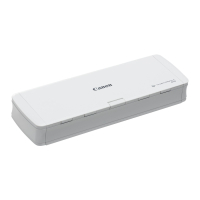
Canon IRIScan Express 4
17 pages
Print Icon
To Next Page IconTo Next Page
Loading...
I.R.I.S. SA/NV
Rue du Bosquet 10
B-1348 Louvain-la-Neuve
P: +32 (0) 10 45 13 64
F: +32 (0) 10 45 34 43
www.irislink.com
Quick User Guide
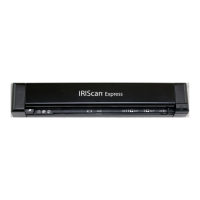
IRIScan
Express
4
Quick User Guide

Questions and Answers

  • G
    Gary HuffJul 28, 2025
    Why is my Canon IRIScan Express 4 Scanner producing images that are too dark?
    • M
      Mary JacksonJul 28, 2025
      Why is my Canon Scanner producing images that are too dark? You may need to adjust your screen settings to SRGB. Also, adjust the brightness settings within your application software.
  • J
    Jennifer HernandezAug 3, 2025
    How to fix strange lines appearing on scanned documents with my Canon IRIScan Express 4?
    • D
      Darius RichardsAug 3, 2025
      How to fix strange lines appearing on scanned documents with my Canon Scanner? First, inspect the original document for scratches or dirt. Remove any stains or dust before scanning. You can also clean the rollers and glass with the provided cleaning cloth.
  • D
    Diane DorseyAug 7, 2025
    Why are auto crop and deskew functions disabled at 600 dpi on my Canon Scanner?
    • K
      Kristin WilliamsAug 7, 2025
      Why are auto crop and deskew functions disabled at 600 dpi on my Canon Scanner? It is recommended to select an optical resolution below 600 dpi to prevent errors, since performing auto crop and deskew consumes a great deal of system memory.
  • A
    Amanda GrantAug 12, 2025
    What to do if my Canon Scanner has a paper jam?
    • W
      William MuellerAug 12, 2025
      What to do if my Canon Scanner has a paper jam? To clear a jam, power off the scanner by pressing and holding the Power button for 3 seconds, then power it on again quickly. The jammed item should feed through automatically. If it remains jammed, open the cover, remove the item, close the cover, and reinsert the item to rescan.
  • H
    hhallAug 17, 2025
    Is it normal for my Canon IRIScan Express 4 to feel warm?
    • C
      Christopher ClarkAug 17, 2025
      Is it normal for my Canon Scanner to feel warm? It's normal for the scanner to emit a little heat after extended use. However, if you notice strange odors or the scanner feels excessively hot, turn it off immediately.
  • Z
    Zoe ReynoldsAug 22, 2025
    How to uninstall IRIScan on Mac OS for my Canon Scanner?
    • W
      William OchoaAug 22, 2025
      How to uninstall IRIScan on Mac OS for my Canon Scanner? Go to the package you downloaded from the I.R.I.S. website, open the Uninstall Scanner folder, double-click Press Uninstall, and enter your super user password to remove the IRIScan driver and Capture Tool.

Summary

1. Introduction

2. Software Installation

2.1 Important Notes

Key notes before installing scanner software and checking system compatibility.

2.2 Precautions

General precautions for scanner placement, power, and handling.

2.3 Installation

Step-by-step guide to download and install the IRIScan software applications.

2.4 Activation

3. Supported Documents

Unsuitable Documents

Lists document types that should not be scanned to prevent malfunction or jams.

4. Using the Scanner

4.1 Top View

Identifies and describes the main components visible on the top of the scanner.

4.2 Rear View

Identifies and describes the connection port on the rear of the scanner.

4.3 Scanning Procedure

5. Maintenance

5.1 Calibrate Scanner

Step-by-step guide to calibrate the scanner for optimal image quality.

5.2 Cleaning Scanner

6. Troubleshooting

6.1 Clearing Paper Jam

Guide on how to safely remove jammed documents from the scanner.

6.2 Questions and Answers

6.3 Product Support

7. Specifications

7.1 Scanner Specifications

Detailed technical specifications of the IRIScan Express 4 scanner.

7.2 System Requirements

Minimum system requirements for Windows and macOS to operate the scanner software.

8. Legal Information

Safety Instructions

Essential safety guidelines for setting up and using the scanner to prevent hazards.

Canon IRIScan Express 4 Specifications

General IconGeneral
Scanning TechnologyCIS (Contact Image Sensor)
Optical Resolution600 dpi
ConnectivityUSB 2.0
Color Depth24-bit
Supported Operating SystemsWindows, macOS
Scanner TypePortable scanner
TypeSheetfed scanner
Maximum Document SizeA4
Scan Speed (Color)8 ppm
Scan Speed (Black & White)8 ppm
Weight380 g

Related product manuals