0KCY-043
Sending PC Faxes
When <Allow Fax Driver TX> is set to <Off> on the machine, you cannot send faxes from computers.
Prohibiting PC Faxing
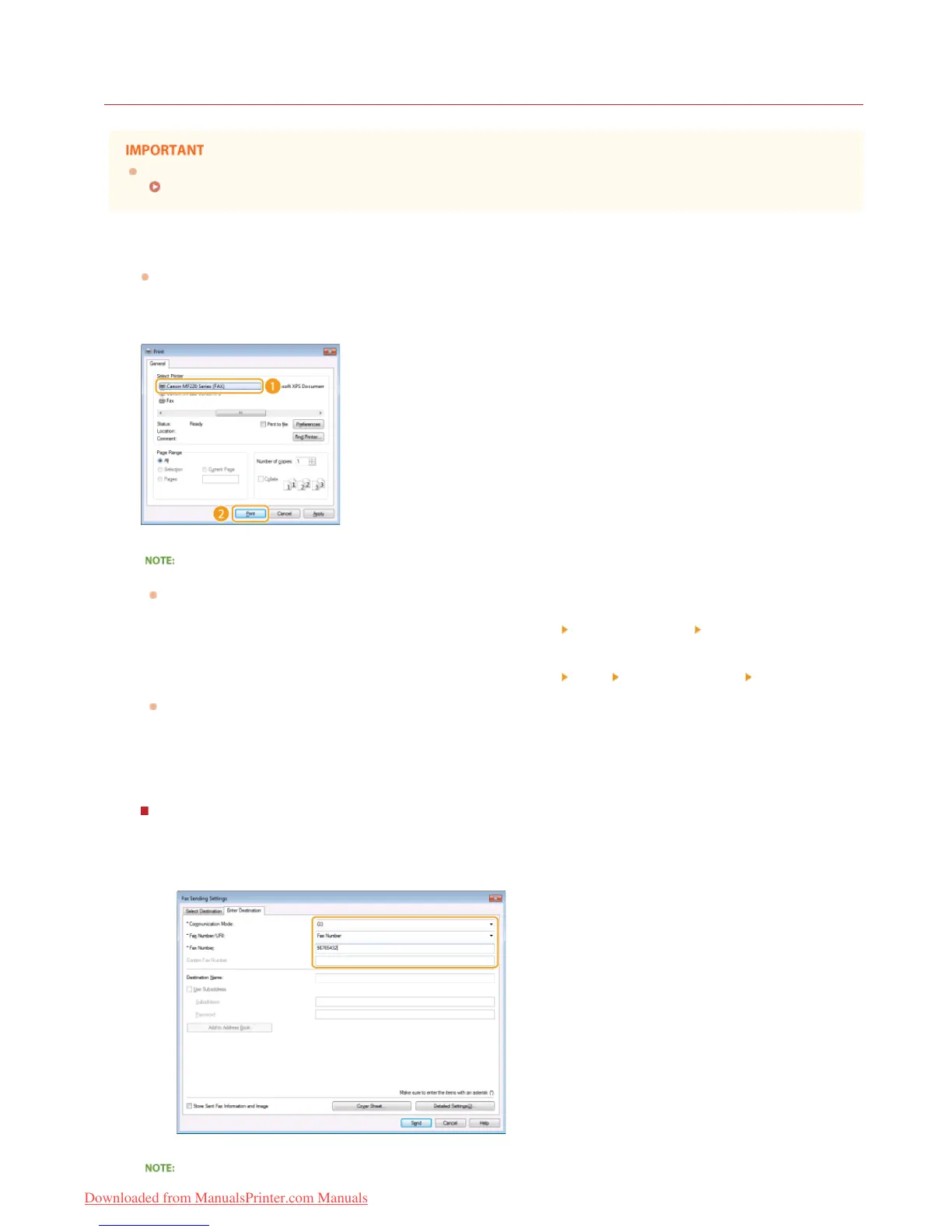
Open a document in an application and display the print dialog box.
How to display the print dialog box differs for each application. For more information, see the instruction manual for the
application you are using.
Select your fax driver, and click [Print].
When Sending from the Windows Store app in Windows 8/8.1/Server 2012/Server 2012 R2
Follow the procedure below.
Windows 8/Server 2012
Display the charms at the right of the screen, and tap or click [Devices]
the fax you are using [Print] . When you print in
this way, you can only specify settings for some of the print functions.
Windows 8.1/Server 2012 R2
Display the charms at the right of the screen, and tap or click [Devices]
[Print] the fax you are using [Print] . When you
print in this way, you can only specify settings for some of the print functions.
If the message [The printer requires your attention. Go to the desktop to take care of it.] is displayed, move to the desktop
and proceed to step 3. This message appears when the machine is set to display the user name during printing and similar
instances.
Specify the destination.
Specifying one destination
1
Click the [Enter Destination] tab.
2
Specify [Communication Mode]/[Fax Number/URI]/[Fax Number] (or [URI]).
1
2
3
㻝㻟㻢㻌㻛㻌㻠㻣㻡
Downloaded from ManualsPrinter.com Manuals



 To Next Page