Enable the e-shredding in Océ Express WebTools
Before you begin
You must be logged as a System Administrator or a Power user.
Recommendation: in the Océ Express Webtools ('Preferences'), make sure you:
- Disable 'Keep completed jobs in the Smart Inbox' in the Job management settings (so that all
the print jobs will be automatically deleted after successful printing) before enabling the e-
shredding.
- Disable 'Save received jobdata for service' in 'In case of errors' settings.
Procedure
1.
Open a web browser and enter the system URL: http://<hostname>, to open the Océ Express
WebTools
2.
Open the 'Configuration' - 'Connectivity' page and select the 'E-shredding' section
3.
Click Edit
4.
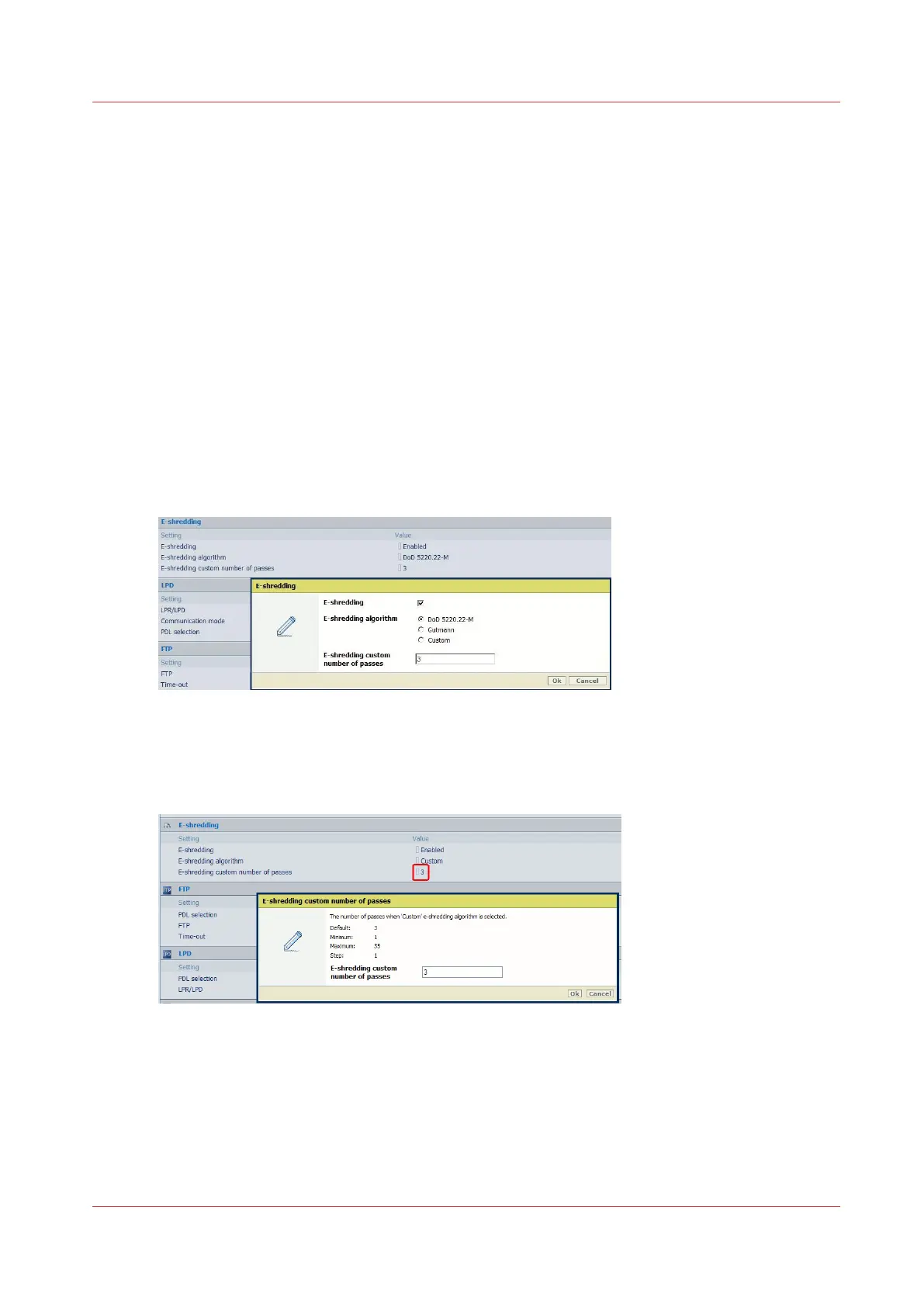
Check 'E-shredding' feature to enable it
5.
Select the algorithm.
When you select 'Custom', you must set the number of passes:
On Océ ColorWave 650 (PP) / 550, click on the value of 'E-shredding custom number of passes' to
set the number of passes
[5] Set the number of passes for Océ ColorWave 650
Result
When the E-shredding feature is enabled, a new icon is added to the list of icons (bottom right) in
the Océ Express WebTools window.
Enable the e-shredding in Océ Express WebTools
Chapter 5 - Security on Océ ColorWave 550/600/650 (and Poster Printer)
251










 To Next Page