Table of
Contents
Chapter 1
What is
ZoomBrowser EX?
Chapter 2
Downloading and
Printing Images
Chapter 3
What You Can Do with
a Camera Connected
Chapter 4
Viewing Images
Chapter 5
Organizing Images
Chapter 6
Using Supplementary
Features
Appendices Index
ZoomBrowser EX Software User Guide 17
Back Next
Downloading Images to a Computer (6/8)
Using Computer Commands to Download Images
1.
Read the dialog that displays.
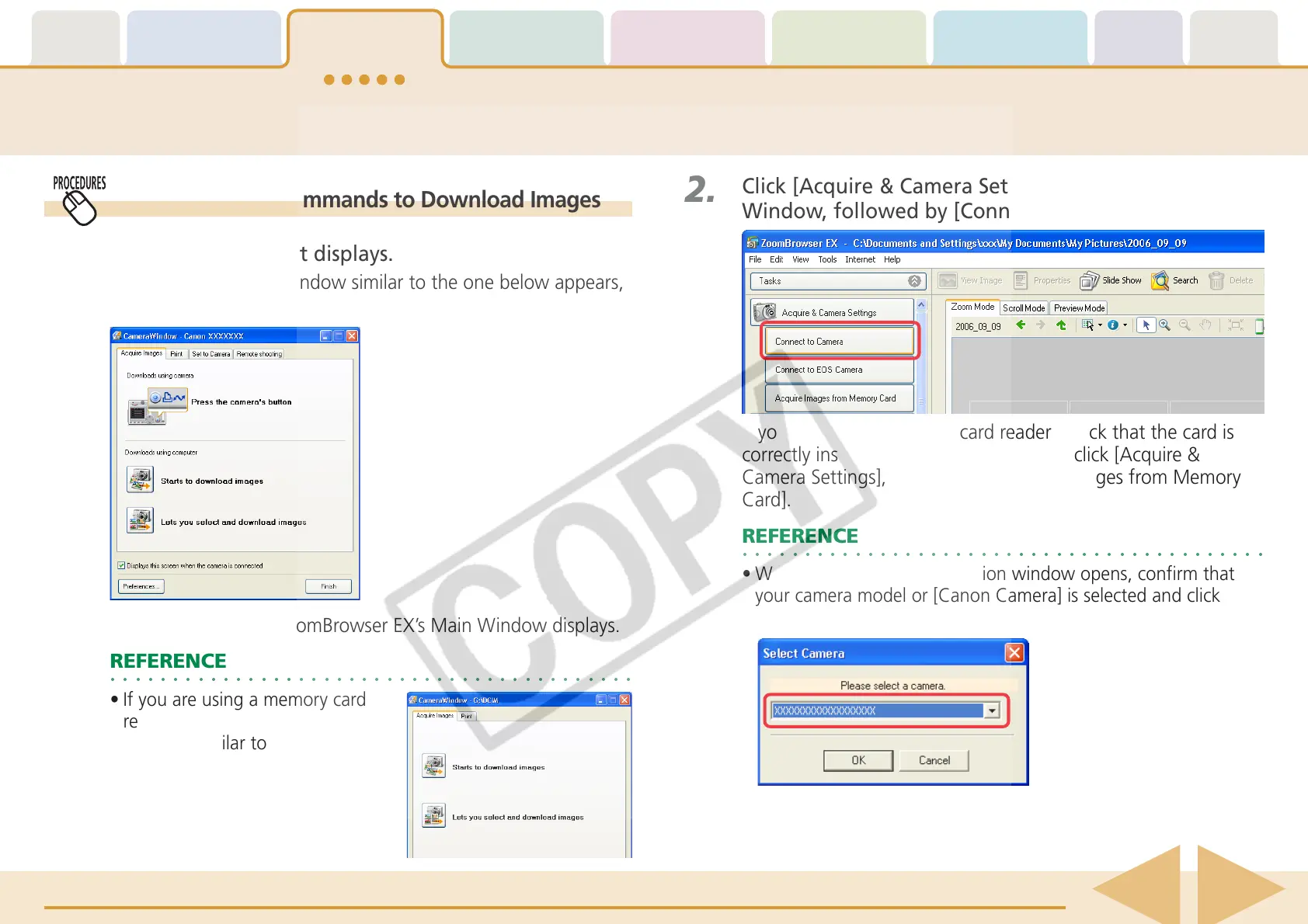
If a Camera Control Window similar to the one below appears,
proceed to Step 3.
2.
Click [Acquire & Camera Settings] in the Main
Window, followed by [Connect to Camera].
Proceed to Step 2 if ZoomBrowser EX’s Main Window displays.
○○○○○○○○○○○○○○○○○○○○○○○○○○○○○○○○○○○○○○○○○○
REFERENCE
• If you are using a memory card
reader, a Camera Control
Window similar to the right will
open.
If you are using a memory card reader, check that the card is
correctly inserted in the reader and then click [Acquire &
Camera Settings], followed by [Acquire Images from Memory
Card].
○○○○○○○○○○○○○○○○○○○○○○○○○○○○○○○○○○○○○○○○○○
REFERENCE
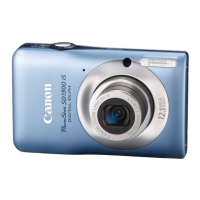
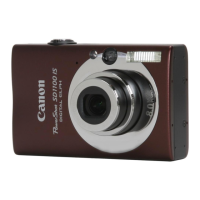
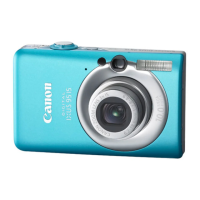
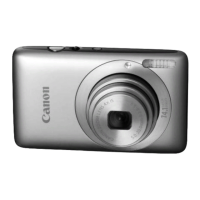
• When a camera model selection window opens, confirm that
your camera model or [Canon Camera] is selected and click
[OK].






 To Next Page