Table of
Contents
Chapter 1
What is
ZoomBrowser EX?
Chapter 2
Downloading and
Printing Images
Chapter 3
What You Can Do with
a Camera Connected
Chapter 4
Viewing Images
Chapter 5
Organizing Images
Chapter 6
Using Supplementary
Features
Appendices Index
ZoomBrowser EX Software User Guide 81
Back Next
Renaming Images (1/2)
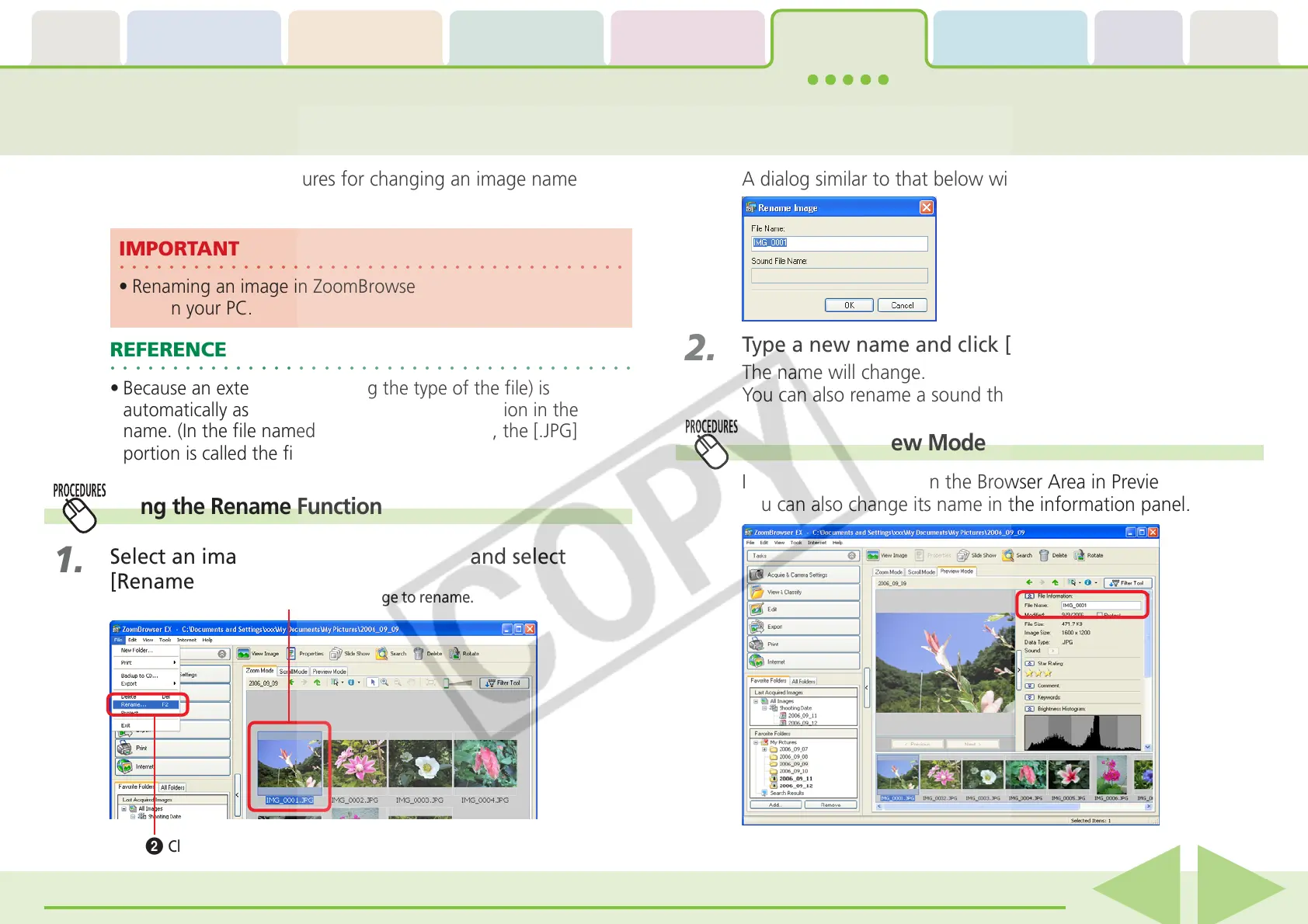
This section explains the procedures for changing an image name
(image file name).
A dialog similar to that below will appear.
2.
Type a new name and click [OK].
The name will change.
You can also rename a sound that is attached to an image.
○○○○○○○○○○○○○○○○○○○○○○○○○○○○○○○○○○○○○○○○○
IMPORTANT
• Renaming an image in ZoomBrowser EX renames the actual
file on your PC.
○○○○○○○○○○○○○○○○○○○○○○○○○○○○○○○○○○○○○○○○○○
REFERENCE
• Because an extension (indicating the type of the file) is
automatically assigned, do not include an extension in the
name. (In the file named [xxx.JPG], for example, the [.JPG]
portion is called the file name extension.)
Using the Rename Function
1.
Select an image, click the [File] menu and select
[Rename].
Using the Preview Mode
If you select an image in the Browser Area in Preview mode,
you can also change its name in the information panel.
B
Click [Rename].
A
Click an image to rename.














 To Next Page