Table of
Contents
Chapter 1
What is
ZoomBrowser EX?
Chapter 2
Downloading and
Printing Images
Chapter 3
What You Can Do with
a Camera Connected
Chapter 4
Viewing Images
Chapter 5
Organizing Images
Chapter 6
Using Supplementary
Features
Appendices Index
ZoomBrowser EX Software User Guide 82
Back Next
Renaming Images (2/2)
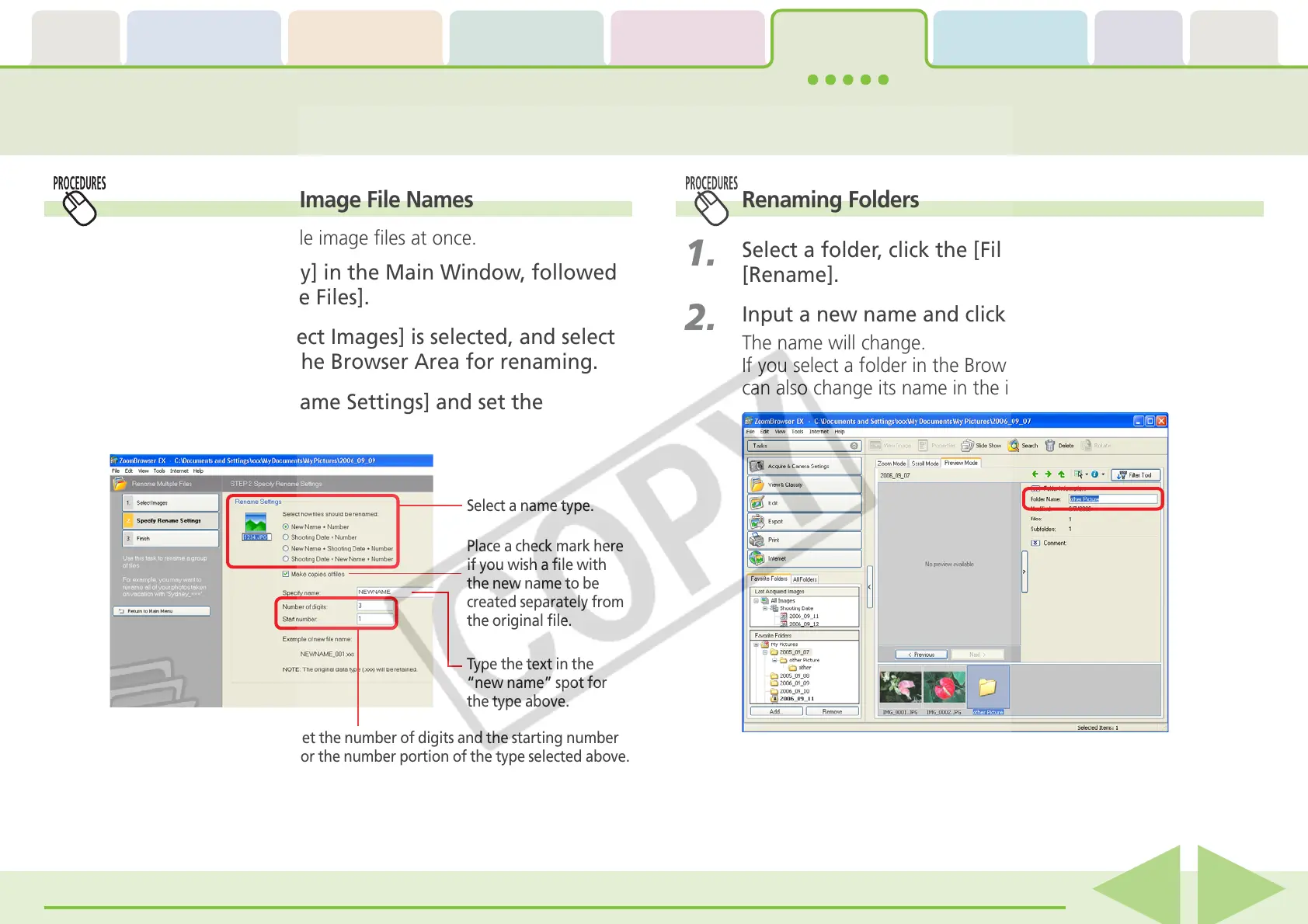
Changing Multiple Image File Names
You can rename multiple image files at once.
1.
Click [View & Classify] in the Main Window, followed
by [Rename Multiple Files].
2.
Confirm that [1. Select Images] is selected, and select
multiple images in the Browser Area for renaming.
3.
Click [2. Specify Rename Settings] and set the
renaming method.
Renaming Folders
1.
Select a folder, click the [File] menu and select
[Rename].
2.
Input a new name and click [OK].
The name will change.
If you select a folder in the Browser Area in Preview mode, you
can also change its name in the information panel.
Place a check mark here
if you wish a file with
the new name to be
created separately from
the original file.
Type the text in the
“new name” spot for
the type above.
Select a name type.
Set the number of digits and the starting number
for the number portion of the type selected above.
4.
Click [3. Finish].
The program will start renaming the images.












 To Next Page