Table of
Contents
Chapter 1
What is
ZoomBrowser EX?
Chapter 2
Downloading and
Printing Images
Chapter 3
What You Can Do with
a Camera Connected
Chapter 4
Viewing Images
Chapter 5
Organizing Images
Chapter 6
Using Supplementary
Features
Appendices Index
ZoomBrowser EX Software User Guide 26
Back Next
Downloading Images Automatically—Computer Operations (1/3)
Starting Auto Downloading
1.
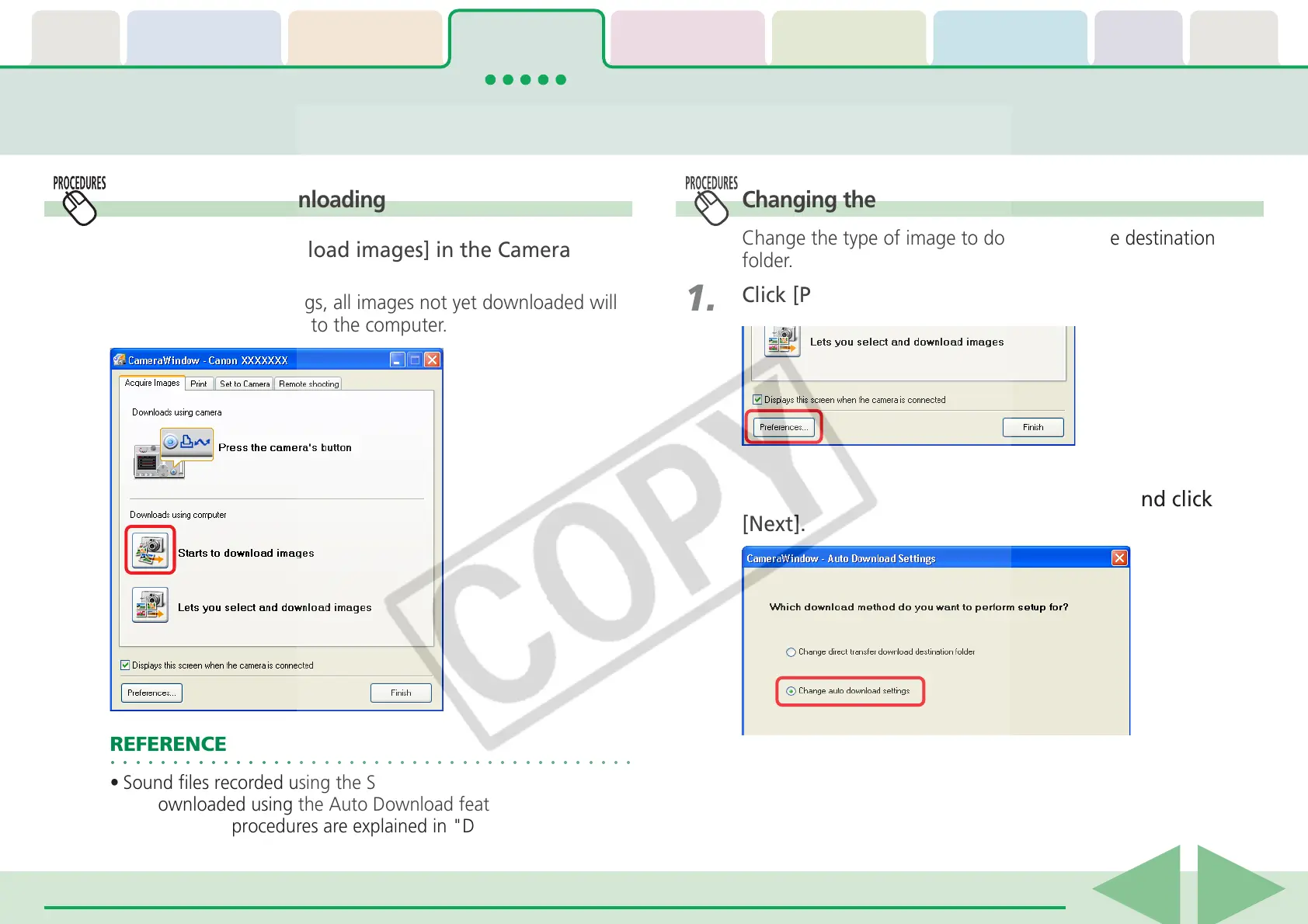
Click [Starts to download images] in the Camera
Control Window.
Under the default settings, all images not yet downloaded will
automatically download to the computer.
○○○○○○○○○○○○○○○○○○○○○○○○○○○○○○○○○○○○○○○○○○
REFERENCE
• Sound files recorded using the Sound Recorder feature cannot
be downloaded using the Auto Download feature. The
downloading procedures are explained in "Downloading Sound
Files from the Camera."
2.
Select [Change auto download settings] and click
[Next].
Changing the Auto Download Settings
Change the type of image to download or the destination
folder.
1.
Click [Preferences].






 To Next Page