Table of
Contents
Chapter 1
What is
ZoomBrowser EX?
Chapter 2
Downloading and
Printing Images
Chapter 3
What You Can Do with
a Camera Connected
Chapter 4
Viewing Images
Chapter 5
Organizing Images
Chapter 6
Using Supplementary
Features
Appendices Index
ZoomBrowser EX Software User Guide 28
Back Next
6.
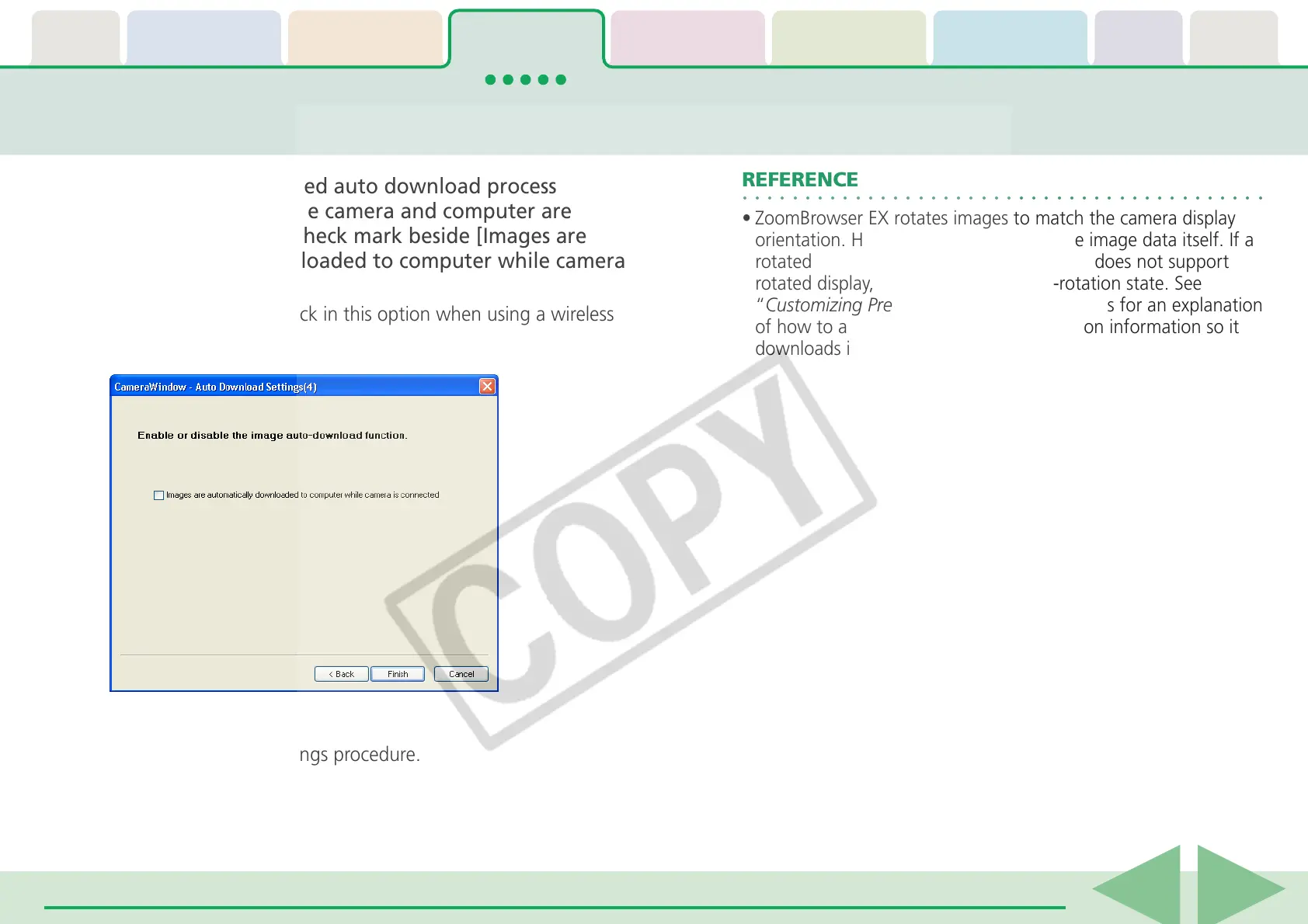
To initiate the selected auto download process
immediately after the camera and computer are
connected, place a check mark beside [Images are
automatically downloaded to computer while camera
is connected].
You cannot place a check in this option when using a wireless
connection.
7.
Click [Finish].
This concludes the settings procedure.
Downloading Images Automatically—Computer Operations (3/3)
○○○○○○○○○○○○○○○○○○○○○○○○○○○○○○○○○○○○○○○○○○
REFERENCE
• ZoomBrowser EX rotates images to match the camera display
orientation. However, it does not alter the image data itself. If a
rotated image is opened in a program that does not support
rotated display, it will appear in its pre-rotation state. See
“Customizing Preferences” in the Appendices for an explanation
of how to alter the image data with rotation information so it
downloads in the rotated orientation.






 To Next Page