58
– From the Intelligent Function Setting Tool [Event] tab >
disable [ON Event Operation], [OFF Event Operation] or
[Detected mode Operation] (p. 108).
– If [External Device Input Event] is enabled, disable [Active
Event Operation] or [Inactive Event Operation] (p. 63).
– If [Timer Event] is enabled, increase the value in [Repeat
Interval] (p. 64).
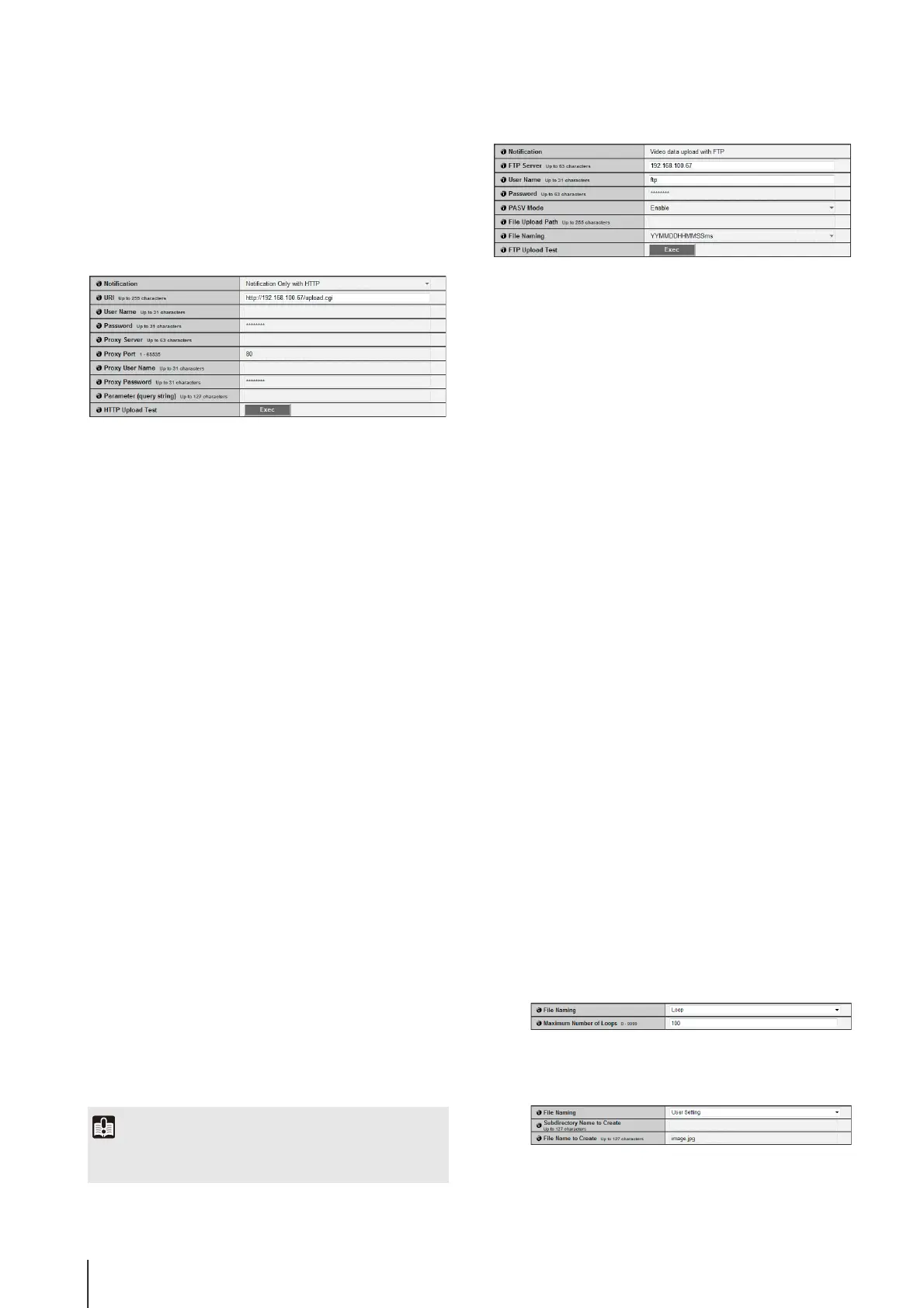
HTTP Upload
(1) [Notification]
Select [Notification Only with HTTP] or [Video
attached Notification with HTTP] as the content of
notification.
(2) [URI]
Enter the URI to be uploaded to (using up to 255
characters).
(3) [User Name], [Password]
Enter the user name and password required for
authentication.
The authentication method is Digest authentication.
(4) [Proxy Server]
Enter the host name or IP address of the proxy server
(using up to 63 characters).
(5) [Proxy Port]
Enter the port number of the proxy server (factory
default setting is [80]).
(6) [Proxy User Name], [Proxy Password]
Enter the user name and password of the proxy
server.
The authentication method is Digest authentication.
(7) [Parameter (query string)]
Enter the parameter (using up to 127 characters).
Parameters can be specified using the “%” character
(p. 147).
(8) [HTTP Upload Test]
Clicking [Exec] initiates an upload test based on the
settings currently entered. Only one JPEG image is
uploaded. It is not necessary to click [Apply].
For a password, first click [Exec], then [Apply] the
password.
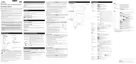
FTP Upload
(1) [Notification]
The content of notification is set to [Video data upload
with FTP].
(2) [FTP Server]
Enter the host name or IP address of the FTP server
(using up to 63 characters).
(3) [User Name], [Password]
Enter the user name and password required for
authentication.
(4) [PASV Mode]
Select [Disable] or [Enable] for the PASV mode when
uploading via FTP.
(5) [File Upload Path]
Enter the path to the folder where the image file is to
be uploaded to (using up to 255 characters).
(6) [File Naming]
Set a desired file naming rule.
[YYYYMMDDHHMMSSms]
Images are uploaded according to the file name
format of
“{year}{month}{day}{hour}{minute}{second}{ms}.jpg”.
(Example: 20120123112122000.jpg)
[YYYYMMDD Directory/HHMMSSms]
A subdirectory named “{year}{month}{day}” is
created first, and then the image is uploaded using
the file name “{hour}{minute}{second}{ms}.jpg”.
(Example: 20120123/112122000.jpg)
[Loop]
Images are loaded with a file name numbered up to
the value set in [Maximum Number of Loops].
(Example: 0000.jpg, 0001.jpg)
[User Setting]
Images are uploaded according to the file naming
method specified in [Subdirectory Name to Create]
and [File Name to Create].
[Maximum Number of Loops]
If [Loop] is set under [File Naming], enter the
maximum number of loops in the range of 0 to 9999.
Important
Enter [Proxy Server], [Proxy Port], [Proxy User Name] and
[Proxy Password] if connecting via a proxy.


 To Next Page