28
ENG
mpxone +0300086EN rel. 2.2 - 13.11.2023
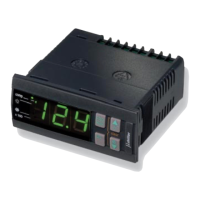
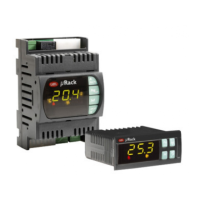
User interface
Notice: if no button is pressed, after around 1 minute the terminal will automatically return to the standard display.
Mobile device and PC
The Applica app and SPARK software can be used to confi gure the controller from a mobile device (smartphone, tablet), via
NFC (Near Field Communication) or Bluetooth (in this case also by laptop). The controller can be programmed according to the
profi le used for access to APPLICA or SPARK, with diff erent parameter visibility depending on the rights associated with each
profi le (User, Service, Manufacturer).
Procedure:
1. download the“Applica” app;
2. (on the mobile device) start the app for commissioning the controller;
3. activate NFC;
4. move the device closer to the controller, less than 10 mm away;
5. follow the instructions shown on the display.
3.2.1 Direct commands
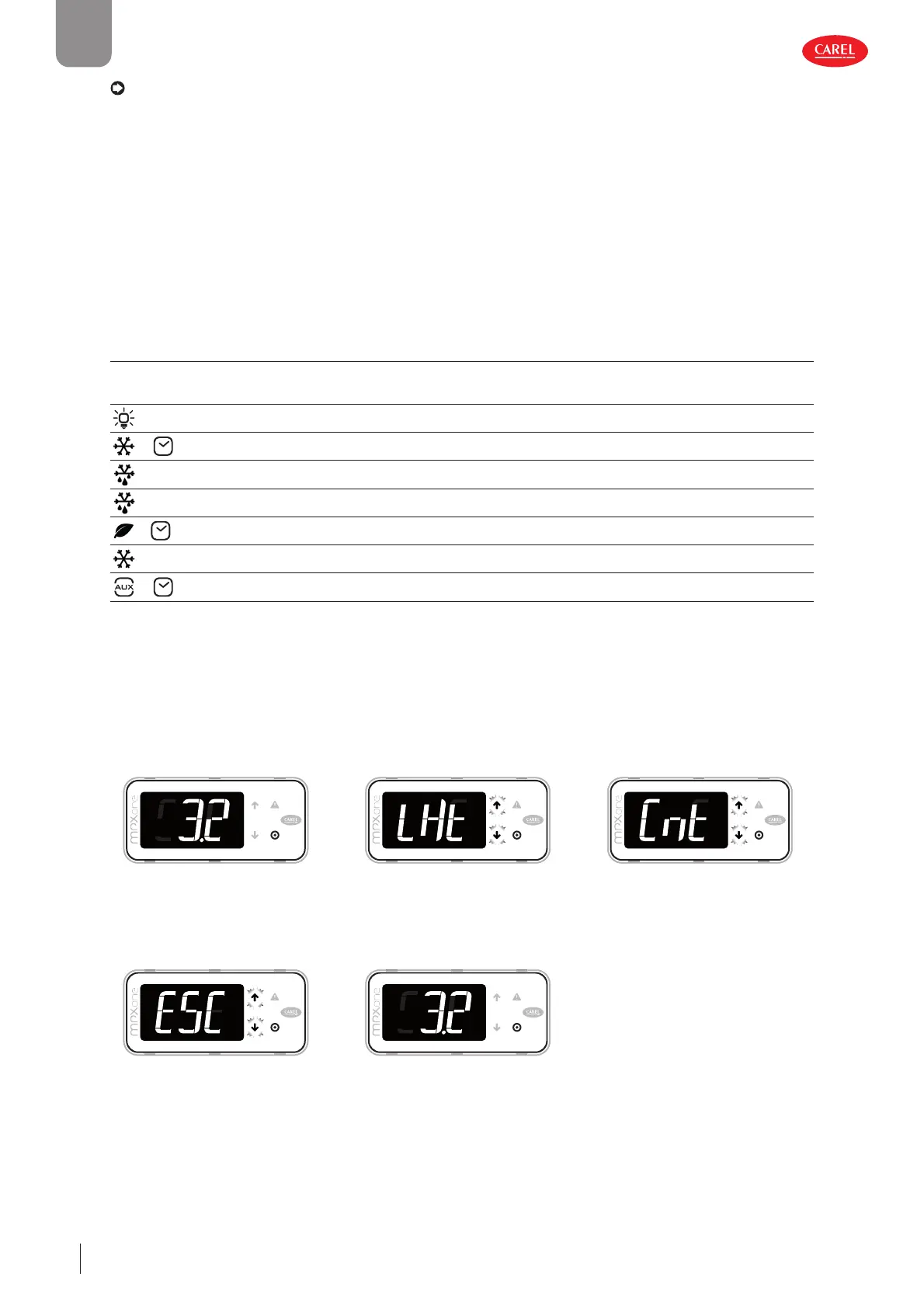
The following functions can be activated directly from the keypad or via the app:
Icon Display On/O
Lht Cabinet light
+
Cnt Continuous cycle
dEF Defrost
dFn Network defrost (main only)
+
CLn Clean cabinet
ON Unit ON
+
rH Anti-sweat heater
Tab. 3.f
Procedure:
1. go to the standard display;
2. press PRG: Lht is displayed;
3. press PRG to turn the light on/off and DOWN to move to the next direct function;
4. follow the previous steps for all the other functions;
5. When fi nished, press Esc to exit.
300086_100_R01
300086_109 _R01
300086_110 _R01
1. Go to the standard display 2. Press PRG to enter the direct com-
mand menu, the fi rst command
is LHt (Light), the UP and DOWN
buttons will light up.
3. Press PRG to change the status
of the displayed function, press
UP or DOWN to select a diff erent
function.
300086_107_R01
300086_100_R01
4. Select Esc to exit 5. The standard display is shown




 To Next Page