●
Configuring the Summer Time Setting
If you are in an area that observes summer
time, you can also configure a summer time
setting.
Note
●
The initial factory default summer time
setting for all cities is [AT (AUTO)]. In
many cases, the [AT (AUTO)] setting
lets you use the watch without
switching between summer time and
standard time.
●
When performing a manual operation
to select a time zone for which there is
no city name displayed, use [STD] or
[DST] for the summer time setting.
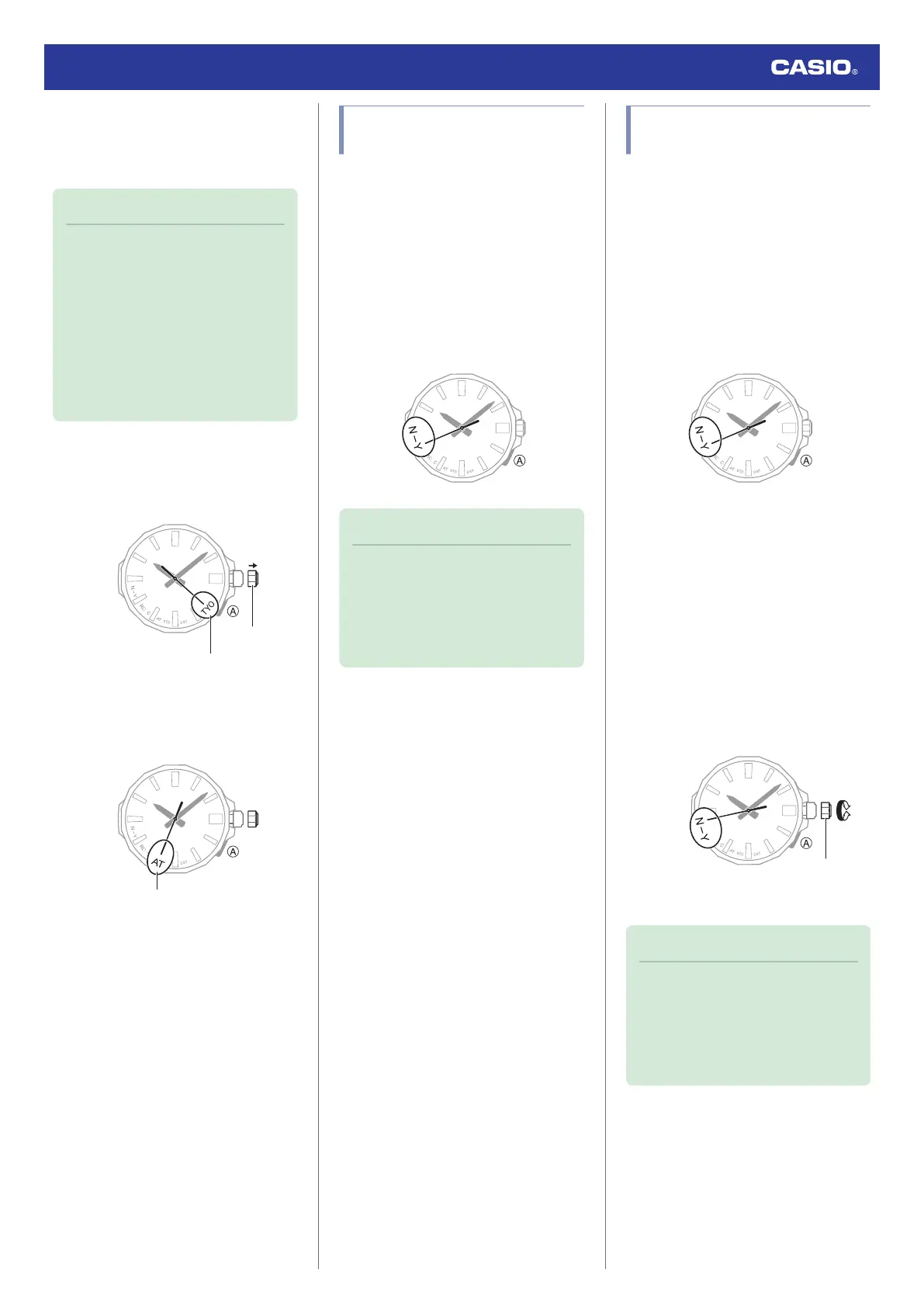
1. Pull out the crown to the first click.
The second hand will move to the city
code of the currently selected Home City.
30
Home City (time zone)
Crown
2. Press (A).
The second hand will move to the current
summer time setting.
3. Rotate the crown to change the summer
time setting.
●
[AT (AUTO)]
The watch switches between standard
time and summer time automatically.
●
[STD]
The watch always indicates standard
time.
●
[DST]
The watch always indicates summer
time.
4. Push the crown back in.
Checking the Last Time
Correction Result
1. Press (A).
The second hand will indicate the last time
correction operation result. The watch
hands will return to indicating the current
time if you do not perform any operation
for nine or ten seconds.
[Y(YES)]: Last time correction operation
successful.
[N(NO)]: Last time correction operation
failed.
Note
●
Even if there was a successful time
calibration signal receive operation or
connection with a phone, the second
hand will point to [N(NO)] if you
subsequently adjusted the time and/or
date setting manually.
Using the Watch in a Medical
Facility or Aircraft
Whenever you are in a hospital, on an aircraft,
or in any other location where auto time
calibration signal receive or connection with a
phone may cause problems, you can perform
the procedure below to disable auto time
correction. To re-enable auto time correction,
perform the same operation again.
1. Press (A).
The second hand will indicate the last
receive result for nine or ten seconds.
2. Within 10 seconds after you perform the
operation in step 1, pull out the crown to
the first click.
●
If more than 10 seconds elapse before
you pull out the crown after you perform
the operation in step 1, the second hand
will return to indicating seconds. If this
happens, perform step 1 again.
3. Rotate the crown to disable auto time
correction.
[Y(YES)]: Auto time correction enabled
[N(NO)]: Auto time correction disabled
4. Push the crown back in.
Note
●
If the watch is paired with a phone, you
can use the CASIO WATCHES phone
app to disable auto time correction.
l
Using the CASIO WATCHES
Phone App to Disable Auto Time
Correction
Watch Operation Guide 5728
16



 To Next Page