Recording Your Keyboard Play
EN-51
3.
Press a button from
to
to select the track
number of the next track to which you want to
record.
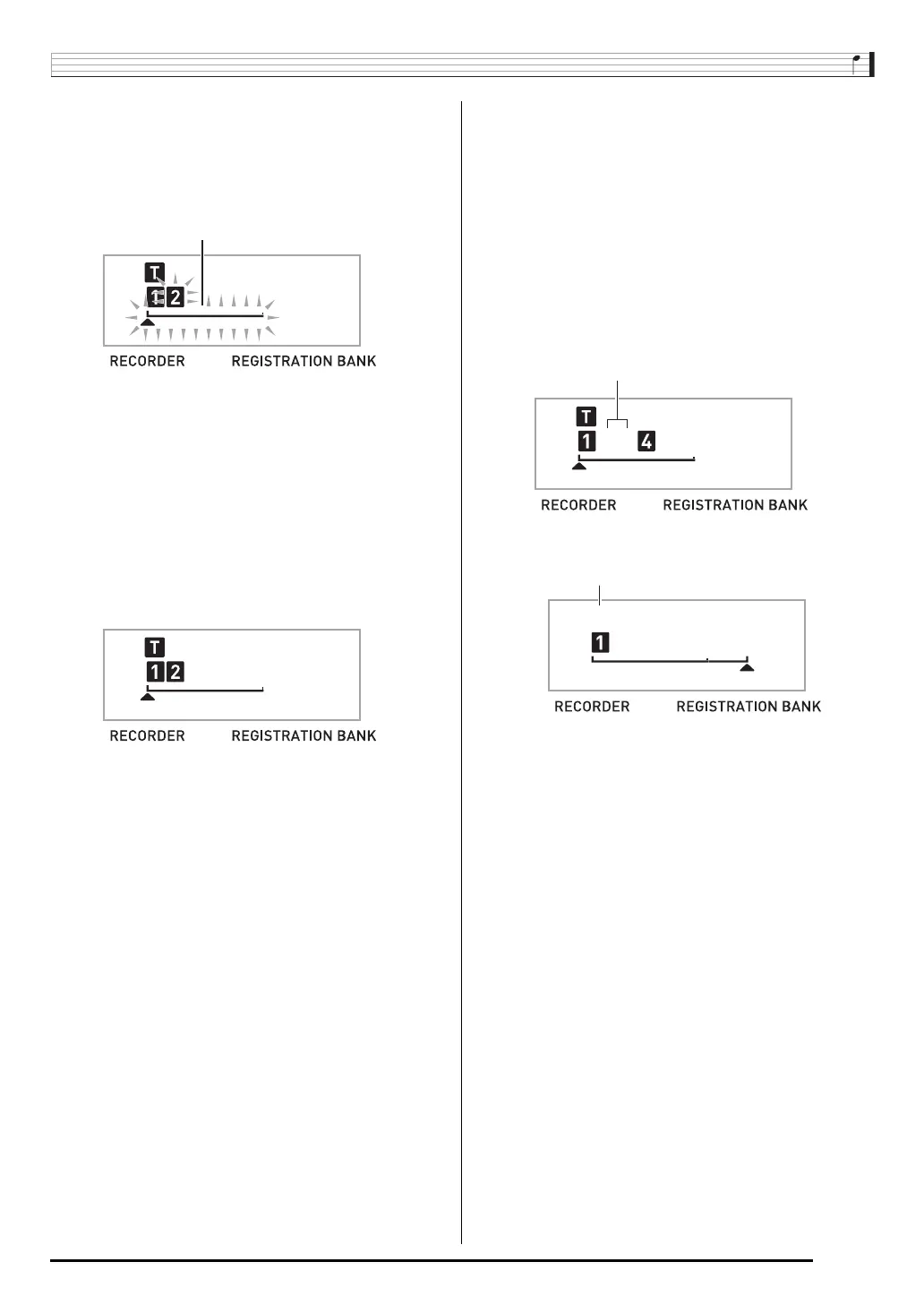
This will enter record standby for the track you selected.
• If you want to use a different tone than the one you
used in Track 1, press
(TONE) and then use
(10-key) to input the tone number.
4.
Press
.
This will start playback of what you recorded up to this
point in other tracks and record what you play on the
keyboard to the currently selected track. Play the notes
you want on the keyboard.
5.
To stop recording, press
.
• To play back what you have recorded, press
again.
Each press of
starts and stops playb ack.
6.
Repeat steps 2 through 5 to record the other
tracks.
7.
After you finish recording all of the tracks,
press
.
• This will start playback of the recorded tracks. Press
to stop or restart playback.
• At this time you can turn off playback of specific tracks
using buttons
to
. Pressing a key toggles
playback of each track on (track number displayed) or
off (track number not displayed).
• If you want to re-record a track, press
. This will
return to step 2 of the above procedure. Only the tracks
that are turned on (displayed) above will play as you
re-record.
8.
Press
twice to exit the recorder mode.
■ To delete a recorded track
After step 3 of the above procedure, do hold down
(without pressing any keyboard key) until the message
“Tr.Del?” appears on the display. Press [+] (YES) to delete the
track, or [–] (NO) to cancel the delete operation.
Example: Track 2
Example: Tracks 2 and 3 selected


 To Next Page