EasyManua.ls Logo

Casio CDP-S350 - User Manual

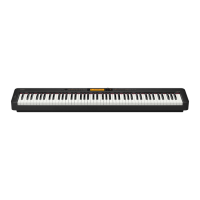
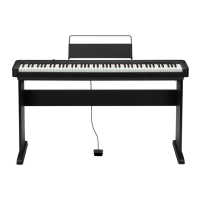
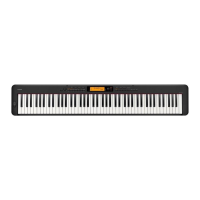
Casio CDP-S350
69 pages
Print Icon
To Next Page IconTo Next Page
Loading...
EN
CDP-S350
CDPS350-E-2A
USER’S GUIDE
Preparing a Power Supply Turning Power On or Off Using a Pedal Using Headphones
Playing on the Keyboard Splitting the Keyboard for
Duet Play
Changing the Pitch in
Semitone Steps (Transpose)
Fine Tuning a Pitch (Tuning)
Changing the Pitch in Octave
Units (Octave Shift)
Using Auto Accompaniment Selecting a Built-in Song for
Playback
Using Chorus
Using Reverb Linking with a Smart Device
(APP Function)
When the Digital Piano is being operated on battery power only, notes may sound distorted when performing or playing back
a song at maximum volume. This is due to the difference between AC adaptor power and battery power, and does not
indicate Digital Piano malfunction. If you notice distortion, switch to AC adaptor power or lower the volume level.
Cove
r

Table of Contents

Other manuals for Casio CDP-S350

Questions and Answers

  • D
    Diana JohnsonAug 17, 2025
    What to do if my Casio CDP-S350 Musical Instrument shows 'Err No Media'?
    • J
      joan56Aug 17, 2025
      If the Casio Musical Instrument displays 'Err No Media', it could be due to several reasons: * The USB flash drive may not be correctly plugged into the USB flash drive port. Ensure it is properly connected. * The USB flash drive was removed during an operation. Avoid removing the USB drive while the instrument is in use. * The USB flash drive is write-protected. Disable write protection on the USB drive. * The USB flash drive is protected by anti-virus software. Try using a USB drive without anti-virus protection.
  • A
    Allison PhillipsAug 20, 2025
    What to do if I get 'Err MediaFul' on my Casio CDP-S350?
    • R
      Renee ColemanAug 20, 2025
      If your Casio Musical Instrument displays 'Err MediaFul', it means there is not enough space available on the USB flash drive. To resolve this, either delete some files on the USB flash drive to free up space or use a different USB flash drive with more storage capacity.
  • L
    Luke GomezAug 22, 2025
    Why does my Casio Musical Instrument say 'Err Format'?
    • R
      Ruben MeyerAug 23, 2025
      If your Casio Musical Instrument displays 'Err Format', it indicates that the USB flash drive format is not compatible with the instrument or the USB flash drive memory is corrupted. You can try: * Using a computer to change the USB flash drive format to one compatible with the instrument. * Using a different USB flash drive.
  • H
    Haley IngramAug 26, 2025
    What does 'Err Large Sz' mean on my Casio Musical Instrument?
    • C
      Corey KelleyAug 26, 2025
      If your Casio Musical Instrument displays 'Err Large Sz', it means the SMF file on the USB flash drive is too big to play, or the data you are trying to import is too large. Playback of SMF files up to approximately 320 KB in size is supported. The maximum data size for rhythms is approximately 64 KB.
  • N
    nelsontroyAug 28, 2025
    How to fix 'Err ReadOnly' on Casio Musical Instrument?
    • G
      Gabriella MortonAug 28, 2025
      If your Casio Musical Instrument displays 'Err ReadOnly', a read-only file with the same name you are trying to use is already stored on the USB flash drive. You can: * Change the name and then save the new data. * Remove the read-only attribute from the existing USB flash drive file and overwrite it with the new data. * Use a different USB flash drive.
  • B
    briangutierrezAug 30, 2025
    What does 'Err No File' mean on a Casio CDP-S350?
    • N
      Norma PaulAug 30, 2025
      If your Casio Musical Instrument displays 'Err No File', there is no loadable or playable file in the MUSICDAT folder. Move the file you want to load or play into the MUSICDAT folder.
  • P
    Patrick WaltonSep 2, 2025
    What does 'Err Limit' mean on my Casio CDP-S350?
    • K
      Keith CarrilloSep 2, 2025
      If your Casio Musical Instrument displays 'Err Limit', it means you are attempting to record more than 999 measures. Make your recordings up to 999 measures long.
  • M
    Michelle WeissSep 5, 2025
    What to do if my Casio CDP-S350 says 'Err DataFull'?
    • L
      Lori KingSep 5, 2025
      If your Casio Musical Instrument displays 'Err DataFull', it means you are attempting to record more than 5 multi-track songs. To solve this, delete some of the songs in memory.
  • Y
    Yvette HuberSep 8, 2025
    Why does my Casio Musical Instrument show 'Err Mem Full'?
    • M
      Mr. Robert PearsonSep 8, 2025
      If your Casio Musical Instrument displays 'Err Mem Full', you are attempting a recording that exceeds the allowable per-song limit. Keep song recordings within the allowable per-song limit.
  • N
    Nathaniel ChaneySep 12, 2025
    What does Err NotSMF01 mean on Casio CDP-S350?
    • T
      Teresa DavilaSep 12, 2025
      If your Casio Musical Instrument displays 'Err NotSMF01', you are attempting to play back SMF Format 2 song data. Playback of SMF Format 0 or Format 1 only is supported.

Summary

Overview and Setup

General Guide

Provides a general overview of the digital piano's front panel controls and features.

Display

Explains the functions and indicators of the digital piano's display screen.

Preparing a Power Supply

Details how to connect and use the AC adaptor for powering the digital piano.

Turning Power On or Off

Instructions for powering the digital piano on and off, including auto power off.

Operations Common to All Modes

Categories

Explains how to navigate and select tones, rhythms, songs, and presets by category.

Dial Operations

Describes how to use the dial to change values and select menu items.

Text Character Input

Guides on inputting text for naming data saved on USB flash drives or other inputs.

Playing on the Keyboard

Layering and Splitting Tones

How to play two tones simultaneously (Layer) or different tones on left/right keyboard sections (Split).

Changing Keyboard Response to Touch Pressure (Touch Response)

Adjusts tone volume based on playing speed for expressive touch.

Using Reverb

Adds echo and depth to the sound with various reverb effects.

Using the Metronome

A practice tool to help maintain a steady beat and tempo.

Controlling Sounds

Using a Pedal

Explains how to connect and use the pedal for various sound effects like sustain.

Fine Tuning a Pitch (Tuning)

Allows precise adjustment of the A4 note frequency for tuning with other instruments.

Changing the Scale Tuning (Temperament) of the Keyboard

Adjusts the keyboard's tuning to different scales or temperaments.

Playing a Built-in Song or a Song on a USB Flash Drive

Selecting a Built-in Song for Playback

Instructions on choosing and playing songs from the piano's internal library.

Looping Playback of Specific Song Measures (A-B Repeat)

Enables repeating specific sections of a song by setting start and end points.

Playing Back with One Hands Part Muted

Allows practicing by muting one hand's part of a song and playing it on the keyboard.

Using Auto Accompaniment

Playing the Rhythm Part Only

Guides on activating and selecting basic rhythm patterns for practice.

Playing Auto Accompaniment with Chords

Explains how to trigger accompaniment by playing chords with the left hand.

To select a chord input mode

Details various methods for inputting chords to control the accompaniment.

Using Auto Harmonize

Adds harmony to melody notes played with the right hand.

Registering and Restoring a Setup (Registration)

Saving a Setup to Registration Memory

Records current piano settings (tone, rhythm, etc.) for quick recall.

Recalling a Setup from Registration Memory

Loads previously saved setups to restore piano configurations instantly.

Recording Your Keyboard Play

Recording Keyboard Play

Records keyboard performance, auto accompaniment, and other operations.

Overdubbing a Recorded Track

Allows adding multiple layers of performance to an existing recording.

Configuring Precount and Metronome Settings

Sets up pre-recording counts and metronome sounds for practice.

Configuring Function Settings

To configure function settings

Guides on adjusting various system parameters and preferences.

Using Operation Lock

Disables most button operations to prevent accidental changes during performance.

Deleting All Data in Digital Piano Memory

Resets the piano to factory defaults, deleting all user data.

USB Flash Drive

Connecting a USB Flash Drive to and Detaching It from the Digital Piano

Instructions on safely connecting and removing USB flash drives.

Formatting a USB Flash Drive

Prepares a USB flash drive for use with the digital piano, erasing all data.

USB Flash Drive Operations

Details saving, importing, renaming, and deleting data to/from USB drives.

Connecting External Devices

Connecting to a Computer

Explains how to connect the piano to a computer for MIDI data exchange.

Connecting to Audio Equipment

Guides on connecting the piano to external sound systems or amplifiers.

Linking with a Smart Device (APP Function)

Connects the piano to a smart device for remote control and data transfer.

Reference

Troubleshooting

Provides solutions for common problems encountered with the digital piano.

Error Messages

Lists and explains error messages displayed by the digital piano.

Specifications

Lists the technical details and features of the CDP-S350 digital piano.

Versatile Tone Map

Details the sounds assigned to keys for versatile tones, based on velocity.

Fingering Guide

Illustrates chord fingerings for various input modes on the keyboard.

MIDI Implementation Chart

Technical chart detailing MIDI message transmission and reception.

Casio CDP-S350 Specifications

General IconGeneral
Control typeButtons
MIDI-keyboard number of keys88 keys
Product colorBlack
Octave adjustmentYes
Maximum polyphony (notes)64
Music memory capacity (songs)152
InterfaceUSB
Battery typeAA
Power source typeAC, Battery, DC
Power consumption (typical)10 W
Number of batteries supported6
Weight and Dimensions IconWeight and Dimensions
Depth232 mm
Width1322 mm
Height99 mm
Weight10900 g

Related product manuals