EasyManua.ls Logo

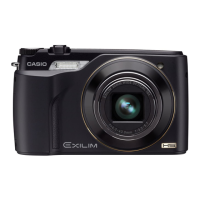
Casio Exilim EX-FH25 - User Manual

Casio Exilim EX-FH25
192 pages
Print Icon
To Next Page IconTo Next Page
Loading...
Digital Camera
Thank you for purchasing this CASIO product.
Before using it, be sure to read the precautions contained in this User’s Guide.
Keep the User’s Guide in a safe place for future reference.
For the most up-to-date information about this product, visit the official EXILIM
Website at http://www.exilim.com/
E
User’s Guide

Table of Contents

Questions and Answers

  • S
    Stephanie YoungSep 8, 2025
    Why can't I transfer images over USB from my Casio Exilim EX-FH25?
    • J
      Joel ReeseSep 8, 2025
      If images cannot be transferred over a USB connection with your Casio Digital Camera: * The USB cable may not be connected securely. Check all connections. * The wrong USB communication protocol is selected. Select the correct USB communication protocol in accordance with the type of device you are connecting. * If the camera is not turned on, turn it on. * Your computer may not be able to recognize the camera if you connect via a USB hub. Always connect directly to the computer’s USB port.
  • R
    Rodney CraneAug 23, 2025
    What to do if the image is out of focus during movie recording on Casio Exilim EX-FH25?
    • D
      Deborah WilcoxAug 23, 2025
      If the image is out of focus during movie recording with your Casio Digital Camera: * Focusing may not be possible because the subject is outside the focus range. Try shooting within the allowable range. * The lens may be dirty. Clean the lens. * If “HD/STD” is selected as the movie mode, you can readjust focus while movie recording is in progress by half pressing the shutter button, but doing so will cause noise produced by the lens operation to be picked up in the audio recording. * Focus is fixed during movie recording when “HS” is selected as the movie mode.
  • D
    David RothAug 25, 2025
    Why does auto focus not focus properly on Casio Digital Camera?
    • A
      Adam HudsonAug 25, 2025
      If your Casio Digital Camera's auto focus isn't working properly: * If the lens is dirty, clean it off. * The subject may not be in the center of the focus frame when you compose the image. * The subject you are shooting may not be a type that is compatible with Auto Focus. Use manual focus. * You may be moving the camera when shooting. Try shooting with Anti Shake or use a tripod. * You may be pressing the shutter button all the way without waiting for Auto Focus. Half-press the shutter button and allow enough time for Auto Focus to focus.
  • D
    darius25Aug 27, 2025
    Why is the monitor screen image out of focus on my Casio Digital Camera?
    • V
      vlewisAug 27, 2025
      If the monitor screen image is out of focus on your Casio Digital Camera: * You may be using Manual Focus and have not focused the image. Focus the image. * You may be using Macro or Super Macro for scenery or portraits. Use Auto Focus for scenery and portrait shots. * You may be trying to use Auto Focus when shooting a close-up shot. Use the Macro or Super Macro for close ups.
  • A
    amanda91Aug 27, 2025
    Why is the subject out of focus in the recorded image with Casio Exilim EX-FH25 Digital Camera?
    • D
      Daniel RussoAug 27, 2025
      The image may not be focused properly. When composing the image, make sure the subject is located inside the focus frame.
  • J
    jilllittleSep 22, 2025
    Why are the time and date settings configured the first time after purchasing the Casio Digital Camera reset to their factory defaults when I remove the camera’s batteries?
    • A
      Andrew KentSep 22, 2025
      Load the camera’s batteries and reconfigure the time and date settings. Do not remove the batteries from the camera for at least 24 hours after configuring time and date settings. After that, the settings will not be reset if you remove the batteries.
  • K
    Kristin EllisSep 16, 2025
    Why are images not displayed on my Casio Exilim EX-FH25?
    • S
      Stephen KennedySep 16, 2025
      This camera cannot display non-DCF images recorded onto a memory card using another digital camera.
  • B
    barnesemmaSep 18, 2025
    Why images cannot be edited (with White Balance, Brightness, Resize, Trimming, Rotation) on Casio Digital Camera?
    • P
      Peter WelchSep 18, 2025
      Note that you cannot edit the following types of snapshots with your Casio Digital Camera. * Snapshots created using MOTION PRINT * CS group snapshots * Movies * Snapshots recorded with another camera.
  • S
    Steven RosarioSep 7, 2025
    What to do if power will not turn off on Casio Digital Camera?
    • A
      alexandra23Sep 7, 2025
      If the power of your Casio Digital Camera will not turn off, remove the batteries from the camera and then reload them.
  • J
    jgraySep 4, 2025
    Why are subjects too dark when shooting images in a seashore or ski area with Casio Digital Camera?
    • R
      rmillerSep 4, 2025
      If images taken with your Casio Digital Camera appear too dark when shooting in a seashore or ski area, change the flash mode setting to Flash On for daylight synchro flash, or adjust EV shift to the + side.

Summary

EX-FH25 Users Guide

Read this first!

Attaching the Lens Cap and Strap

To load the batteries

Steps for loading AA-size alkaline or rechargeable batteries.

Configuring Basic Settings the First Time You Turn On the Camera

Preparing a Memory Card

Turning the Camera On and Off

Selecting a Recording Mode

Flash CS

Mode for recording consecutive images with flash.

Normal Speed CS;High Speed CS (Prerecord CS)

Modes for continuous shooting with varying speeds and pre-recording.

Single Shot

Mode for recording single images with continuous shutter disabled.

Selecting the Exposure Mode

BEST SHOT

Scene modes that automatically set camera for specific shooting conditions.

A A (Aperture Priority) mode

Mode to select aperture, with other settings adjusted accordingly.

S S (Shutter Speed Priority) mode

Mode to select shutter speed, with other settings adjusted automatically.

M M (Manual Exposure) mode

Mode for full control over aperture and shutter speed settings.

Locking the Auto Exposure and Auto Focus Setting

Specifying the [AEL] button Operation

Configuration of the [AEL] button function for exposure/focus lock.

Using Continuous Shutter

Using Flash Continuous Shutter

Mode for shooting consecutive images with flash firing.

Recording Movies

To record a movie

Procedure for recording a standard (STD) movie.

Using BEST SHOT

To shoot with BEST SHOT

Procedure for selecting and using a BEST SHOT scene.

Isolating Moving Subjects (Multi-motion image)

Basic Multi-motion image Procedure

Procedure for isolating moving subjects using multiple images.

Using On-screen Menus

REC Mode Settings (REC)

Using the Self-timer (Self-timer)

Configuration and operation of the self-timer function.

Changing the Continuous Shutter Mode (CS)

High Speed CS

Enables faster continuous shooting up to 30 images.

Using the Camera with a Computer

Viewing and Storing Images on a Computer

Uploading Movie Files to YouTube

Precautions during Use

Power Supply

Using a Memory Card

Reset Initial Default Settings

Troubleshooting

Image Recording Issues

Solutions for problems during image recording.

Auto Focus Issues

Solutions for problems with the auto focus system.

Display Messages

Specifications

Casio Exilim EX-FH25 Specifications

General IconGeneral
Sensor TypeCMOS
Megapixels10.1 MP
Optical Zoom20x
Focal Length (35mm equivalent)26 - 520 mm
Video Resolution1280 x 720
LCD Screen Size3.0 inches
Digital Zoom4x
LCD Resolution230, 400 dots
Continuous Shooting (High Speed)40 fps
Battery Life300 shots
TypeBridge
Shutter Speed1/2000 - 60 sec
Video RecordingYes
Storage MediaSD/SDHC
Battery TypeLithium-Ion
Aperture Rangef/3.2-5.7

Related product manuals