66
Viewing Snapshots and Movies
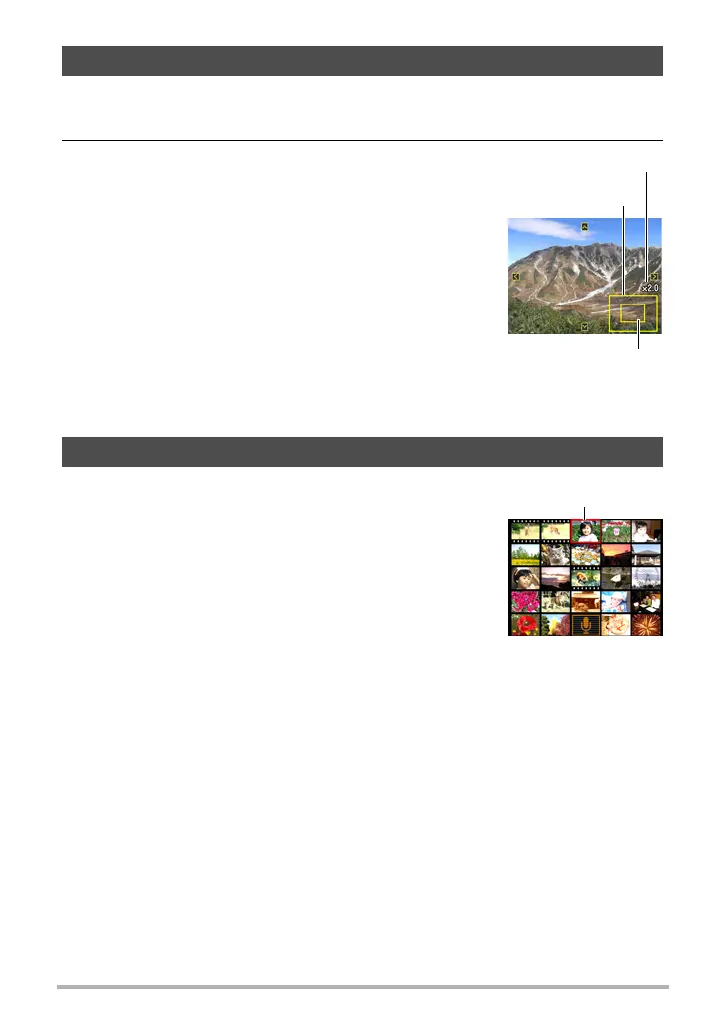
1. In the PLAY mode, press [SET] towards [4] or [6] to scroll through the
images until the one you want is displayed.
2. Rotate the zoom controller towards z ([) to
zoom.
You can use [SET] (press it towards [8], [2], [4], or
[6]) to scroll the zoomed image on the monitor
screen. Rotate the zoom controller towards w to
unzoom the image.
– When monitor screen contents are turned on, a
graphic in the lower right corner of the screen
shows what part of the zoomed image is
currently displayed.
– To exit the zoom screen, press [MENU].
– Though the maximum image zoom factor is 8X,
certain image sizes may not allow zooming up
to the full 8X.
1. In the PLAY mode, rotate the zoom controller
towards w (]).
Press [SET] towards [8], [2], [4] or [6] to move the
selection boundary around the image menu.
To view a particular image, press [SET] towards [8],
[2], [4], or [6] to move the selection boundary to the
image you want and then press [SET].
Zooming an On-screen Image
Displaying the Image Menu
Image area
Current display area
Zoom factor
Boundary


 To Next Page
 Loading...