29
ENGLISH
6. MOBILE APP AND WI-FI CONNECTION
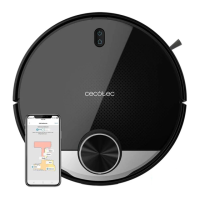
In order to access all the robot’s functions from wherever you are, it is suggested to
download the Conga 3000 App. You will be able to control the robot in the most efcient way,
enjoying the excellence of cleaning.
App advantages:
Control your robot in an easy and intuitive way.
Activate the cleaning process from any point.
Carry out settings and daily scheduling.
Choose between its different cleaning modes: Auto, Spiral, Edge, Manual, Twice, Restricted
area, Spot, Smart area, Back home or Scrubbing.
View how the robot creates an interactive map as it is cleaning.
Manage rooms smartly through its Room Plan function, which allows you to join, separate or
name rooms. Plus, create and schedule your own cleaning plans by selecting the rooms you
want to clean, the mode and power level.
Check the cleaned surface and the time taken.
Check the cleaning history.
* This model is compatible with voice virtual assistants Google Assistant and Alexa
Conguration:
Fig. 16.
Download the Conga 3000 App from App Store or Google Play.
Create an account with your e-mail and password.
Conrm login.
Add your Conga robot.
Connect to Wi-Fi.
Warnings:
The Wi-Fi name and password cannot exceed 32 bits.
If the network conguration fails to connect, follow the steps below:
Press the power button for 5 seconds, the robot will enter sleeping mode and the Wi-Fi light
indicator will blink fast indicating connection error.
Retry connecting the robot again following the steps in the before section.
If the connection fails again, check if:
a. The robot is too far away from the router.
b. The Wi-Fi password is incorrect.
Functions





 To Next Page