EasyManua.ls Logo

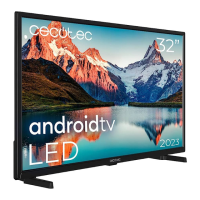
cecotec VQU11055+ - Accessories Included; Features; Introduction

cecotec VQU11055+
Print Icon
To Next Page IconTo Next Page
To Previous Page IconTo Previous Page
Loading...
English - 4 -
Introduction
     




Accessories Included
 
 
 
 Power Cord
Features
 
 Android
TM

 Google Cast
 
     

        
sockets
 
 Stereo sound system
 Teletext
 
 
 Manual tuning
 
 󰀨
 󰀨
 󰀨
 󰀨
 
 802.11 a/b/g/n/ac built in 
 
Ultra HD (UHD)

        


       



High Dynamic Range (HDR) / Hybrid Log-
Gamma (HLG)
       
       
  󰀨  

      
      
       
      

      
       
Menu button
and set the HDMI EDID Version   TV
Options>Settings>Device Preferences>Inputs
menu as EDID 2.0 or Auto EDID in order to watch



Dolby Vision



stunning image quality by combining HDR and wide
colour gamut imaging technologies. By increasing the
brightness of the original signal and using a higher
      
     


-

Menu button and set the HDMI EDID
VersionTV Options>Settings>Device
Preferences>Inputs menu as EDID 2.0 or Auto EDID
     
       
The source device should also be at least HDMI 2.0a
   Picture Mode menu
      
      Dolby Vision
BrightDolby Vision Dark and Dolby Vision Vivid.

󰀨
lighting conditions. To change the Picture Mode setting
Menu
content and go to Picture menu. While watching Dolby
      

access the Picture menu and set the Picture Mode.

Related product manuals