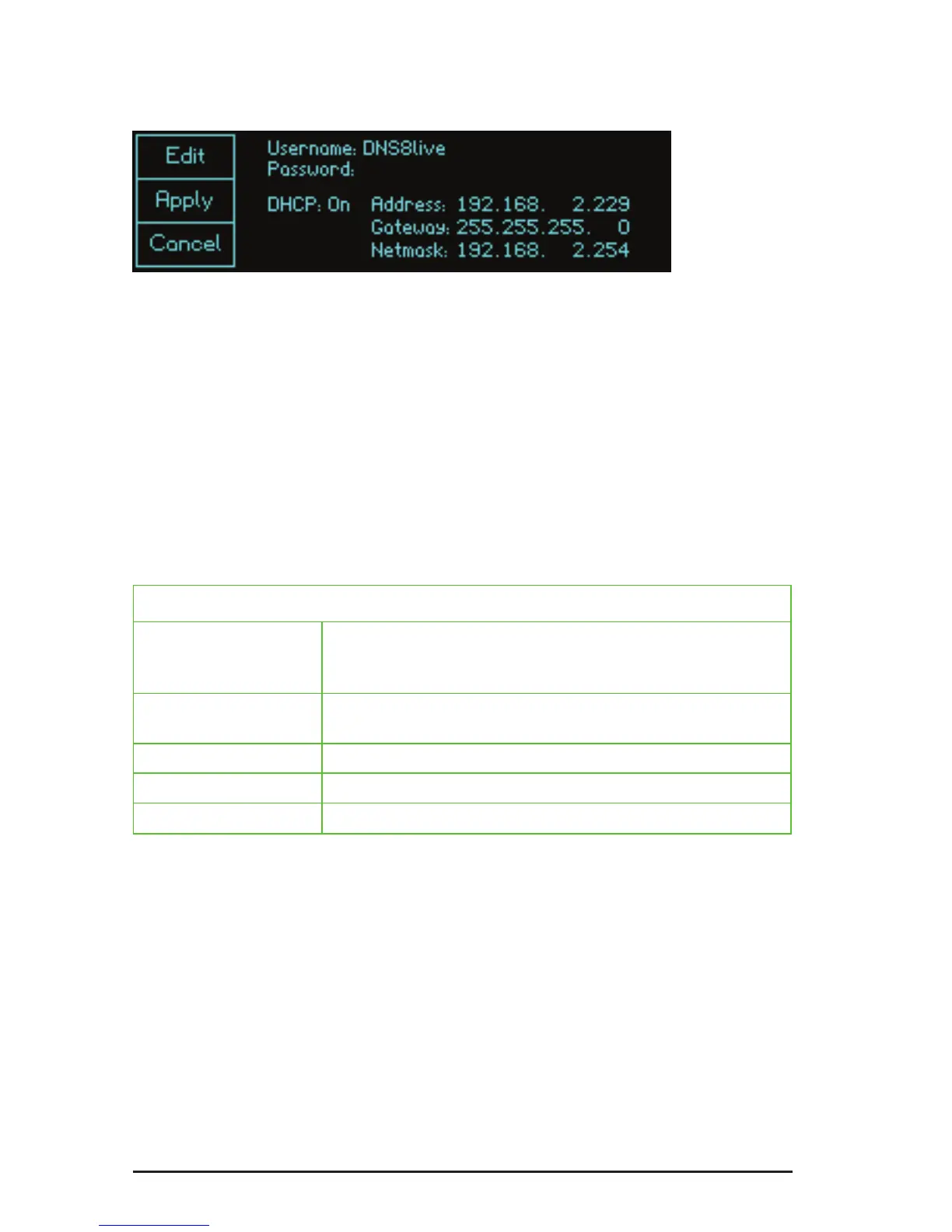
The Network screen
Username and password
Use this window to set the username and password that will be requested by web
browsers to enable remote control of the unit. (See next page.) The defaults are:
Username: DNS8live
Password: <none>
The username and password are case-sensitive.
IP settings
Use these elds to select the desired IP settings. (Most networks have a DHCP
server that will automatically congure the DNS 8 Live to work on the network, so it
is unlikely that you will need to adjust anything on this page when DHCP is On.)
DHCP
On Dynamic Host Conguration Protocol automatically sets
up the unit to work on your local network. No manual
changes to the addresses are possible in this mode
Off congure the unit address, netmask and gateway
manually
Address:
Set the unit’s address manually
Netmask:
Set the netmask manually
Gateway:
Set the gateway address manually
Note for network administrators
The DNS 8 Live sends its serial number as its host name in DHCP requests. If your
DHCP server registers host names in the domain name server, you can access
your DNS 8 Live as dns-8-xxxxx.yourdomain.com instead of directly by its
numeric IP address.
When congured correctly, the DNS 8 Live will respond to ICMP echo requests
(pings).


 To Next Page