FIRMWARE UPGRADES
The DNS 8 Live rmware may be upgraded over the network using a standard web
browser.
Determine the address of your DNS 8 Live by inspecting the Status window, then
launch your browser and type the following into the address bar…
xxx.xxx.xxx.xxx/upload.cgi
…where xxx.xxx.xxx.xxx is that address.
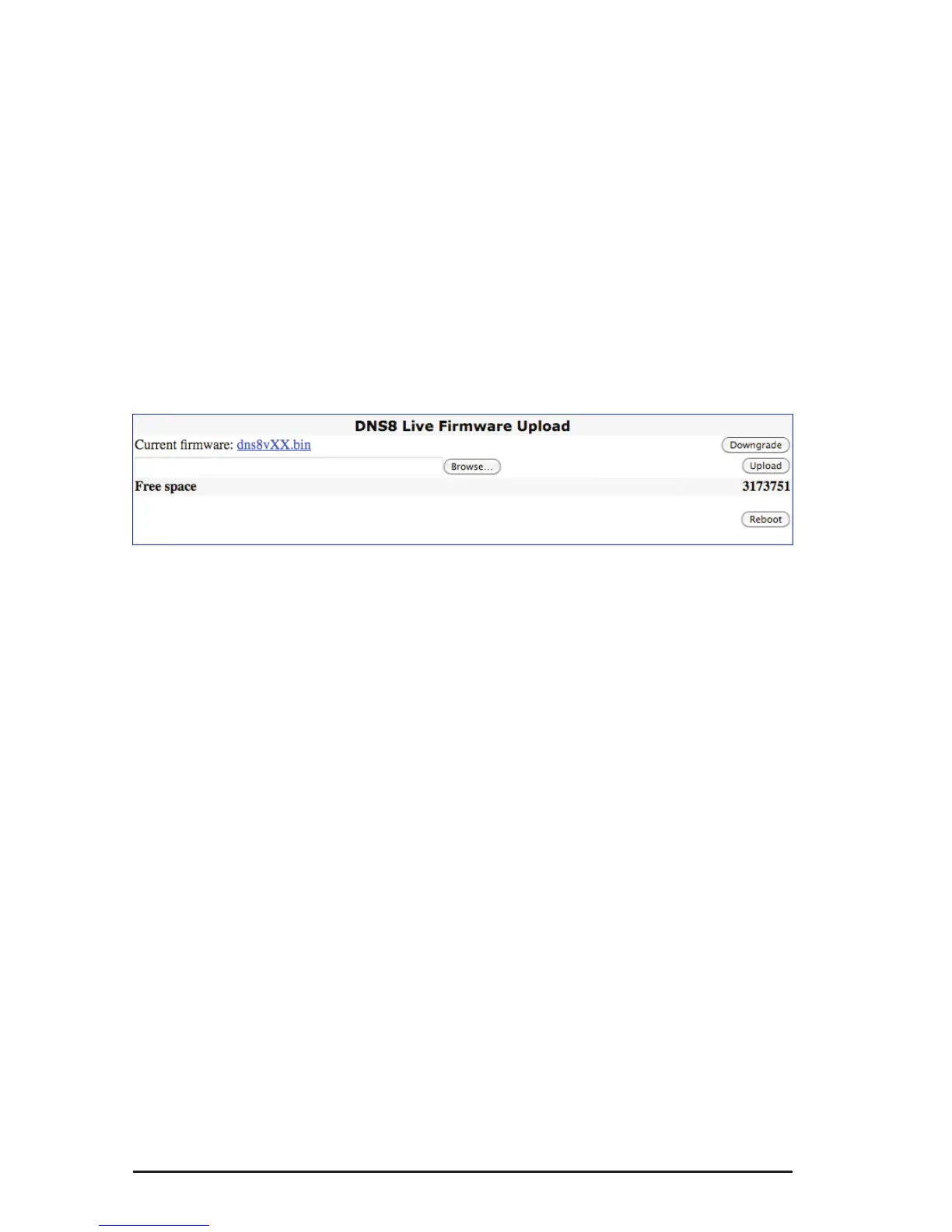
The following screen (or a similar one performing the same function, depending
upon browser) will appear.
Click on Browse and navigate to the new rmware, which will have been
downloaded from the web or sent to you directly by CEDAR Audio Ltd.
Click on Upload.
Depending upon the page displayed on the DNS 8 Live, you may notice the letters
“T” and “R” blinking on its main screen. This is normal, and indicates that the unit
is transmitting and receiving data.
When the upload is complete, press Reboot to restart the unit.
The software also allows you to return to a previous version of the rmware. Click
on Downgrade to remove the most recent version and then click on Reboot.


 To Next Page