Music Player Display
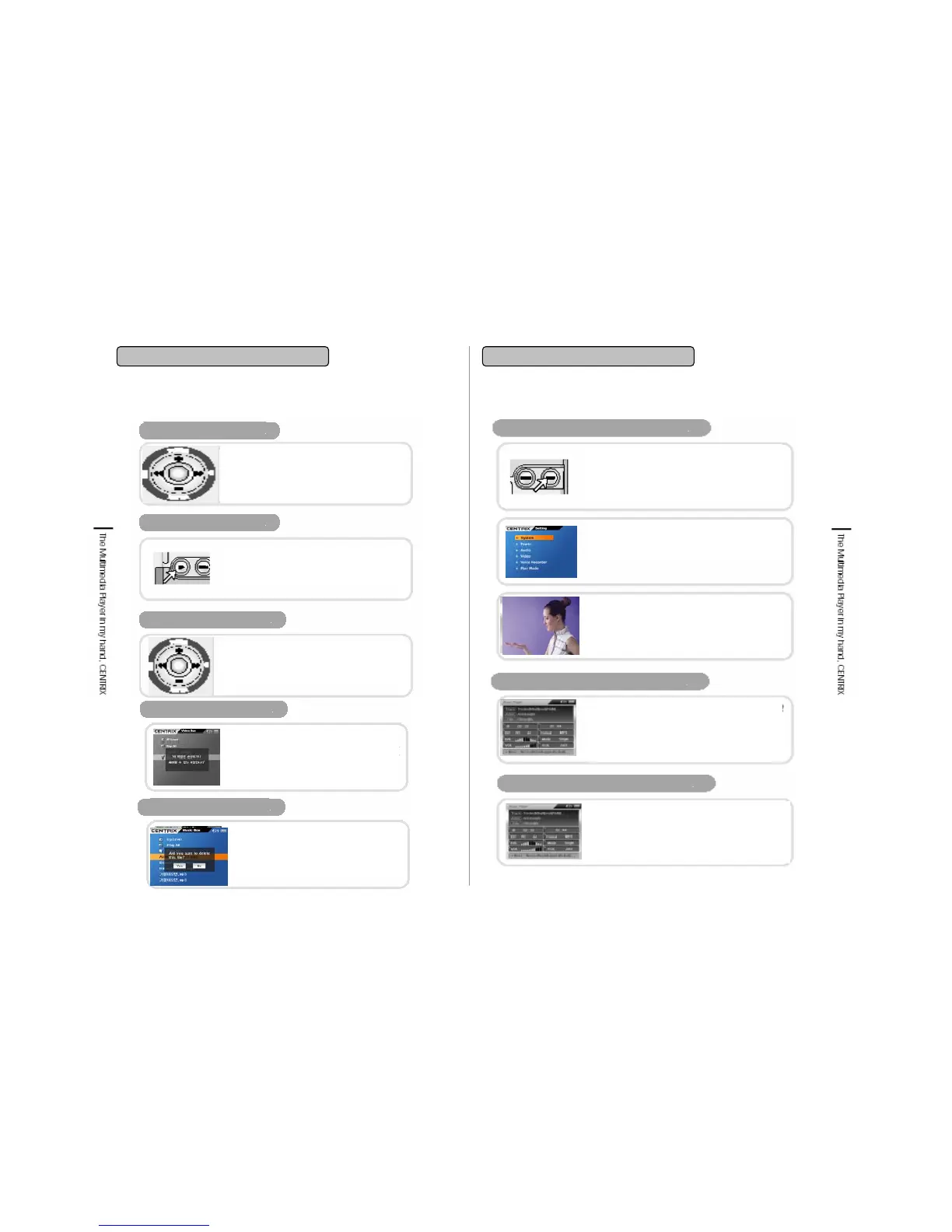
Volume Control
Play /Pause
Play Next/ Previous Frame
Damaged/Unplayable File
재생 불가 파일
Delete File
Use Volume +. – of Navigation button
while music file playback and volume
status will be indicated as a number in the
top right of the screen.
Use Pause button to pause the video
file playback and press the button again
to resume the playback.
Press o r buttons to watch
previous/ next video scene while playing.
When you want to skip the movie,
If selected file is not a playable or a
damaged one, then “This file is
damaged or not playable.” message
will be shown on the screen and it
returns to the folder again.
To delete one file, put cursor on the file
and press Menu key shortly. Select as
“delete’ and then press ‘select’ button,
the file is deleted.
4. Video Box
4-2. Playing Video File
▶▶
▶▶
Video Player Setting
Display size switchover
Subtitle Display
Press Menu While Playing
If you press ‘Menu’ button while playing
then it is shifted as the circumstance setting
mode of the current file.
Settings
Set video and audio or other setting
function or Play mode suites to user’s taste.
Returning to Play mode
After circumstance setting is completed,
press ■/ESC button to switchover to the
playing
If you press Select button while video file
playing, screen size setting is switched.
If you select ‘Screen’ then it is displayed
fitted to screen size and select ‘Original’
then it is displayed as to the original size.
To play subtitle there should be same file
name between video & subtitle file which has
extension name as smi. If you do not want to
subtitle then off the Caption on Setting>Play
mode.
4. Video Box
4-2. Playing Video File
33
34


 To Next Page