27
28
3. Music Box
3-2. Playing Music File
3. Music Box
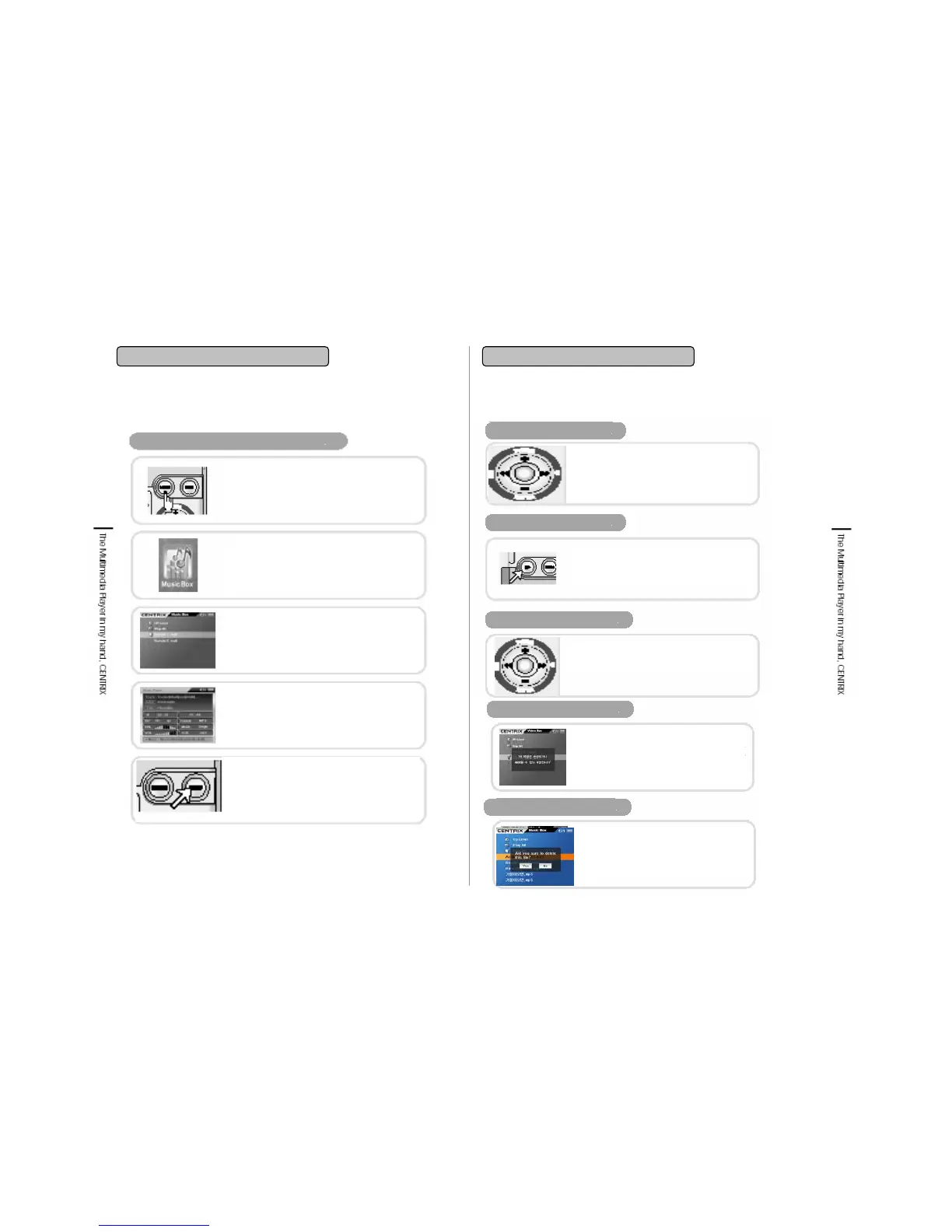
File Playback
Play stop
Press ■/ESC key to stop playback.
Then you will enter into Music directory and
you can select song you would like to listen
and playback.
POWER ON
Press POWER button for Power on.
Music Menu Selection
Transfer to navigation button and select
Music and click. By selecting, the icon will
be indicated.
Music File Selection
Put cursor on the file you would like to
playback from the folder under Music and
click. By selecting, the icon will be
highlighted
Music File Playback
If you press the click button, music file will be
played. For battery power saving, LCD
screen will be powered off in seconds and
file playbacks continuously
3-2. Playing Music File
Music Player Display
Volume Control
Play /Pause
Play Next/ Previous File
Damaged/Unplayable File
재생 불가 파일
File Deletion
Use Volume +. – of Navigation button
while music file playback and volume
status will be indicated as a number in the
top right of the screen.
Use Pause button to pause the music
file playback and press the button again
to resume the playback.
Press ◀ or ▶ buttons to play previous/
next music file while playing.
If selected file is not a playable or a
damaged one, then “This file is
damaged or not playable.” message
will be shown on the screen and it
returns to the folder again.
To delete one file, put cursor on the file
and press Menu key shortly. Select as
“delete’ and then press ‘select’ button,
the file is deleted.
◀▶


 To Next Page