Restoring Factory Defaults
Check Point 15000 and 23000 Appliances Getting Started Guide | 49
Restoring Using the LCD Panel
To restore the appliance using the LCD Panel keys:
1.
Reboot or turn on the appliance.
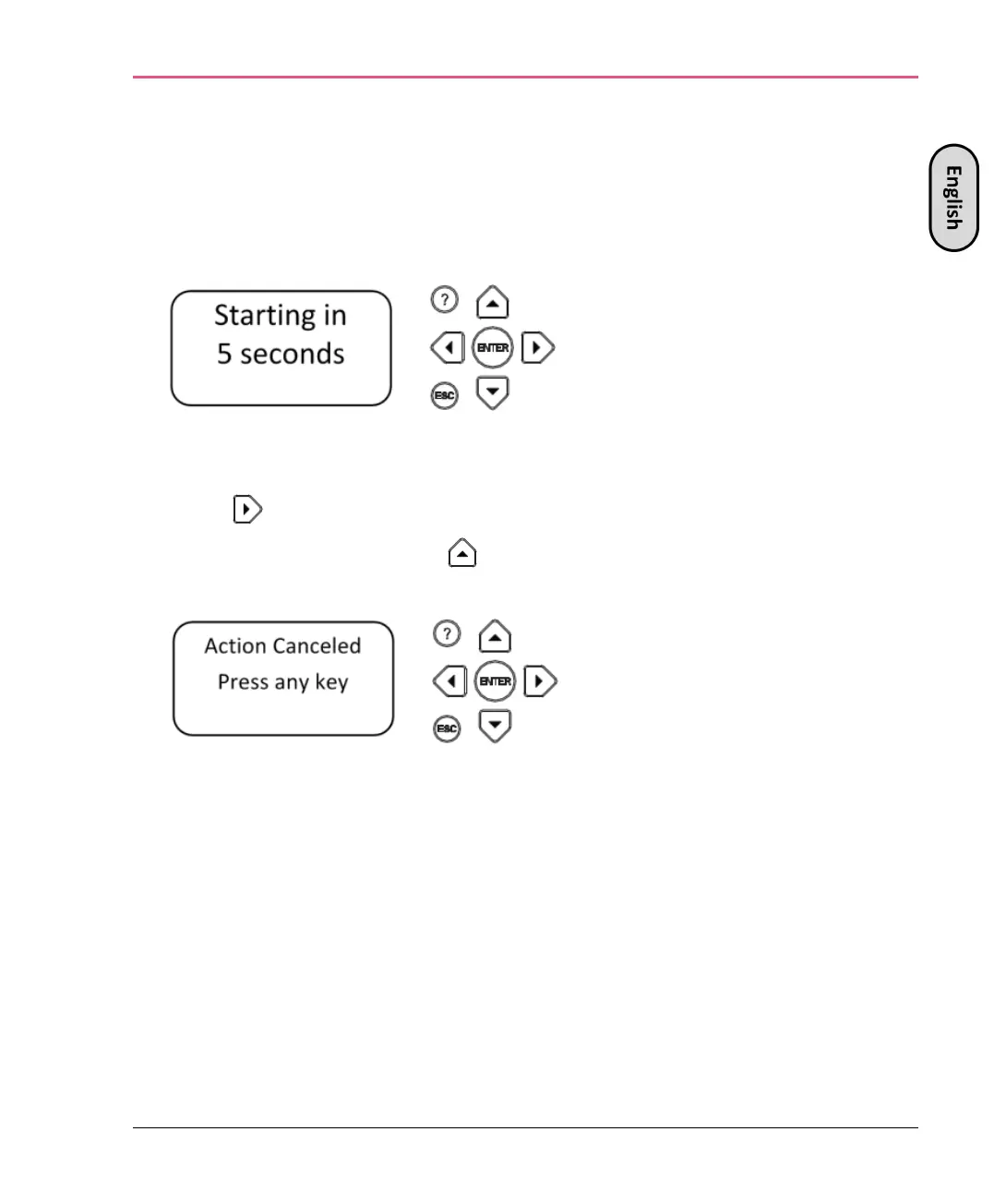
When the countdown begins, press any of the arrow keys.
The Boot menu appears.
Using the arrow buttons, scroll to the relevant default factory image.
Press .
Confirm the reset by pressing .
Pressing any other button causes the Action Canceled message to display:
At this point, pressing any key returns you to the boot menu.
After you confirm the reset, wait for the appliance to restore the factory image.
During the restore, a message shows continuously: Reverting image. Do not
turn off.
When the appliance is restored to its default factory configuration, it reboots. On
Gaia the Reverting message shows.



 To Next Page