The controls are accessed by pressing the desired
button on the touchscreen and choosing between
AUX, USB, or Bluetooth.
NOTE:
Uconnect will automatically switch to the appropri-
ate mode when something is first connected or
inserted into the system.
Android Auto
Android Auto is a feature of your Uconnect system,
and your Android 5.0 Lollipop, or higher, powered
smartphone with a data plan, that allows you to
project your smartphone and a number of its apps
onto the touchscreen radio display. Android Auto
automatically brings you useful information, and
organizes it into simple cards that appear just when
they are needed. Android Auto can be used with
Google's best-in-class speech technology, the
steering wheel controls, the knobs and buttons on
your radio faceplate, and the radio display’s touch-
screen to control many of your apps. To use Android
Auto follow the following procedure:
1. Download the Android Auto app from the
Google Play store on your Android-powered
smartphone.
2. Connect your Android powered smartphone to
one of the media USB ports in your vehicle. If the
Android Auto app was not downloaded, the first
time you plug your device in, the app will begin
to download.
NOTE:
Be sure to use the factory-provided USB cable
that came with your phone, as aftermarket
cables may not work.
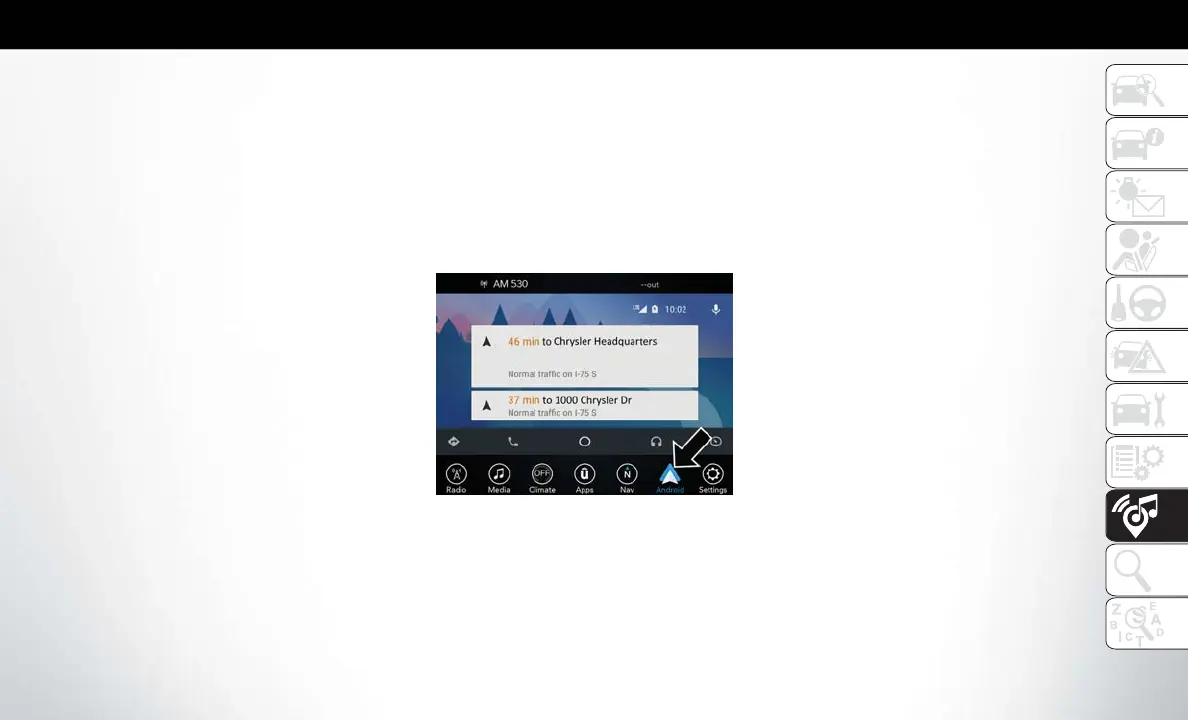
3. Once the device is connected and recognized,
the “Phone” icon on the personalized menu bar
will automatically change to the Android Auto
Icon. Android Auto should automatically launch,
but if it does not launch automatically, refer to
the Uconnect Owner’s Manual Supplement for
the procedure to enable the feature “Au-
toShow”. You can also launch it by touching the
Android Auto icon on the touchscreen.
Once Android Auto is up and running on your
Uconnect radio, the following features can be uti-
lized using your smartphone’s data plan:
• Google Maps for navigation
• Google Play Music, Spotify, iHeart Radio, etc. for
music
• Handsfree Calling, and Texting for communica-
tion
• Hundred of compatible apps
Android Auto
259










 To Next Page