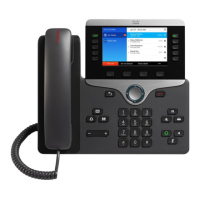
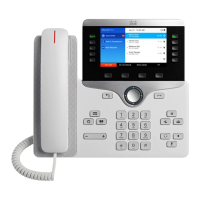
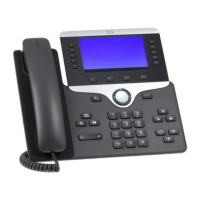
The Cisco Unified IP Phone 8851 is a full-featured IP phone designed for business communication, offering a wide range of functionalities for efficient call management and collaboration. It integrates several advanced features, including wideband audio, a hands-free speakerphone, an integrated Ethernet switch, and Bluetooth compatibility. A key feature is its USB port, which allows users to charge personal mobile devices directly from their desk. Additionally, with Cisco Intelligent Proximity, the phone facilitates seamless call transfers between the desk phone and a mobile device, enhancing flexibility for users on the go.
The phone is equipped with ten programmable backlit line/feature buttons, designed to handle multiple calls per line, providing users with quick access to various functions. Four soft keys dynamically guide users through call features and functions, adapting to the phone's current state. The full-color display is a central interface, offering scrollable access to calling features and providing clear information about calls, messages, soft keys, time, and date.
Key Features and Components:
- LCD Screen (1): This is the primary display for all phone information, including call status, messages, soft key labels, time, and date.
- Soft Key Buttons (2): These buttons perform various functions that are displayed on the LCD screen, changing contextually based on the phone's state. A "More" soft key (...) provides access to additional options.
- Navigation Cluster (3): This cluster allows users to navigate through displayed information on the LCD screen, such as menus, directories, and call lists.
- Feature Buttons (4): These buttons provide direct access to available features or tasks, streamlining common actions.
- Release Button (5): Used to end an active call or session, returning the phone to an idle state.
- Hold Button (6): Places an active call on hold and can also resume a held call.
- Transfer Button (7): Initiates either a blind or consultative transfer of an active call.
- Conference Button (8): Used to initiate a conference call with up to 8 participants.
- Headset Button (9): Enables hands-free communication through a connected headset. The button illuminates when active.
- Speaker Button (10): Activates the hands-free speakerphone for communication. It lights up when the speakerphone is active.
- Mute Button (11): Temporarily mutes the microphone, preventing audio transmission from the user's end. The button is lit when muted.
- Microphone (12): Captures audio for hands-free communication.
- Keypad (13): Used for dialing numbers and entering entries into the Contact Directory.
- Volume Button (14): Controls the incoming audio level for the handset, headset, speaker, and the ringer.
- Applications Button (15): Provides access to settings such as call history, user preferences, and phone settings (e.g., screen brightness, appearance, ringtone).
- Contacts Button (16): Offers access to both personal and corporate directories.
- Messages Button (17): Provides quick access to voicemail messages.
- Back Button (18): Returns the user to the previous screen or menu.
- Speaker (19): Provides audio output for the ringer and hands-free communication.
- Handset Light Strip (20): A visual indicator that flashes red for an incoming call and glows steady red for a new voice message.
- Line Buttons (21): Used to access and manage different phone lines.
Usage Features:
- Placing a Call: Calls can be placed using the dial pad, or by accessing recent calls or the Corporate Directory via the Contacts button. Users can choose to pick up the handset, press a line button, use the New Call soft key, Redial soft key, speakerphone, or headset button. Internal calls can be made by dialing a 7-digit extension, while external calls require dialing '9' and '1' before the area code. A call timer on the display monitors call duration.
- Answering a Call: Incoming calls can be answered by picking up the handset, using a headset, activating the speakerphone, or pressing the "Answer" soft key. The "Decline" soft key sends calls directly to voicemail.
- Placing a Call on Hold: During an active call, pressing the Hold button or Hold soft key places the call on hold. To resume, press Hold again or the Resume soft key. If multiple calls are held, the navigation arrows can be used to switch between them. Music on hold is not played for conference calls.
- Programmable Buttons (Line/Feature Buttons): These buttons change color to indicate status:
- Solid green: Active call or two-way intercom in progress.
- Fast flashing green: Call on hold.
- Solid amber: Private line in use.
- Flashing amber: Incoming (ringing) call.
- Solid red: Remote line in use (if applicable).
- Flashing red: Remote line on hold (if applicable).
- Customizing Ring Tones: The phone offers 14 different ringtones. Users can access these through the Applications button > Settings > Ringtone, navigate with the cluster, play samples, and set their preferred tone.
- Call Waiting: Each line supports up to four calls. Answering a call in waiting by pressing the corresponding line button automatically places the initial call on hold.
- Conference Calling: To add participants, press the Conference button, dial the number, press Call, and then Conference again when the party answers. Up to 16 participants (you plus 15 others) can join. An active call can be merged with a held call by pressing Conference, selecting the held call, and pressing Conference again. Participants can be viewed via the Show details soft key, and the initiator can remove participants. While on a conference call, pressing Hold allows other parties to talk amongst themselves without the initiator hearing them. The initiator can hang up, and other parties remain connected.
- Transferring a Call:
- Call Transfer: During an active call, press Transfer, dial the receiving party's number, and press Transfer again. This allows for private conversation before completing the transfer.
- Direct to Voicemail Transfer: During an active call, press Transfer, dial asterisk (*) followed by the extension number, and press Transfer again.
- Cancel Transfer: Press the Cancel soft key before the transfer completes. The caller is automatically put on hold and hears music during the transfer process.
- Call Forwarding: To enable, select a line, press Forward all, and dial the forwarding number. To forward to voicemail, press Forward all, then Voicemail. "Call forwarded to" will be displayed. To disable, press Forward off.
- Do Not Disturb (DND): Enables calls to automatically forward to voicemail. Activated by pressing the DND soft key. Outgoing calls are still possible. Disabled by pressing Turn off DND.
- Parking a Call: Allows a call to be picked up from a different extension. To park, press the Park soft key, and the system assigns a number preceded by an asterisk (*). Hang up. To retrieve, dial the assigned parked call number from any extension. The call remains parked for 60 seconds; if not picked up, it rings back to the initiator with a "Call Park Reversion" message.
- Recent Call Lists: The phone stores up to 150 recent calls, grouped if consecutive and from the same number. View by pressing Applications > Recents, then selecting a line if multiple exist. The Dial soft key places the call. For external calls, Edit Dial allows adding '9' and '1' if needed.
- Corporate Directory: A phone book of corporate contacts maintained by the system administrator. To make a call, choose Contacts > Corporate Directory, enter a full or partial name using the keypad, press Submit, select the contact, and press Call.
- Pairing a Mobile Device: Put the mobile device in discoverable mode. On the IP Phone, press Applications > Bluetooth > Add Bluetooth. Select the mobile device from the list, verify the passkey, and choose to save mobile contacts and call history to the IP Phone.
- Voicemail: Messages can be listened to from any touchtone phone. New messages are indicated by a solid red light strip on the handset and an envelope icon on the graphic display. To retrieve, select the Messages button and enter your voicemail PIN. For specific lines, press the line button first.
Maintenance Features:
- E911 Process and Procedures: If 911 is called from the office, the address displayed for emergency responders is the building address. Users are advised to notify reception or security and provide the room number or have someone direct emergency services. In case of a network outage or power loss, users should use their cell phone to call emergency services.
The Cisco Unified IP Phone 8851 is designed to be a robust and user-friendly communication tool, providing a comprehensive suite of features to support modern business environments.


 To Next Page
 General