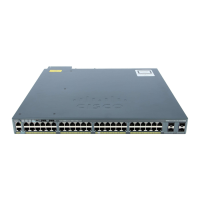
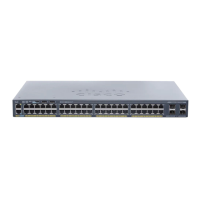
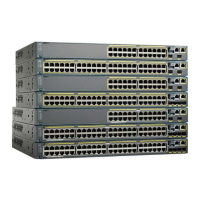
Before you Begin: If your PC has a static IP address, change your PC settings to temporarily use DHCP.
Step 1 Verify that no devices are connected to the switch. DHCP server is enabled by default.
Step 2 Insert the power cord into an AC power source outlet and turn on the power at the source.
Step 3 Connect an Ethernet cable to a 10/100/1000 Ethernet port on the switch front panel and to the Ethernet port on the PC.
Step 4 Wait until the switch assigns an IP address to the PC.
Step 5 To log on to the device using an Internet browser on your PC, type the IP address 192.168.1.1 in the address bar of your
Internet browser and press Enter.
Step 6 Type the following default credentials: username: smartm, password: c2960lsm and press Enter. Configure your device
using the Cisco Configuration Professional.
• The Cisco Catalyst 2960-L Smart Managed switches come with default configuration from the factory.
• When you ’write erase’ and then ‘reload’ the switch, it comes up with the default configuration.
• When you connect a laptop to any of the downlink ports, you should be able to connect to the switch by
using the default IP address in the browser.
• It is recommended that you create a new username and password after the first login and delete the default
credentials.
Note
Configuring the Switch Using the CLI
Accessing the CLI Through the Console Port
You can access the CLI on a configured or unconfigured switch by connecting the RJ-45 console port or USB
console port of the switch to your PC or workstation and accessing the switch through a terminal emulation
program.
Connecting the RJ-45 Console Port
SUMMARY STEPS
1. Connect the RJ-45-to-DB-9 adapter cable to the 9-pin serial port on the PC. Connect the other end of the
cable to the switch console port.
2. Start the terminal-emulation program on the PC or the terminal. The program, frequently a PC application
such as HyperTerminal or ProcommPlus, makes communication between the switch and your PC or
terminal possible.
3. Configure the baud rate and character format of the PC or terminal to match the console port default
characteristics:
4. Power on the switch as described in the switch getting started guide.
5. The PC or terminal displays the bootloader sequence. Press Enter to display the setup prompt.
Cisco Catalyst 2960-L Smart Managed Series 24-Port and 48-Port Switch Hardware Installation Guide
53
Configuring the Switch
Configuring the Switch Using the CLI



 To Next Page
 Loading...