12
Chapter 3: Driver Installation for the Compact USB 2.0 10/100 Network Adapter
Driver Installation for Windows Millenium
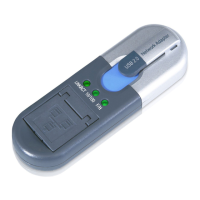
Compact USB 2.0 10/100 Network Adapter
Windows Millennium Network Configuration
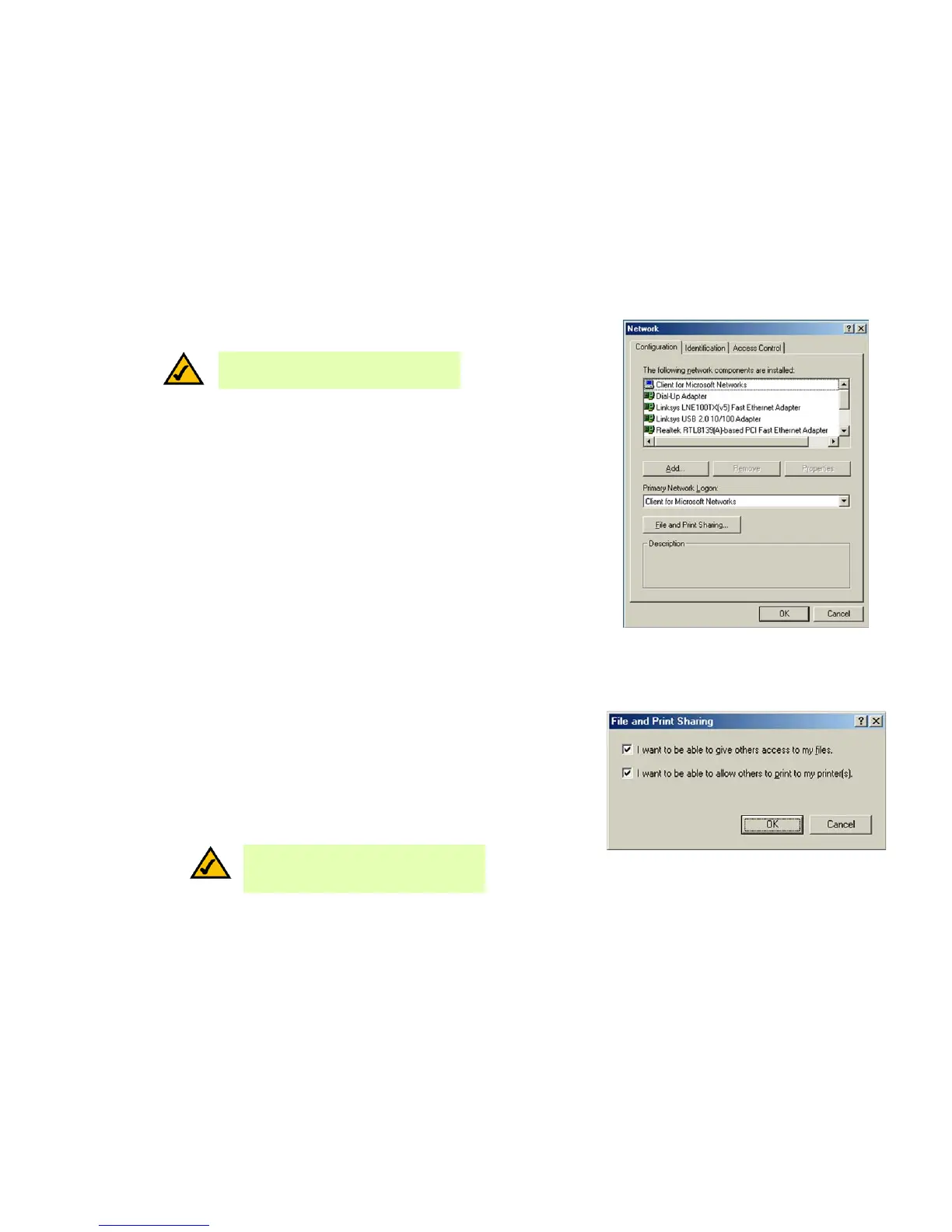
1. From the Windows Millennium desktop, right-click the My Network Places icon. Then click Properties.
2. The Network window will appear. Click the Configuration tab.
3. Click the File and Print Sharing button. The File and Print Sharing window will appear.
4. If you’d like others to be able to access the files on your PC's hard drive, select I want to be able to give
others access to my files.
If you’d like to share your printer with other users on the network, select I want to be able to allow others
to print to my printer(s).
Click the OK button. File and printer sharing for Microsoft Networks should now appear in the list of installed
components.
Figure 3-13: Network Screen
Figure 3-14: File and Printer Sharing
NOTE: Linksys does not provide technical support or
troubleshooting for network configuration.
NOTE: If you do not enable file and printer sharing,
your PC will be invisible on the network and
inaccessible to other users.

 To Next Page
 Loading...