4-7
Cisco Video Surveillance PTZ IP Camera Installation Guide
OL-28954-01
Chapter 4 Managing the Camera
Viewing Live Video
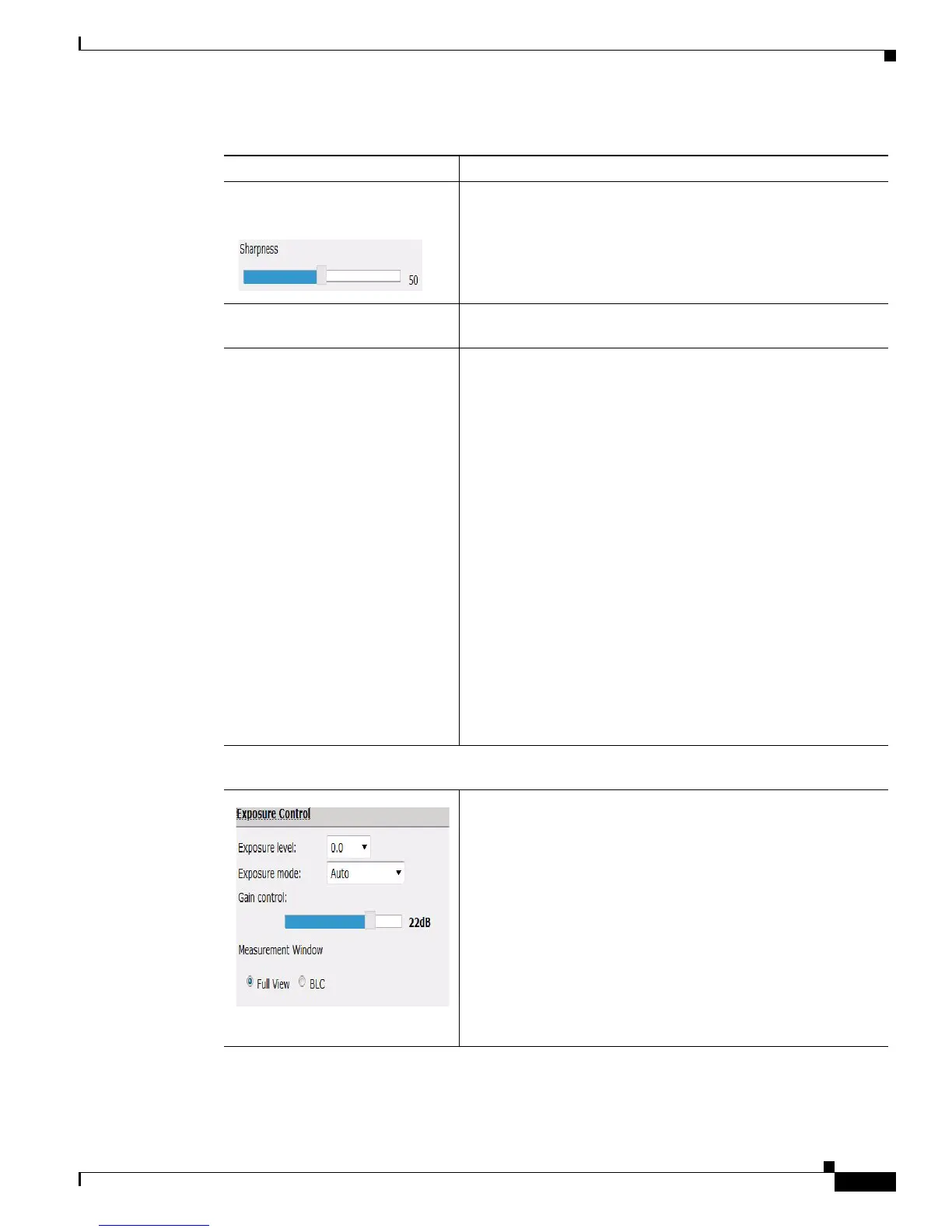
Sharpness slider To control the sharpness of the video from the PTZ IP camera,
drag the slider. Values are 1 through 100. A higher value
increases the sharpness and a lower value decreases the
sharpness.
The default value is 50.
Restore button Resets white balance, brightness, contrast, sharpness, saturation,
and hue to their default values.
White Balance Mode Options are
• Auto (default)—White balance is automatically set by the
camera and is suitable for most conditions.
• Indoor—This white balance mode is specifically for indoors.
You can capture images with natural white balance.
• Outdoor—This white balance mode is specifically for
outdoors. You can capture images with natural white balance
in the morning and evening.
• One Push WB—This option is a fixed white balance mode.
You can automatically readjust as required, assuming that a
white object, in suitable lighting conditions and occupying
more than half of the image area, is seen by the camera.
• Manual—With this option you can set the white balance by
setting red gain (RGain) and blue gain (BGain) manually.
• Sodium Lamp—This option is a fixed white balance mode
specifically for sodium vapor lamps.
• ATW—The camera automatically adjusts the white balance
in response to varying light conditions.
Exposure Control
Note Click on the Exposure Control heading to access the controls.
Table 4-5 Camera Settings (continued)
Control Description












 To Next Page