4-13
Cisco Video Surveillance PTZ IP Camera Installation Guide
OL-28954-01
Chapter 4 Managing the Camera
Viewing Live Video
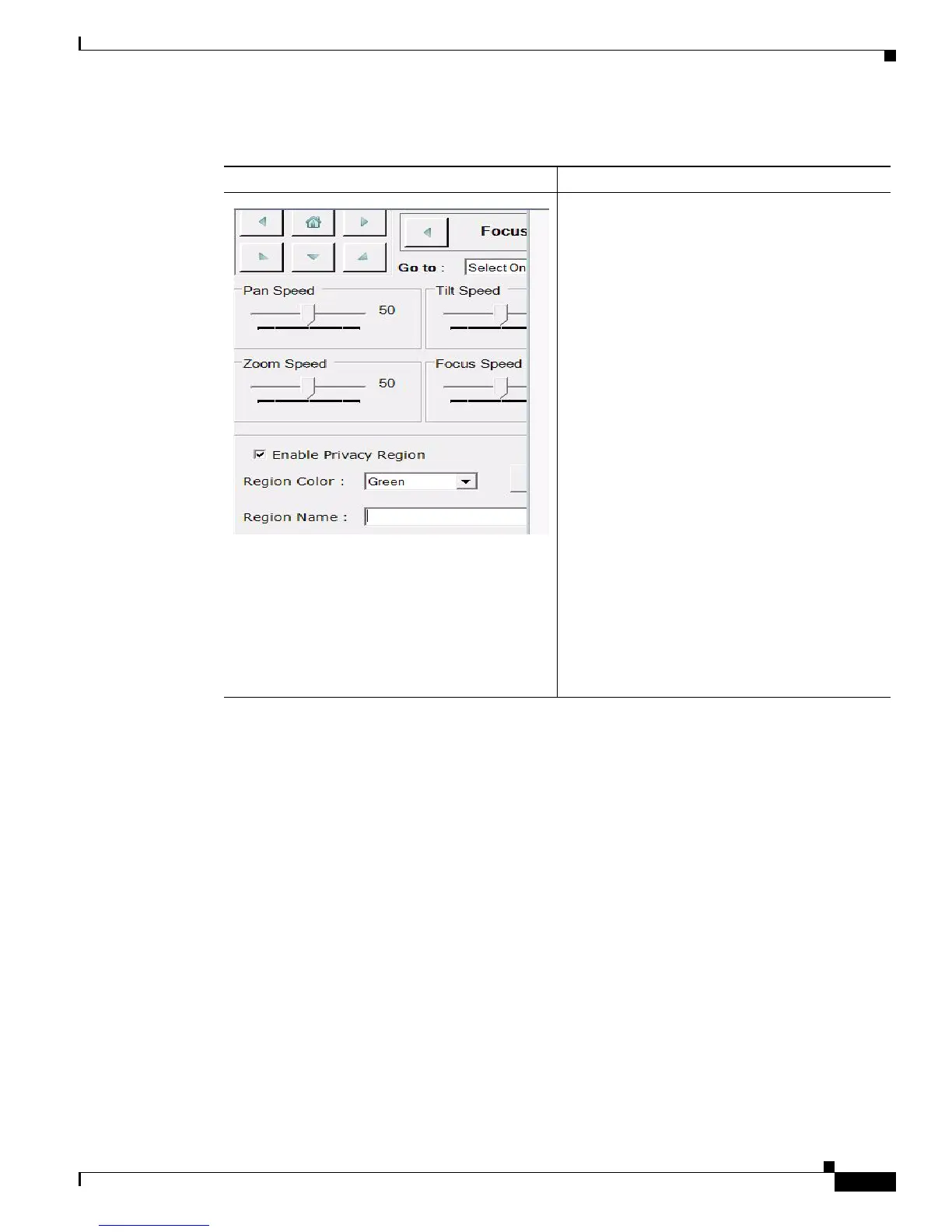
Ta b l e 4-8 Privacy Zone Controls
Control Description
Use the Privacy Zone section to mask particular
regions that should not be visible in video
streaming. Privacy Zone is drawn on the center of
the image. In the Privacy Zone section, use the
pan, tilt, zoom, and focus controls to place
targeted object or view inside the green box in
center. The green box can be resized to increase
height and width.
Once the target object is inside the green box,
enter the name in the Region Name edit box and
click the Add button to draw the mask on video.
To change mask color, click the Region Color
drop down box and select mask color. Click the
Save button to apply new mask color to video.
To remove a privacy region, select desired region
from the Privacy Mask drop down list. The
camera automatically goes to the position of the
selected mask. Click the Delete button to delete
the mask. The message, "Privacy Zone setting
successfully stored on the camera" is displayed
when region is deleted.
To focus on a particular Privacy Zone, select the
region name from Privacy Mask drop down list.
The camera automatically pans and tilts to the
masked region.












 To Next Page