EasyManua.ls Logo

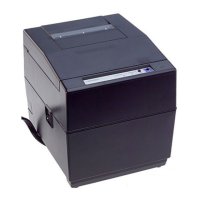
Citizen iDP3550 - User Manual

Citizen iDP3550
174 pages
Print Icon
To Next Page IconTo Next Page
Loading...
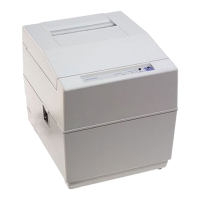
DOT MATRIX PRINTER
MODEL iDP3550/3551
User’s Manual

Table of Contents

Other manuals for Citizen iDP3550

Questions and Answers

  • B
    Brian ClarkAug 20, 2025
    Why is my Citizen iDP3550 Printer not printing?
    • J
      Jason SanchezAug 20, 2025
      If your Citizen printer isn't printing, check the following: * Confirm that the AC supply voltage is correct. * Ensure the printer mechanism is properly mounted and connected. * If the issue persists, the printer mechanism may need to be replaced.
  • N
    nmoralesAug 22, 2025
    How to troubleshoot a Citizen iDP3550 with no power?
    • J
      James GoldenAug 22, 2025
      If the Citizen printer has no power and the POWER lamp is not illuminated, check the following: * Ensure the AC cord is securely connected to the AC outlet. * For AC230V models, verify the connection to the terminal block. * Check the fuse and use the specified fuse.
  • B
    brandonmooneyAug 25, 2025
    What to do if Citizen iDP3550 Printer paper is not fed or fed irregularly?
    • K
      Kenneth ThomasAug 25, 2025
      If the Citizen printer paper is not fed or fed irregularly: * Ensure the motor connector is correctly connected. * If the supply voltage is normal, replace the motor (printer mechanism) if it's defective. * Clear any paper jams and ensure the paper is set correctly. * Verify that the AC supply voltage is correct. * Remove any foreign substances from the gear. * Replace the printer mechanism if the gear is broken.
  • P
    Patrick ParkerAug 26, 2025
    How to fix bad printing quality on a Citizen iDP3550 Printer?
    • P
      pamela01Aug 26, 2025
      If you observe bad printing quality on your Citizen printer, consider these potential solutions: * Replace the paper with the specified type. * Replace the ink ribbon. * Ensure the AC supply voltage is within the specified range.
  • R
    Richard CooperAug 28, 2025
    Why does my Citizen Printer not cut paper?
    • M
      Matthew WilliamsAug 28, 2025
      If your Citizen printer does not cut paper, check these items: * Ensure the motor connector is correctly connected. * Verify that the AC supply voltage is correct. * If the supply voltage is normal, replace the motor (auto cutter) if it's defective. * Clear any paper jams and ensure the paper path is clear.
  • A
    Anne JohnsonAug 30, 2025
    How to resolve shear in printing on a Citizen iDP3550 Printer?
    • K
      Kristin JohnsonAug 30, 2025
      To address shear in printing with your Citizen printer: * If there is a paper jam, replace the printer mechanism. * Ensure the AC supply voltage is correct. * Eliminate any foreign substances in the gear. * Replace the printer mechanism if the gear is broken.
  • B
    Benjamin LeSep 1, 2025
    What causes paint printout on a Citizen Printer?
    • D
      Dana WigginsSep 1, 2025
      If your Citizen printer produces a paint printout: * Replace the paper with the specified type. * Replace the ink ribbon. * Ensure the AC supply voltage is within the specified range.
  • K
    Kevin HamiltonSep 3, 2025
    Why does my Citizen iDP3550 have missing dots?
    • T
      Tiffany BerrySep 3, 2025
      To resolve missing dots on your Citizen printer, consider the following: * Ensure the printer mechanism cable is properly connected. * Clean the print head with a cotton swab or soft cloth dipped in ethyl alcohol to remove any foreign substances. * Replace the print head or printer mechanism. * Correct the ribbon mask to remove unwanted bending.
  • W
    William MillerSep 5, 2025
    How to fix badly blurred printout on a Citizen Printer?
    • R
      Ronald SolomonSep 5, 2025
      If your Citizen printer produces badly blurred printouts: * Ensure the AC supply voltage is correct. * Clean the print head with a cotton swab or soft cloth dipped in ethyl alcohol to remove any foreign substances.
  • C
    Christine CarterSep 7, 2025
    What to do if the Citizen Printer fuse immediately blows after replacement?
    • K
      Kelly CarrSep 7, 2025
      If the fuse in your Citizen printer immediately fails after replacement, it indicates a defect. Consider replacing the printer mechanism, control PCB assy, or power PCB assy. If the printer mechanism or circuit drive power is abnormal, replace the power PCB assy.

Summary

Important Safety Instructions

Cautions and Warnings

Warning Statements

Details critical warnings about equipment handling, potential hazards, and fire risks.

Precautions for Operation and Installation

Precautions for Installation

Guidelines for safe and proper installation environment and conditions.

Precautions for Handling

Instructions for safe operation, avoiding damage, and preventing injury.

Daily Maintenance

Basic Printer Specifications

Detailed Specifications

Provides comprehensive technical specifications for various printer models.

Paper Specifications

Details recommended paper types, widths, and thicknesses for different models.

Outer Appearance and Component Parts

Printer Operation Guide

Connecting Interface Cables

Steps for connecting serial and parallel interface cables to the printer.

Connecting Drawer Kick-Out Connector

Procedure for connecting the drawer kick-out connector with safety caution.

Inserting Printer Paper

Procedures for loading paper rolls and fan-fold paper, including cautions.

Removing Paper Jams

Procedure for clearing paper jams and troubleshooting.

Operation Panel and Error Display

Explanation of printer status indicators, lamps, and error messages.

DIP Switch Settings

DIP Switch Configuration

Detailed settings for DIP Switch 1 and 2, including international character selection.

Preset Jumper Settings

Mode Setting Method

Setting Modes

Explains how to select CBM, Star, and ESC/POS modes using DIP switches and jumpers.

Input Buffer Backup Function

Parallel Interface

Parallel Interface Specifications

Technical details of the 8-bit parallel data system and control signals.

Input and Output Signals

Description of input, output, and power-related signals for the parallel interface.

Serial Interface

Serial Interface Specifications

Details asynchronous system, baud rates, and data transmission configuration.

Serial Input and Output Signals

Description of signals like RXD, DTR, TXD, DSR, FAULT, RESET for serial communication.

Serial Error Detection and Buffering

Details error detection methods and buffering mechanisms for serial data.

Drawer Kick-Out Connector

Drawer Kick-Out Connector Specifications

Details drive voltage, current, and signal levels for the drawer kick-out.

Print Control Functions

CBM Mode Commands

Lists and describes commands for the CBM print mode.

Star Mode Commands

Lists and describes commands for the Star print mode.

ESC;POS Mode Commands

Lists and describes commands for the ESC/POS print mode.

Citizen iDP3550 Specifications

General IconGeneral
BrandCitizen
ModeliDP3550
CategoryPrinter
LanguageEnglish

Related product manuals