EasyManua.ls Logo

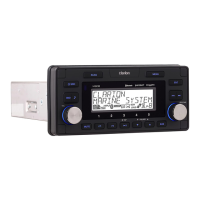
Clarion CMS2 - User Manual

Clarion CMS2
21 pages
Print Icon
To Next Page IconTo Next Page
Loading...
Owner’s manual & Installation manual
Mode d’emploi et manuel d’installation
Manual de usuario y Manual de instalación
MARINE DIGITAL MEDIA BLACK BOX WITH
WATERTIGHT CONTROLLER
BOÎTE NOIRE MARINE MULTIMÉDIA
NUMÉRIQUE AVEC CONTRÔLEUR ÉTANCHE
CAJA NEGRA DIGITAL MARINA
CON CONTROLADOR HERMÉTICO

Other manuals for Clarion CMS2

Questions and Answers

  • T
    Tony LopezSep 10, 2025
    Why is the audio quality poor when using Bluetooth with my Clarion Marine Equipment?
    • J
      joshuamillerSep 10, 2025
      If the audio quality is poor after connecting a Bluetooth-enabled device to your Clarion Marine Equipment, the Bluetooth reception might be weak. Try moving the device closer to the audio system or removing any obstacles between the device and the system.
  • J
    Jerry GrayAug 22, 2025
    What to do if my Clarion CMS2 unit will not power on?
    • T
      taylorangelaAug 22, 2025
      If your Clarion Marine Audio unit isn't powering on, the vessel's accessory switch might be off. If the power supply is properly connected to the vessel’s accessory terminal, switch the ignition key to “ACC”.
  • G
    Gina TaylorAug 25, 2025
    Why won't my Bluetooth device pair with my Clarion Marine Equipment?
    • G
      Garrett DuncanAug 25, 2025
      If you're having trouble pairing a Bluetooth device with your Clarion Marine Equipment, it could be due to a couple of reasons: * The device might not support the profiles required for the system. In this case, try using another device to connect. * The Bluetooth function on your device might not be enabled. Check the user manual of your device for instructions on how to enable Bluetooth.
  • K
    Kevin TaylorAug 26, 2025
    What to do if auto seek function on Clarion CMS2 Marine Audio can not find any stations?
    • P
      Patrick TaylorAug 26, 2025
      If the auto seek function on your Clarion Marine Audio isn't finding any stations, it might be due to a couple of reasons. First, check that the antenna cable is securely inserted. If it is, the signals might be too weak, in that case select a station manually.
  • S
    sarahdavisAug 28, 2025
    What to do if my Clarion CMS2 controller is not responding?
    • B
      brian60Aug 28, 2025
      If your Clarion Marine Audio controller isn't responding, the built-in internal processor might not be operating properly. Try pressing the RESET button with a ball point pen.
  • E
    Emily FloresAug 29, 2025
    Why is the audio quality poor after connecting my device to Clarion CMS2 via Bluetooth?
    • V
      Virginia HarrisonAug 29, 2025
      If the audio quality is poor after connecting your device to Clarion Marine Audio via Bluetooth, it could be due to poor Bluetooth reception. Try moving the device closer to the audio system or removing any obstacles between the device and the system.
  • L
    Leslie RobertsSep 18, 2025
    What does 'SUBSCRIPTN UPDATED' mean on my Clarion Marine Equipment?
    • M
      Melissa GillSep 18, 2025
      If your Clarion Marine Equipment displays 'SUBSCRIPTN UPDATED', it means an update to your SiriusXM subscription has been received by the SiriusXM tuner. Press any button to continue.
  • A
    Amber VillanuevaSep 12, 2025
    Why won't my Clarion Marine Equipment power on?
    • K
      Kimberly GreeneSep 12, 2025
      If your Clarion Marine Equipment isn't powering on, the vessel's accessory switch may not be activated. If the power supply is properly connected to the vessel's accessory terminal, switch the ignition key to “ACC”.
  • D
    Danny WrightSep 8, 2025
    What to do if my Clarion Marine Equipment controller is not responding?
    • D
      David CaldwellSep 8, 2025
      If the controller for your Clarion Marine Equipment isn't responding, it might be due to the built-in internal processor not operating correctly. Try pressing the RESET button with a ball point pen.
  • M
    Michael ArnoldSep 5, 2025
    How to fix Clarion Marine Equipment when it says 'CHEK TUNER'?
    • A
      Amanda MoraSep 5, 2025
      If your Clarion Marine Equipment displays 'CHEK TUNER', check the SiriusXM tuner connection on the back of the unit to ensure it's correctly connected.

Summary

Features Overview

Precautions and Safety

FCC Compliance and Warnings

Details FCC rules, interference, and modification guidelines for the device.

IC Warning and Compliance

Outlines Industry Canada compliance, interference, and modification rules.

Cautions on Handling

Controls and Layout

Display Controller Layout

Illustrates and identifies the buttons on the main display controller unit.

Black Box Controller Layout

Shows the layout and buttons of the separate black box controller.

Button Functions and Operations

Details the purpose and operation of each button on the controllers.

Registered Marks and Trademarks

Explains ownership and usage of various product logos and trademarks.

Optional Wired Remote Control

Operations

Basic Unit Operations

Covers powering on/off, mute, display control, mode selection, and volume adjustment.

Radio (AM;FM) Tuning and Presets

Details tuning, seeking, and storing preset radio stations.

Radio Settings and Options

Explains World Tuner, LO/DX, Auto Store, and Area Set configurations.

Weather Band Operation

Guides tuning, presets, and scanning for weather band stations.

SiriusXM Radio Setup and Navigation

Covers Radio ID, channel navigation, and preset station management.

SiriusXM Options and Features

Explains replay, category search, direct tune, and display options.

SiriusXM Parental Controls

Details how to set up and use parental controls for mature content.

USB Device Connection and Navigation

Details connecting USB devices and basic track/folder navigation.

USB Playback and Features

Explains play/pause, repeat, random, intro, and search functions.

iPod;iPhone Connection and Compatibility

Covers connecting devices and supported models for iPod/iPhone.

iPod;iPhone Playback and Search

Details track navigation, playback features, and searching music.

iPod;iPhone Simple Control Mode

Configures direct control of iPod/iPhone via the unit.

Auxiliary Input Operation

Details connecting and adjusting sensitivity for external AUX audio sources.

Bluetooth Device Pairing and Connectivity

Guides through pairing, connecting, and disconnecting Bluetooth devices.

Bluetooth Audio Streaming and Controls

Covers audio streaming, playback controls, search, repeat, and shuffle.

Troubleshooting

General Unit Troubleshooting

Addresses common issues like power, sound, and controller response.

Bluetooth Troubleshooting

Solves problems with Bluetooth pairing and audio quality.

SiriusXM Advisory Messages

Explains specific error messages from SiriusXM service.

Specifications

Tuner and Audio Specifications

Lists frequency ranges, sensitivity, power output, and audio controls.

USB and Bluetooth Specifications

Details USB version, port, format, and Bluetooth version/profiles.

Installation and Wire Connection

Pre-Installation Steps

Covers initial checks and battery disconnection before installation.

Installation Cautions and Warnings

Provides important safety and environmental warnings for installation.

Display Controller Mounting

Describes different methods for mounting the display controller.

Black Box Installation

Details selecting a location and mounting the black box module.

Wire Connection Details

Explains wiring connections using diagrams and pinout definitions.

Clarion CMS2 Specifications

General IconGeneral
Tuner typeDigital
AM band range530 - 1710 kHz
FM band range87.9 - 107.9 MHz
Internet radioNo
Supported radio bandsAM, FM
BacklightYes
Product colorBlack, Silver
Package depth172.2 mm
Package width147.5 mm
Package height51.3 mm

Related product manuals