51
English
50
ᶀ
Edit Menu
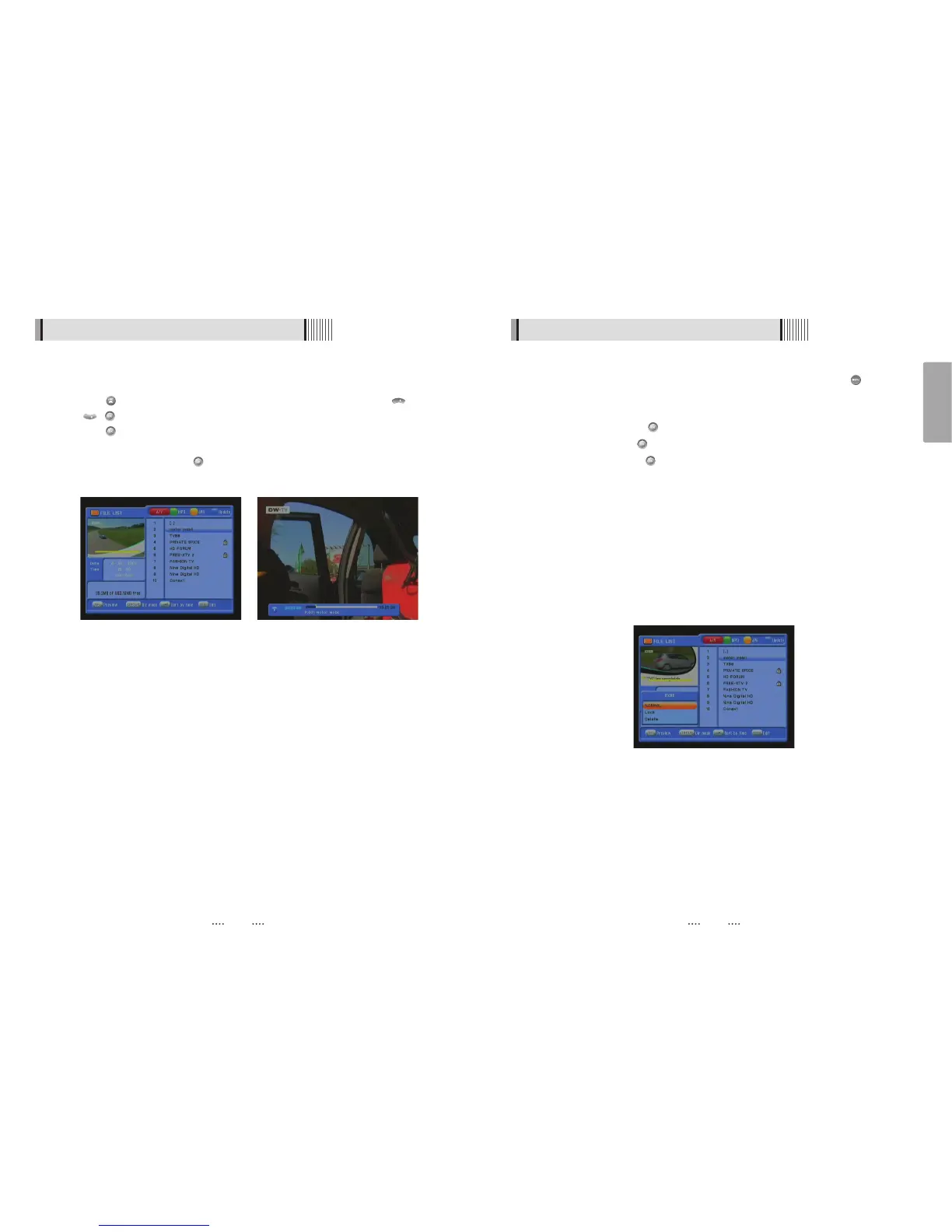
You will be asked to enter a password whenever you try to enter it. Press . The pop-
up menu for selection will appear<Figure 6.10.3>.
Select the item that you want to edit, and set its parameters as desired
⊹
Normal Mode : Press on the file that you can see the preview of a selected file.
⊺
Lock Mode : Press on the file that you want to lock/unlock.
Delete Mode : Press on the file that you want to delete.
- GROUP : Select between, File Mode Ƒ Dir Mode
- ADVANCE : Shows all sorted files. Select between, Sort by name Ƒ Sort by time.
ҫ
If you set ‘Channel Lock’ (refer to <Figure 6.2.4>security setting) to OFF, you will
not be asked to enter a password even if the channel is locked.
You can use the following buttons to navigate between USB sub menu.(Feature not
supported)
- GREEN : Jump to the Mp3 player menu.
- YELLOW : Jump to the Jpeg viewer menu.
- BLUE : Jump to the Data Transfer menu.
6.10 PVR
<Figure 6.10.3>
6.10 PVR
1) File List
ᶀ
File Playback
⊹
Press to show the file list. Select the file you want to play back by using /
, .
⊺
Press . In the left side of screen, detailed information about the selected file will
be displayed. (Recorded Date/Time, Used size, Total Size) <Figure 6.10.1>
- To see a full screen, press once more. And then the following time-bar will
appear. <Figure 6.10.2>



 To Next Page