43
English
42
6.6 Storage
2) JPG menu
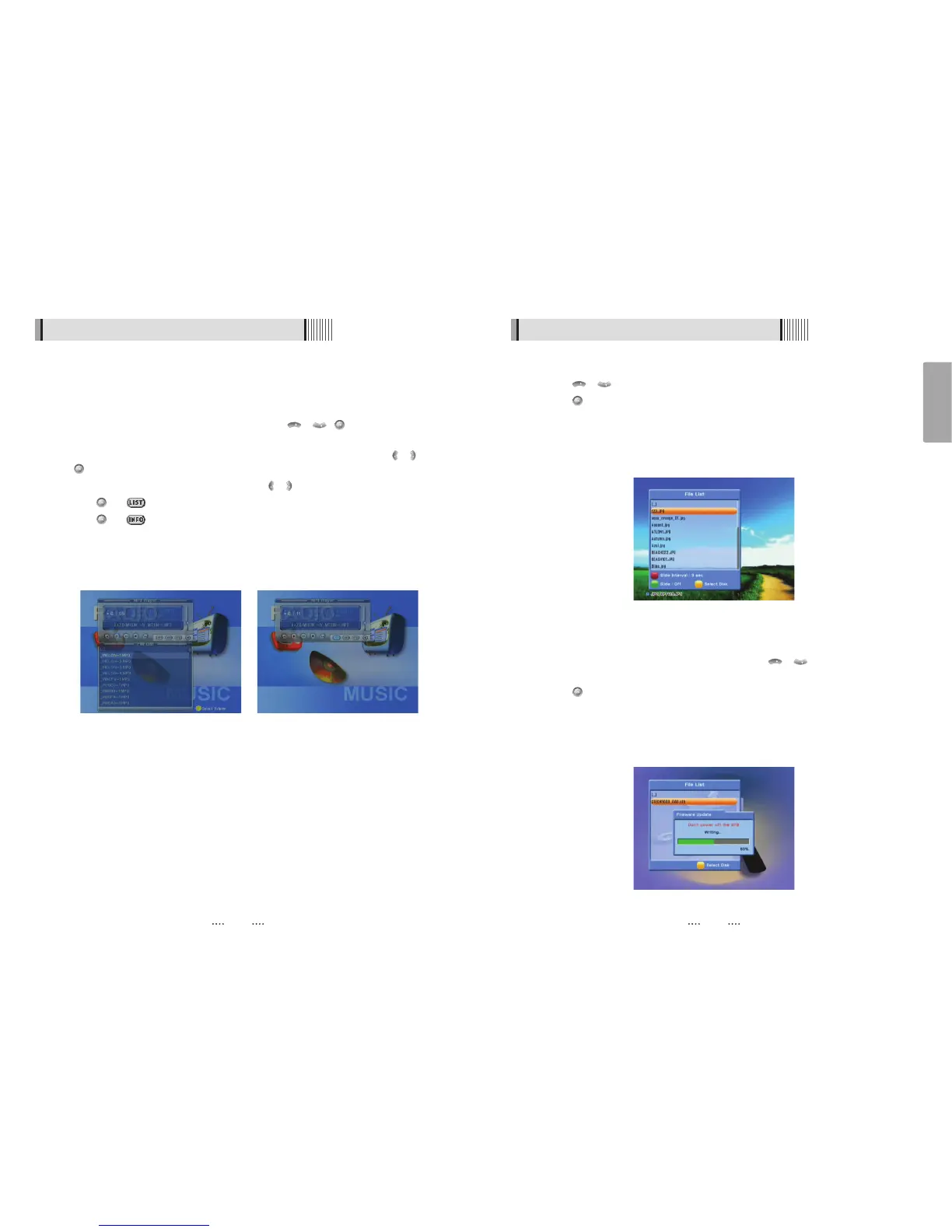
Press / to select a picture. <Figure 6.6.3>
Press to show the picture you want to display.
- RED : Sets the time interval between slides.
- GREEN : Selects slide show.
- YELLOW : Choose the Hard disk volume or usb device with USB hub.
- FILELIST : Shows/Hides the JPEG file list.
3) Data Transfer menu
Select the software you want to download by using / in the list
<Figure 6.6.4>
Press to start software downloading
- RED : Upload the current CNDF(compressed dish and channel data file).
- YELLOW : Choose the Hard disk volume or usb device with USB hub.
ҫ
Warning : Please do not switch off your receiver before software downloading is
completed.
<Figure 6.6.3>
<Figure 6.6.4>
This submenu allows you to play various MP3 files, view JPG files or download a new
software by connecting your USB flash drive.
1) MP3 menu
Select the MP3 file you want to play back by using / , in the file list.
<Figure 6.6.1>
Press the EXIT button to hide the file list. You can then select an option using / ,
.
<Figure 6.6.2>
You can then change the volume by pressing / .
Press on to display the MP3 file list.
Press on to display information about the selected MP3 file.
- FILELIST : Shows/Hides the MP3 file list
- INFO : Shows information about the MP3 file you selected.
- YELLOW : Choose the Hard disk volume or usb device with USB hub.
6.6 Storage
<Figure 6.6.1> <Figure 6.6.2>



 To Next Page