16 te c h n I c a l su p p o r t : 800.283.5936
SOFTWARE INSTALLATION
The Collaborate system, as delivered, is pre-loaded with the Windows 7 Operating System instal-
lation files, and software for installing and configuring Collaborate. An On-line Help System is in-
cluded with operating instructions.
In s t a l l I n G t h e os
The Collaborate Console as delivered contains a new MS Windows 7 operating system that needs
to be installed and configured. This installation process initiates with the first power-up of the Col-
laborate Console.
Be prepared to enter the Windows 7 License Key which is printed on a sticker on the »
back of the Collaborate Console unit and also provided in the Windows 7 CD case.
In s t a l l I n G co l l a B o r a t e co n s o l e
The Collaborate Console software installation must be run under the Windows 7 Administrator’s
account. Login to the Collaborate PC as Administrator. (It is recommended to log out of all other
accounts on the PC prior to software installation.)
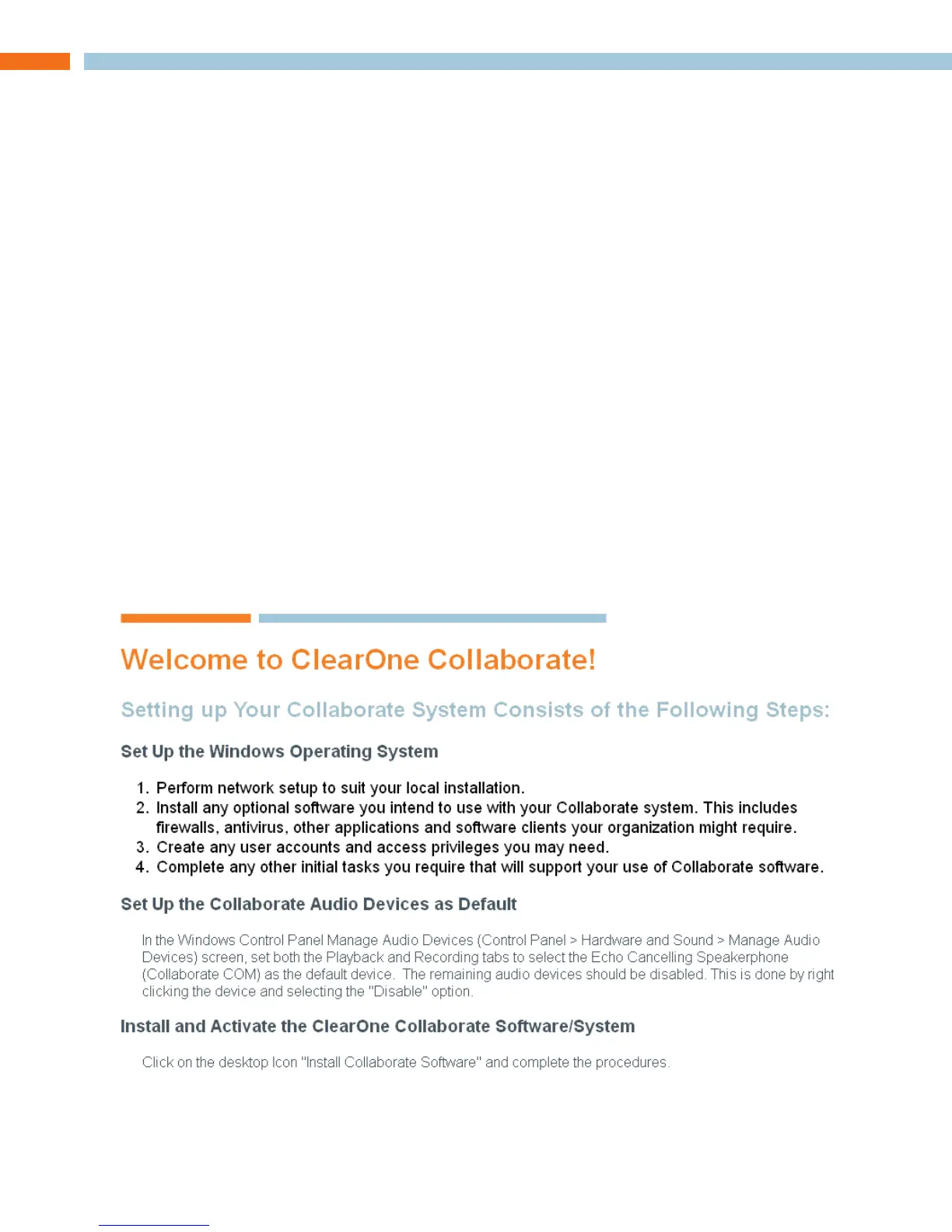
When the system is first booted after the OS is installed it will contain a shortcut to a “Welcome to
ClearOne Collaborate” readme file.
Open this file by double-clicking to find the basic steps needed to prepare the system for your
network and to load your Collaborate Console software and configure devices for use by Collabo-
rate.
This file contains the following:
After completing these steps you may start the Collaborate Console software by clicking on the
Start Collaborate Software icon.








 To Next Page