System Configuration ~ Site Setup
Adding a XAP 800
You can add a XAP 800(s) to your site file by connecting to your site and using
G-Ware to automatically create icons for the detected units. Or, you can work offline
and manually add the unit(s) to the site file and connect to the site at a later time.To
open an existing site file, click the Open Site File button or select Open Site from the
File menu.
To auto-detect units
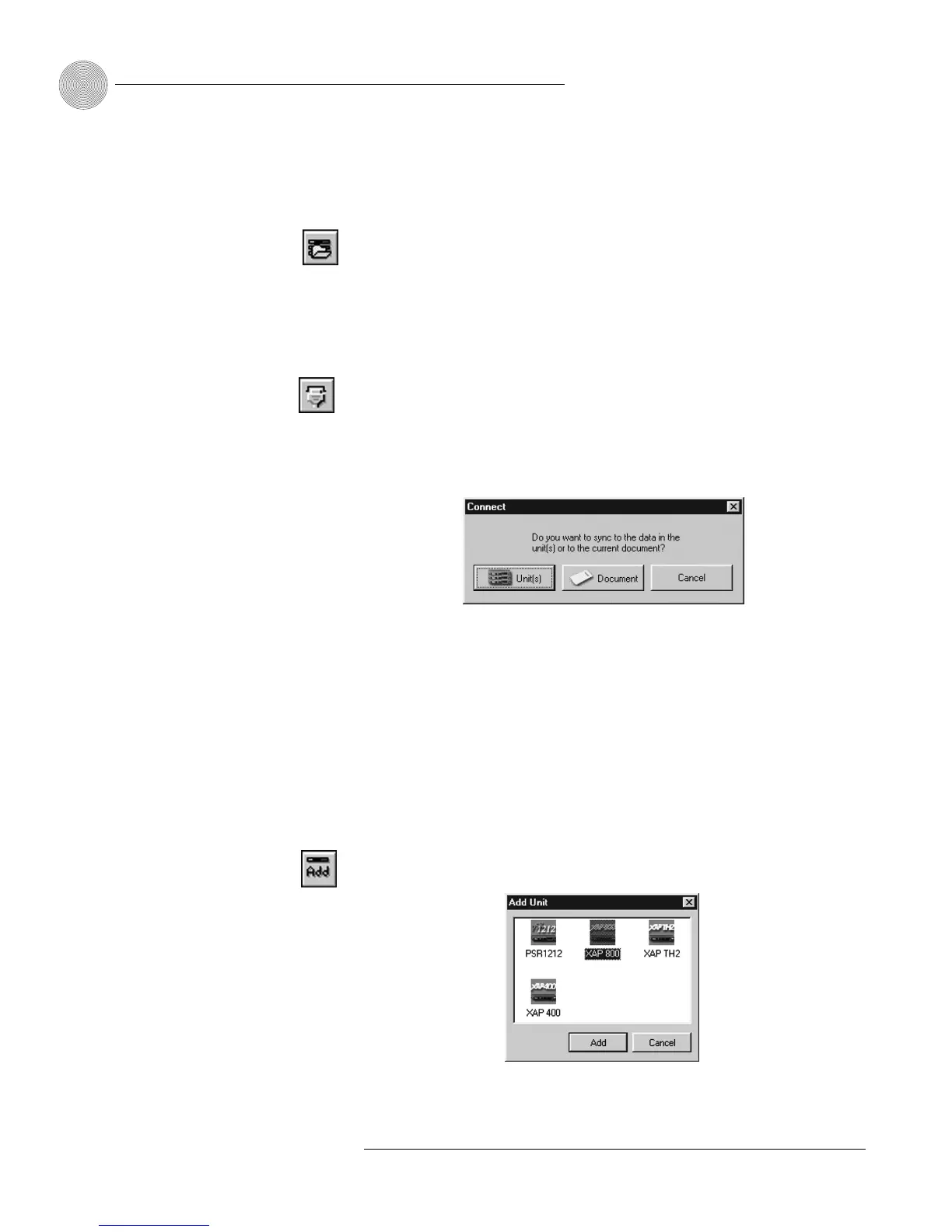
1. Click the Connect button on the G-Ware toolbar or select Connect from
the Connect Menu.
2. Choose Sync to Unit(s). G-Ware will automatically create icons for the new
units it detects on the network and place them in the Site pane. See Figure
3.11.
Note: When connecting to your site, you can choose to sync to Unit(s) or
Document. If you sync to the Unit(s), you will overwrite your G-Ware site file
with the current settings of the unit(s). If you sync to the Document, you will
overwrite the settings in your units with the settings you have saved in the site
file. Choosing to sync to Document will also create icons for any new units.
To manually add units
1. If you are working offline, click the Add button on the G-Ware toolbar. This
opens the Add Unit window.
2. Select the XAP 800 icon and click Add.
24
Technical Services Group ~ 1-800-283-5936 (USA) ~ 1-801-974-3760
Figure 3.8. Connection choices
Figure 3.6. Open
Site File button
Figure 3.7.
Connect
Figure 3.9. Add Unit
to Current Site
Figure 3.10. Add Unit window








 To Next Page