Coby Electronics Corp. [9] www.cobyusa.com
1
Computer Folder Dropdown
Click on the arrow to quickly access common
directories on the computer.
2
Computer Folder Explorer
Use the left panel to browse the folders on
your computer to nd photo les. Select photo
les in the right panel.
3
Computer Photo Preview
When a photo le is selected from the Folder
Explorer, a preview image will appear here.
4
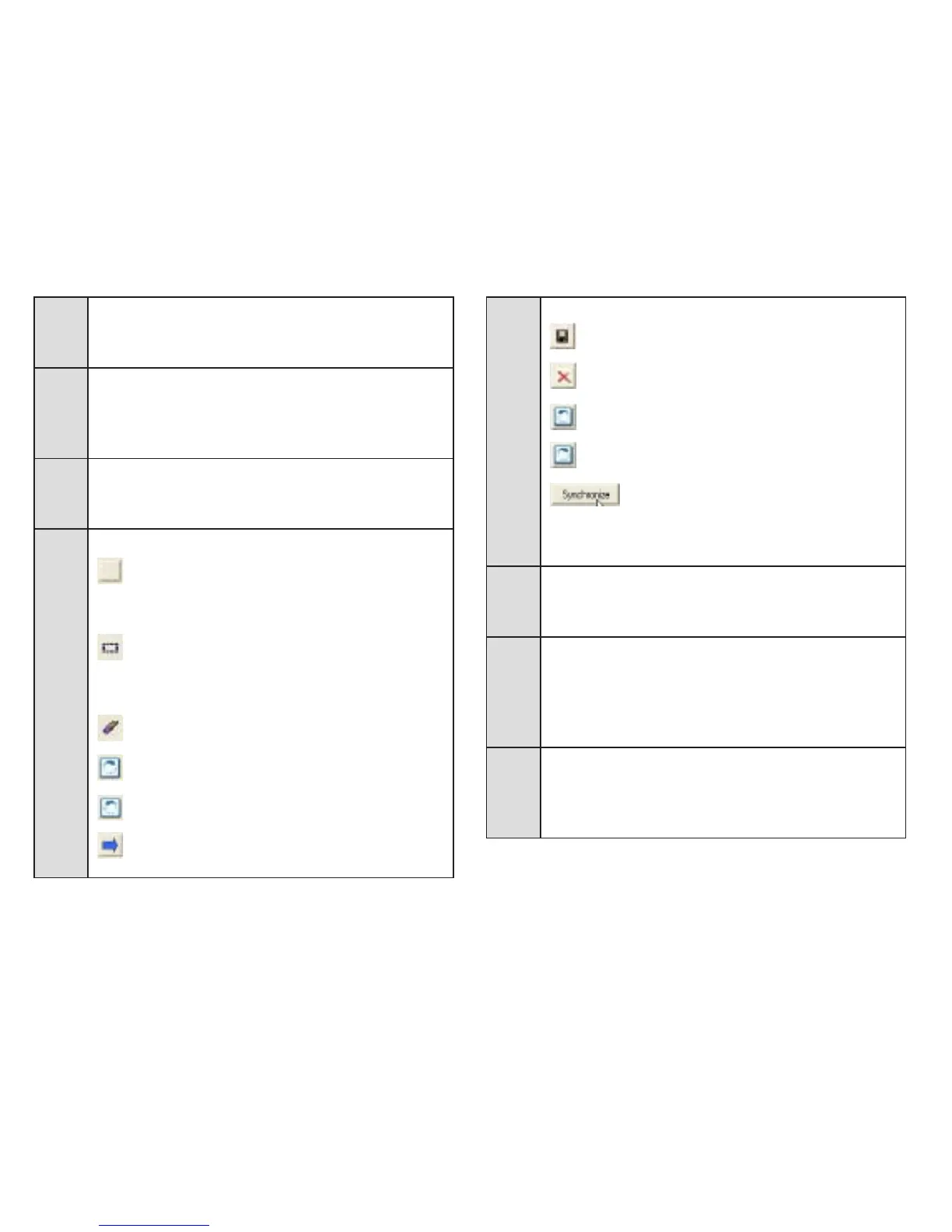
Computer Functions
Select Entire Image: View the
entire image on the DP-152. If the
original image is not square, black
bars will be added to image.
Select Region: View the region
indicated by the red crop box on
the DP-152. Click and drag on the
square to change what is selected.
Clear Selection: Reset the se-
lected area.
Rotate Right: Rotate the photo
clockwise.
Rotate Left: Rotate the photo
counter-clockwise.
Transfer: Transfer the selected
photo to the DP-152.
5
Device Functions
Save: Save a photo on the DP-152
to your computer.
Delete: Delete the selected photo
from the DP-152.
Rotate Left: Rotate the photo
counter-clockwise.
Rotate Right: Rotate the photo
clockwise.
Synchronize: After photos have
been transferred to or deleted
from the DP-152, click SYNCHRO-
NIZE to complete the operation.
6
Device Panel
This panel displays all of the photos that are on
the DP-152.
7
Device Capacity
The rst number indicates how many photos
are on the DP-152.
The second number indicates the maximum
number of photos that can t on the DP-152.
8
Status Bar
Indicates which and when an operation is
under way, and how much of the operation has
been completed.


 To Next Page