Operation
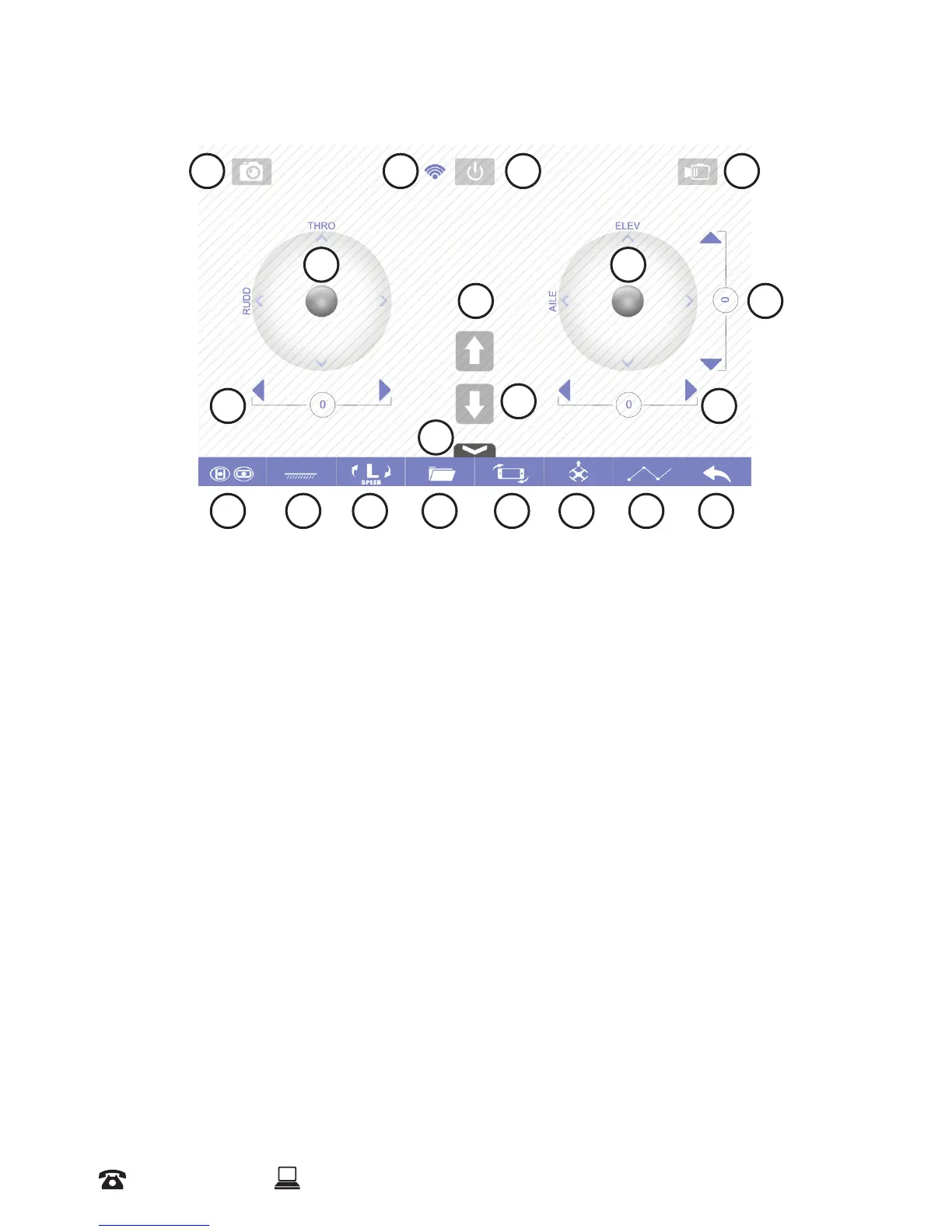
3.14 ‘Drone Go’ Application Interface
1
5
9
13 14 15 16 17 18 19 20
11
12
7
86
10
2 3 4
1. Take Photo
2. WiFi Signal
3. Engage/Switch o Propellers
4. Take Video
5. Left Thumbstick
6. Auto Take O
7. Right Thumbstick
8. Fine Tune - Forwards/Backwards
9. Fine Tune - Turn Left/Right
10. Auto Land
11. Fine Tune - Move Sideways Left/Right
12. Hide Toolbar
13. Show/Hide Thumbsticks
14. Level Calibration
15. High/Low Speed Mode
16. Check SD Card (SD Card not included)
/ Phone Memory
17. Gravity Induction Mode - Uses phone
movement to control drone rather than
using thumbsticks
18. Headless Mode
19. Waypoint Mode (see note below)
20. Back
NOTE:
• For information regarding thumbstick use, refer to remote control instructions on page 16
• When ne tuning there is no need to depress the left thumbstick with the App. Simply press the
arrows
• Using the ‘Drone Go’ App allows you to view the camera in real time using First Person View
• The waypoint function allows you to draw a pathway on the right hand side of the application, for
the drone to follow. For example, a straight line, circle or triangle could be drawn which the drone
will follow. Please note that this waypoint function does not use GPS, this means that the drone’s
pathway can be aected by airow and will not be as accurate as a GPS controlled drone.
• If in Normal Mode (i.e. Headless Mode is o), take note of the head of the drone and therefore the
direction the drone will take


 To Next Page