Download the App
The K3 Connect App is available on Apple App Store and Google Play Store
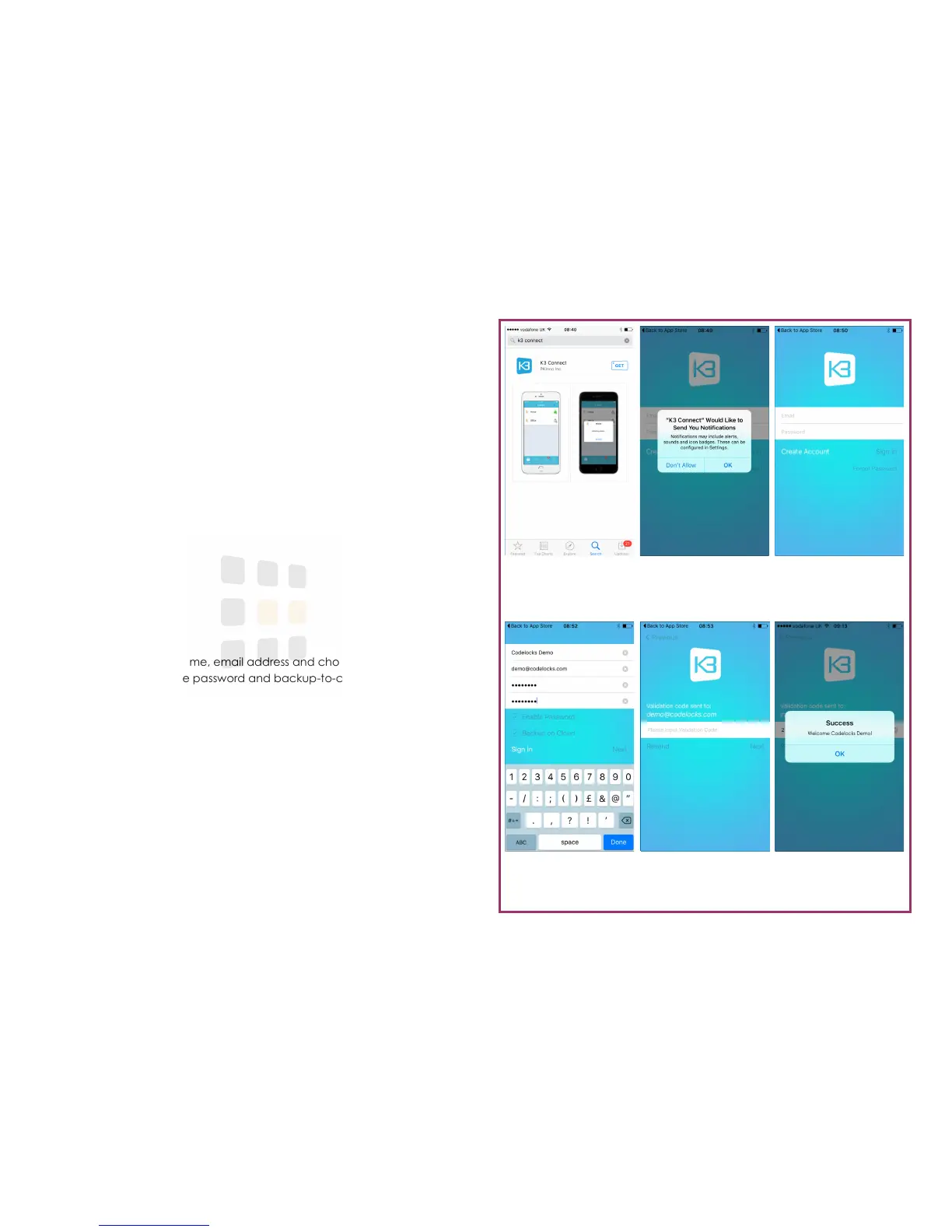
1. Search the App Store (Apple iOS) or Play Store (Android) for the K3 Con-
nect App
2. Install the App on your iOS or Android device
3. After installation, open the App
4. If asked, choose whether to allow notifications (unlocking notifications,
etc)
5. Touch Create Account...
K3 Connect App
Search the Apple App
or Google Play stores
Notifications
Choose whether to al-
low notifications
Create Account
Click the Create Ac-
count button
Enter Details
Enter your details and
choose a password
Validation
Check your email for the
validation code
Success!
The K3 Connect App is
ready for use
Register
1. Enter an account name, email address and choose a password. It is rec-
ommended to leave password and backup-to-cloud enabled.
Note: You will need to enter a valid email address that you have access
to. As part of the registration process, an email containing a validation
code will be sent to that email address
2. Touch Next to continue
3. Check your email account for the validation email. Enter the validation
code contained within the email and touch Next
Page 1




 To Next Page