2
About the Business Wireless Gateway Model Number: DPC3939B
The Business Wireless Gateway is an all-in-one product that connects Comcast
Business Internet and Business WiFi networking. It provides wired and WiFi
connectivity, so there’s no need for a separate router. The instructions below will
guide you through setting up your Private and Public WiFi networks.
•
Dual-Band WiFi 2.4 & 5 GHz
•
Content Controls
•
Firewall
•
Port Forwarding & Blocking
•
WiFi Protected Setup (WPS)
Learn how Wi‑Fi and
5 GHz
works in your business.
Check out p. 6.
Step 1. Find Your Default Wireless Network Info
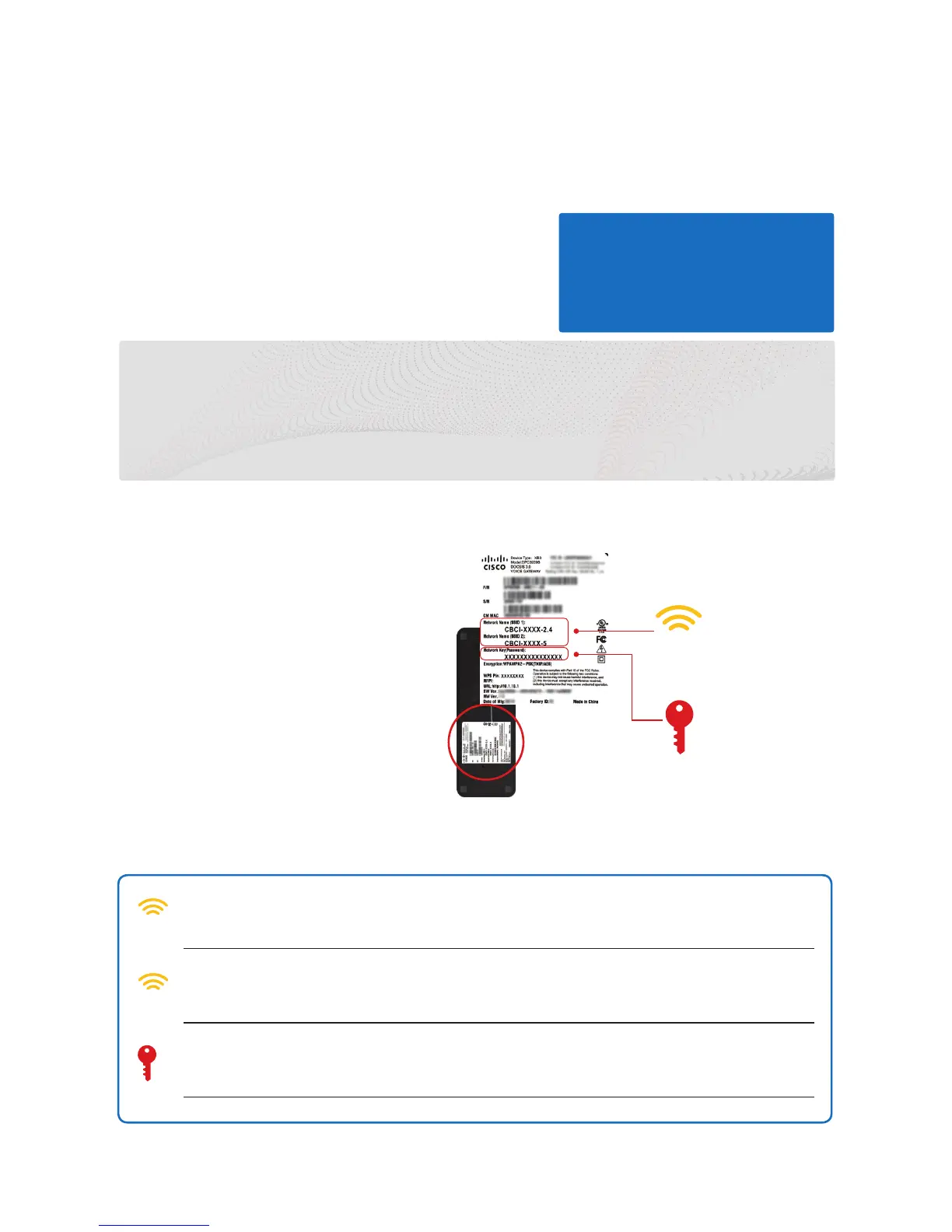
A. Lift the Business Wireless
Gateway to view the bottom
panel.
On the bottom panel label, find
the two Network Names (SSIDs)
and the one Network Key
(Password). The case-sensitive
password is the same for both
Network Names (SSIDs).
B. Write down your
information.
In the lines below, write
down your wireless network
information for future reference.
Wireless “Network Name (SSID 1)” for 2.4 GHz WiFi Band (Example: CBCI-XXXX-2.4)
Wireless “Network Name (SSID 2)” for 5 GHz WiFi Band (Example: CBCI-XXXX-5)
Wireless “Network Key (Password)” Same for both bands (case-sensitive)
Note: The default Network Names (SSIDs) and Network Key (Password) are unique to your Wireless Gateway. If
you’d like to change them, see p. 5. We recommend changing the Network Key (Password).
Gateway’s
Bottom Panel
Wireless
Network Names
(SSIDs)
Wireless
Network Key
(Password)
This Quick Start Guide will help you:
Step 1. Find Your Default Wireless Network Info
Step 2. Connect to your Private WiFi network
Step 3. Connect to your Xfinity WiFi Hotspot
Step 4. Log In and Secure the Admin Tool


 To Next Page