3
Step 2. Connect Your Private Wireless Network
Now that you have your wireless network information, you’re ready to connect your
WiFi devices (laptops, tablets, mobile devices) to the Business Wireless
Gateway. Follow the steps below for each WiFi device you want to connect to your
business network.
For the best experience from the Business Wireless Gateway, connect to both 2.4 and
5 GHz networks, if your WiFi device supports both networks (p. 6). If it does not,
only connect to the 2.4 GHz network.
A. Go to the WiFi Settings on your WiFi device and ensure WiFi is
turned on.
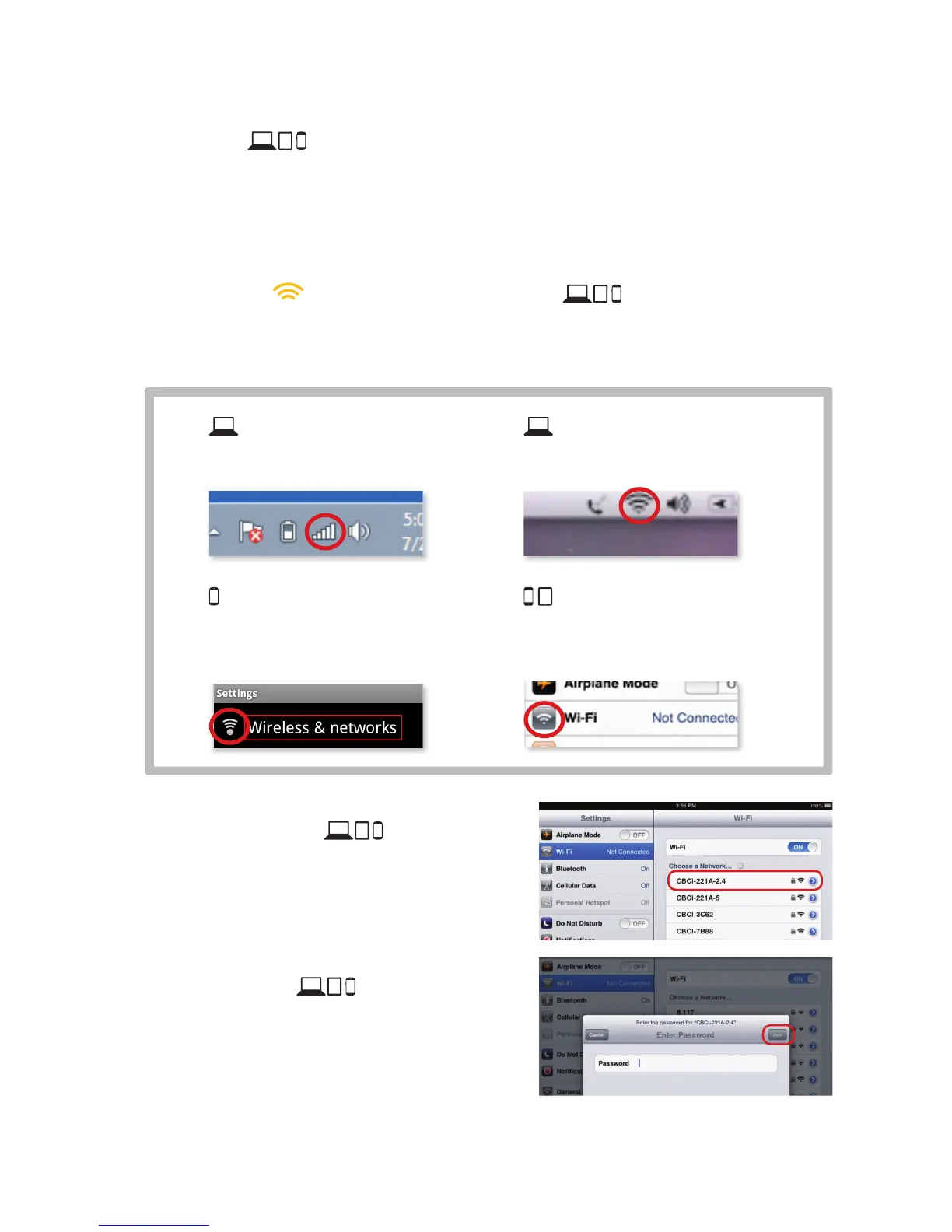
Directions to access the WiFi settings for popular operating systems are below. If your
operating system is not listed, refer to the manufacturer’s guides.
Windows
On your Windows
®
Desktop,
click the Wireless Network icon.
Android
From the Apps screen, tap the
Settings icon. Tap Wireless &
Networks, then WiFi Settings.
Apple Mac OS X
On your Mac
®
Desktop, click
the WiFiicon.
Apple iOS
(iPad, iPhone, iPod Touch…)
From the Home Screen, tap the
Settings icon. Tap the WiFi icon.
B. Select the 2.4 GHz Network Name (SSID)
on your WiFi device .
Under the WiFi settings, the list of available
networks should appear. Select your
business network (such as CBCI-XXXX-2.4)
from Step1.
C. Enter the Network Key (Password) on
your WiFi device .
When prompted, enter the case-sensitive
Network Key (Password) from Step 1. Tap the
confirmation button—usually labeled Join,
Connect, or OK.
This Quick Start Guide will help you:
Step 1. Find Your Default Wireless Network Info
Step 2. Connect to your Private WiFi network
Step 3. Connect to your Xfinity WiFi Hotspot
Step 4. Log In and Secure the Admin Tool


 To Next Page