This document is a user manual for the XClass TV, a smart television designed to offer a streamlined and personalized viewing experience. The XClass TV aims to reduce the frustration often associated with finding content by providing quick-loading apps, a voice remote for cross-app searching, and a centralized home screen that displays all your favorite applications and recently watched programs. It also offers personalized recommendations based on viewing habits, making content discovery effortless and enjoyable.
Function Description
The XClass TV serves as a central entertainment hub, allowing users to access a wide range of content and connect various external devices. Its core functions include:
- Smart TV Capabilities: When connected to the internet, the XClass TV provides access to a variety of smart features, including popular streaming applications like Netflix, YouTube, Disney+, Peacock, Hulu, and Prime Video. It organizes content into categories like "Movies and TV" to help users discover trending titles and genres.
- Live TV Viewing: The TV can receive live television channels when connected to an antenna, offering a traditional broadcast viewing experience alongside streaming options.
- External Device Connectivity: The XClass TV supports connections for various external devices, including media players, gaming systems, cable boxes, and sound systems, through multiple input ports such as HDMI, composite video (AV IN), and a headphone jack.
- Voice Control: The included voice remote allows users to search for content across apps, control TV functions, and navigate the interface using voice commands, enhancing ease of use.
- Personalization: The TV learns user preferences and provides personalized recommendations, ensuring a tailored viewing experience.
- Accessibility Features: The XClass TV includes several accessibility options to cater to diverse user needs, such as closed captions, audio description, voice guidance, and text magnification.
Usage Features
The XClass TV is designed for intuitive and convenient use, offering several features to enhance the user experience:
- Easy Setup: Upon first power-on, the TV guides users through a step-by-step setup process, including connecting to the internet and configuring external devices.
- Voice Remote: The remote features a dedicated voice control button, allowing users to simply press and hold the button, speak a command (e.g., "Live TV," "Free Movies," "Comedies," "Home screen," "Settings"), and release to execute. This simplifies navigation and content search.
- Navigation Pad and Select Button: A central navigation pad with a "Select" button enables users to move through menus and confirm selections.
- App Shortcuts: Dedicated app shortcut buttons on the remote provide quick access to popular streaming services when the TV is connected to the internet.
- Input Switching: The "Input" button on the remote allows users to easily switch between connected devices, such as gaming consoles or media players. Voice commands can also be used to switch inputs by saying the input's name.
- Home Screen Navigation: The "Home" button returns users to the main home screen, which displays recently watched titles, popular apps, grouped movies and TV shows, live TV channels, and recently used inputs.
- Quick Settings: A "Settings" button on the remote provides quick access to frequently used settings like closed captions and other recently accessed options. Pressing it twice can access an accessibility shortcut.
- Picture and Sound Customization: Users can adjust picture settings (preset modes or custom) and sound preferences (sound quality, TV speakers, etc.) to optimize their viewing and listening experience. Dolby Vision alerts are also available.
- Parental Controls: The TV offers robust parental control features, allowing users to set viewing restrictions based on ratings, create and manage PINs for purchases and restricted content, and reset parental control settings.
- Screen Saver: Users can manage screen saver settings, including previewing different screen savers, setting the inactivity time before the screen saver activates, and setting a sleep timer for the TV to turn off.
- Mobile Device Control: Through the XClass TV app, users can pair a mobile device to control the TV, offering an alternative to the physical remote.
- Time, Weather, Location Settings: Users can customize time format, time zone, and temperature units for weather displays.
Maintenance Features
The XClass TV includes features and guidelines to help users maintain the device and troubleshoot common issues:
- Battery Management for Remote: The manual provides clear instructions for inserting and replacing batteries in the remote, along with important safety warnings regarding battery handling, mixing old and new batteries, and proper disposal. It also advises on removing batteries if the remote won't be used for a while and to contact the manufacturer if the remote gets warm.
- Remote Resetting: Instructions are provided for resetting the remote, which can help resolve most issues. This involves a specific button combination and LED indicator sequence.
- Factory Reset: Users can restore the TV to its factory settings, which clears current settings and personal data. This is recommended when selling, returning, or giving away the TV. A parental control PIN must be entered if one is set.
- Software Updates: The TV supports automatic software updates when connected to the internet. For offline scenarios or troubleshooting, users can manually update the software by visiting a specified website to download and install updates via USB.
- Power Management: The TV automatically shuts off after 15 minutes of inactivity if tuned to a live channel or an input with no signal. Users are also reminded that the TV consumes some power even when off, and to disconnect the power cord for a complete power cut. Power preferences include a power saver mode to set the TV to sleep after 4 hours of inactivity.
- Troubleshooting Resources: The manual directs users to an online support page (xclasstv.com/support) for the latest information on common issues and solutions, providing a resource for self-help.
- Input Customization: Users can customize input names or icons to make them easier to identify, improving organization and usability when multiple devices are connected.
- HDMI-CEC Control: The HDMI-CEC feature allows connected devices to control each other, simplifying operation. Users can enable or disable this feature as needed.
- Restart Option: The "Restart" option in power preferences allows users to turn the TV off and on again, which can often solve common issues without a full factory reset.

 Need help?
 General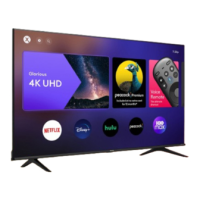

 To Next Page
