7
Navigating your home screen
When you rst turn on your TV, you’ll get step-by-step instructions on how to set it
up. Once you’re done, you’ll be directed to the home screen. You can also return
to the home screen at any time by pressing the home button on your remote.
If your TV is connected to the Internet, you can also go home by pressing and
holding the voice control button on your remote and saying “Home screen”
or “Home.”
Navigating your home screen when your TV is online
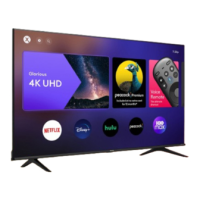
When your TV is connected to the internet, your home screen gives you access to:
• Launchpad: Your recently watched titles and recently used inputs
• Popular apps: Fan-favorite apps like Netix, YouTube, Disney+, Peacock,
Hulu, and Prime Video
• Movies and TV: Grouped titles so you can see what’s trending, the hottest
movies by genre, and more
• Live TV: Channels you get if your TV is connected to an antenna
• Inputs: Recently used inputs such as HDMI or Composite Video
Navigating your home screen when your TV is oine
When your TV is not connected to the Internet, your home screen gives you
access to:
• Live TV: Channels you get if your TV is connected to an antenna
• Inputs: Recently used inputs such as HDMI or Composite Video


 To Next Page
