Basic troubleshooting
Setting up your Wi-Fi connection
NOTE: If you would like to connect via Wi-Fi
network, you will need to ensure the network
is secure. This means that Wi-Fi must be
password protected and not publicly shared.
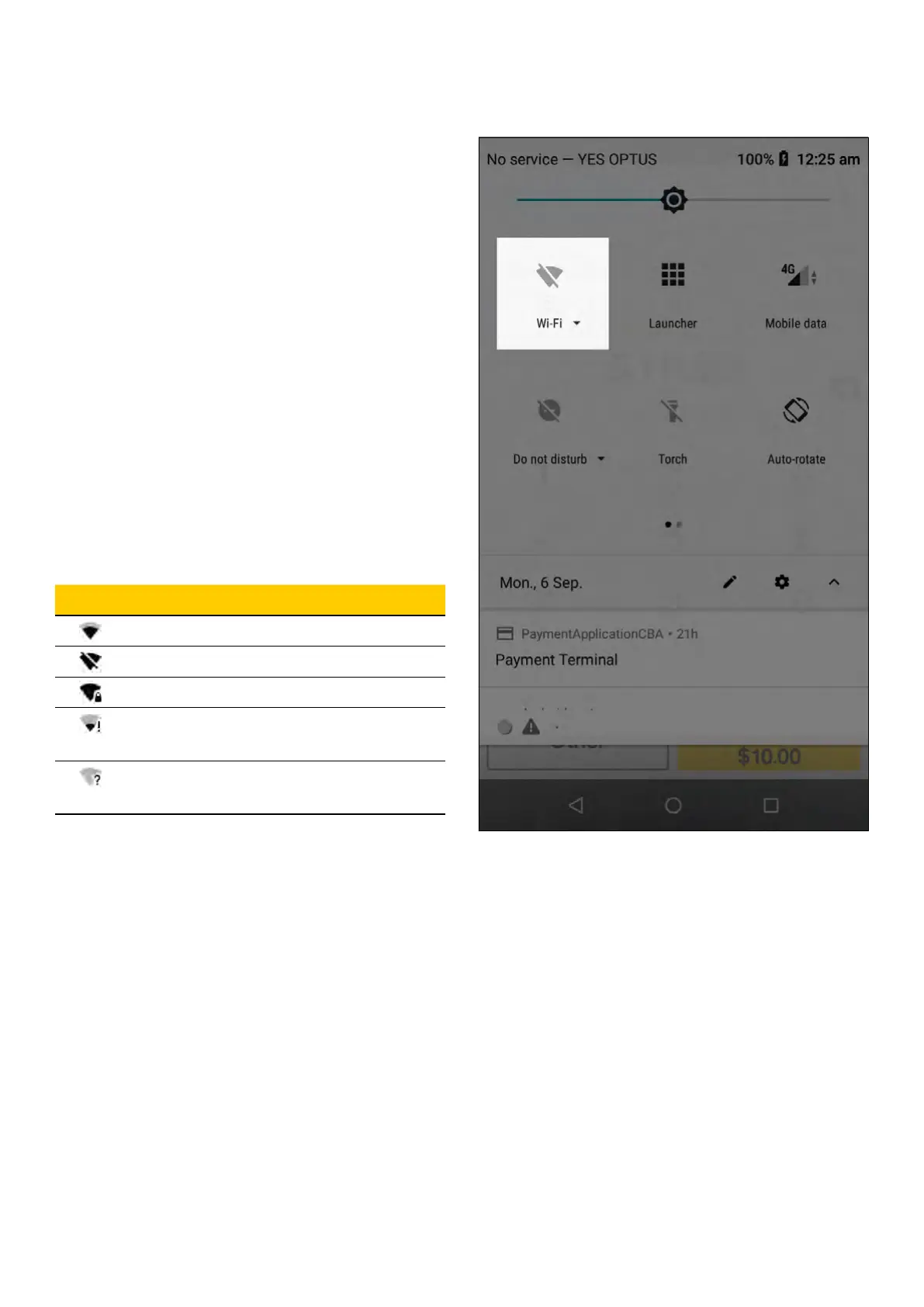
1. Put your finger on the top of the screen and
drag your finger down the screen
2. Do this twice
3. This displays the large icons – Select fan
symbol to navigate to Wi-Fi setup
4. Press and hold the Wi-Fi icon
5. Find or scan
6. Select the appropriate Wi-Fi network
7. Enter password
8. Check Wi-Fi strength by looking at top left
corner of screen and check fan strength
Wi-Fi Description
Icon indicates strength of signal
Wi-Fi is disabled
Wi-Fi network is password protected
Wi-Fi is connected but does not have
internet access
Terminal has detected Wi-Fi networks
but is not currently connected
29 Commonwealth Bank of Australia | Smart User Guide



 To Next Page