Need help?
Do you have a question about the conceptD 7 Ezel and is the answer not in the manual?
Instructions on how to register your ConceptD product online to manage your device and access support.
Essential advice on maintaining the computer, including proper shutdown and handling to prevent damage.
Important precautions and best practices for charging, using, and storing the laptop battery to maximize lifespan and safety.
Information regarding the built-in rechargeable battery, emphasizing professional replacement and proper charging instructions.
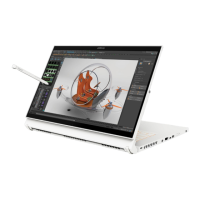
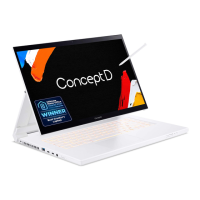
Description of the Ezel Hinge feature allowing the display to flip into six different modes for versatile usage.
Procedure for creating backups of personal files and system drivers using Acer Care Center for data protection.
Methods to restore the PC to its default state, either keeping files or removing everything for a fresh start.
Detailed steps to completely reset the PC, removing all personal files, apps, and settings to factory defaults.
Guide on connecting to available wireless networks by selecting the network and entering the password if required.
Enabling and configuring the Bluelight Shield feature to reduce blue light emissions and protect eye strain.
Methods to protect the computer using hardware security locks like Kensington locks and software-based password protection.
Explanation of different password types (Supervisor, User, Boot) for securing BIOS, system access, and data.
Step-by-step guide to set up and use the fingerprint reader for Windows Hello sign-in and device unlocking.
Strategies to prolong battery life, including using AC power, managing accessories, and proper storage conditions.
Troubleshooting steps for power issues, including checking the AC adapter, battery level, and connected USB devices.
Solutions for a blank screen, such as adjusting brightness, checking display output, or resuming from sleep mode.
Process for restoring the computer to its original factory settings, including warnings about data loss and BIOS checks.
Information on how to request technical support, required details for service calls, and warranty information.
General advice on diagnosing and resolving common system problems using onscreen error messages and dealer support.
A table listing common error messages and their corresponding corrective actions for diagnosis and resolution.
Initial guidance for internet usage, including protecting the computer, choosing an ISP, and understanding connection types.
Importance of security software like Norton Security for protecting against viruses, malware, and cyber threats.
 General
| Processor | Intel Core i7-10875H |
|---|---|
| Storage | 1TB NVMe SSD |
| Operating System | Windows 10 Pro |
| Display | 15.6" 4K (3840 x 2160) IPS, PANTONE® Validated |
| RAM | 32GB DDR4 |
| Ports | 1 x HDMI, 1 x SD Card Reader |
| Wireless | Wi-Fi 6 (802.11ax), Bluetooth 5.0 |
| Graphics | NVIDIA GeForce RTX 2080 Super Max-Q |

 To Next Page