Conceptronic C54BRS4A User Manual
10
4. Keep the Wireless Broadband Router away (at least 1-2 meters) from electrical devices:
Position wireless devices away from electrical devices that generate RF noise such as micro-
wave ovens, monitors, electric motors, etc.
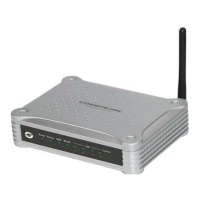
5. Position antenna for best reception:
Adjust the antenna position to see if the signal strength improves. Some adapters or access
points allow the user to judge the strength of the signal. Use this method, if available, to test
signal strength.
WAN Connection
Use a LAN Cable to connect the C54BRS4A to your Broadband Gateway (Cable Modem, DSL Modem,
Fiber Gateway, etc.)
The WAN LED on the front side of the C54BRS4A will turn on.
Note:
If the WAN LED on the front side does not turn on, make sure that:
- The C54BRS4A is powered (the Power LED should burn).
- The Broadband Gateway is turned on.
- The LAN cable between both devices is connected correctly.
LAN / Wireless LAN Connection
For LAN Cable Users:
Connect the LAN Cable to 1 of the 4 LAN ports on the back panel of the C54BRS4A and to the
Network Card in your computer.
The LAN LED of the used LAN port will turn on, indicating that the computer is connected. (Your
LAN Connection must be enabled and your computer turned ON).
For Wireless Users:
Almost every brand/type Wireless Card uses a different Client application. Please check the manual
of your Wireless Card for information how to create a connection with a Wireless Network.
The example below is using the standard Microsoft Wireless Client, which is integrated in Windows
XP with Service Pack 2.


 To Next Page